Slack Integration
Bring time tracking into Slack — send daily prompts, let team members log hours without leaving Slack, and check progress with slash commands. Covers setup, daily prompts and reporting.
- Overview
- How to Install the Slack Integration
- Mapping Team Members to Slack Users
- Configuring Daily Time Tracking Prompts
- Slack Slash Commands
Overview
The Slack integration connects your Invup organization to a Slack workspace, bringing time tracking directly into the tool your team already uses every day. Instead of switching to a separate app to log hours, team members receive a daily prompt in Slack and can record their time without leaving the conversation.
What the Integration Does
Once connected, the Slack integration provides three core capabilities:
Daily Time Tracking Prompts
Every working day at a time you choose, each linked team member receives a direct message in Slack listing the projects they're assigned to. From that message, they can log time entries — selecting a project, choosing a service (if applicable), and entering their hours — all without opening the Invup web app.
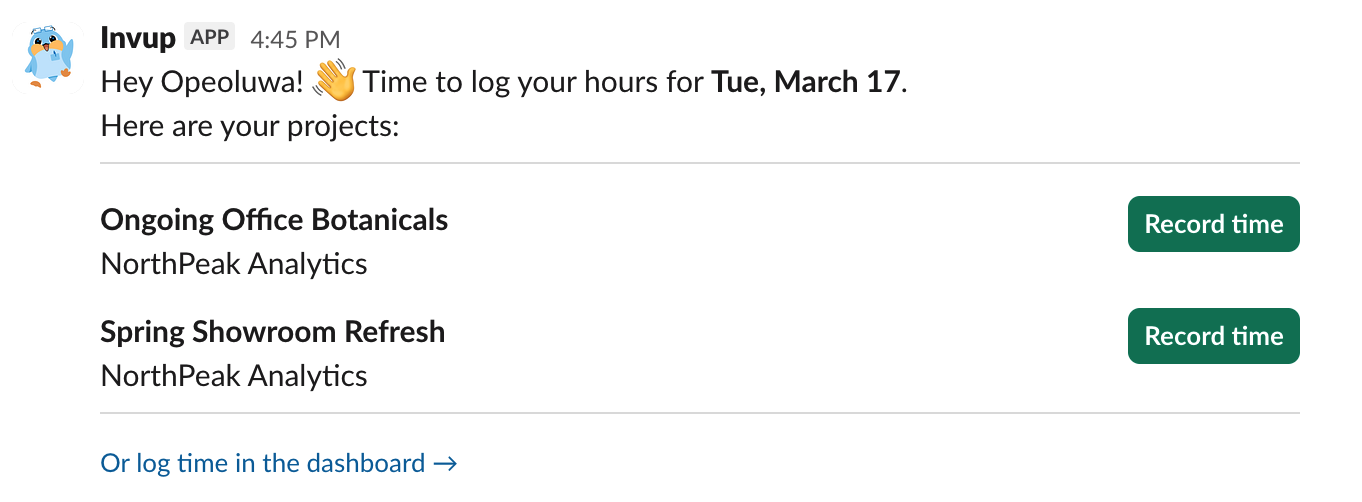
The prompt is tailored to each team member — it only shows the projects they're assigned to. If a project uses services, a dropdown lets them pick the right service. If they've already logged time for a project that day, the prompt updates to show what's been recorded.
Slash Commands for Reports
Team members can check their time tracking progress using the /invup slash command directly in Slack:
| Command | What it shows |
|---|---|
/invup help |
List of available commands |
/invup report |
This week's time summary |
/invup report last-week |
Last week's summary |
/invup report march |
A specific month's summary (any month name works) |
Reports include total hours, a project-by-project breakdown with percentages, and a count of how many working days had logged time.

Interactive Time Entry
When a team member clicks a button or selects a service from the daily prompt, a modal opens where they can enter their time. The modal includes fields for hours, minutes, and an optional description. After submitting, the prompt message updates in place to reflect the new entry.

Who Can Set It Up
Only owners and admins can install, configure, or disconnect the Slack integration. Team members and contributors cannot access the integration settings.
To connect your workspace, go to Settings > Integrations > Slack and click Connect to Slack. You'll be redirected to Slack to authorize the connection.
What Team Members Experience
Once the integration is connected and team members are linked (matched by email address), here's what they experience:
- A daily DM arrives at the configured prompt time (default: 4:45 PM in your organization's timezone) on working days.
- The message lists their assigned projects with buttons to log time.
- Clicking a button opens a quick modal to enter hours, minutes, and an optional description.
- After submitting, the prompt updates to show the logged entry.
- They can use
/invup reportat any time to check their progress.
Team members don't need to do anything to set up the integration — it's handled by an admin, and linking happens automatically by matching email addresses between Invup and Slack.
Contributors and Slack
Contributors who are linked to Slack manage their time tracking exclusively through Slack. Their daily prompts and slash commands work the same way as for other team members.
How Team Members Are Linked
When the integration is installed, Invup automatically matches team members to Slack users by comparing email addresses. If a team member's Invup email matches a Slack user's email, they're linked automatically.
This linking also happens when:
- A new team member is added to your Invup organization
- A new user joins your Slack workspace
Admins can view the linking status on the integration settings page, which shows how many team members are mapped, and which ones aren't (usually because their emails don't match between the two systems).
Prerequisites
Before setting up the Slack integration, you need:
- A Slack workspace that your team uses
- Owner or Admin role in Invup — team members and contributors cannot install the integration
- Matching email addresses between Invup team members and Slack users (for automatic linking)
Each Slack workspace can only be connected to one Invup organization. If your workspace is already connected to a different organization, you'll need to disconnect it there first.
Key Settings
Once connected, you can configure:
| Setting | Where | Default |
|---|---|---|
| Daily prompt enabled | Organization settings | On |
| Prompt time | Organization settings | 4:45 PM (organization timezone) |
| Working days | Organization settings | Monday – Friday |
The prompt time uses your organization's timezone, so if your organization is set to Eastern Time and the prompt is at 4:45 PM, all team members receive it at 4:45 PM ET regardless of where they are.
What's in This Book
| Page | Description |
|---|---|
| Overview (this page) | What the Slack integration does and who can set it up |
| Setting Up the Slack Integration | Step-by-step guide to connecting your Slack workspace |
| Daily Prompts | How daily time tracking prompts work, how to configure timing and working days |
| Slash Commands | Available commands and report formats |
How to Install the Slack Integration
This guide walks through connecting your Invup organization to a Slack workspace, what happens after installation, and how to disconnect if needed.
Prerequisites
Before you begin, make sure you have:
- Owner or Admin role in Invup — team members and contributors cannot install the integration.
- A Slack workspace your team uses. You'll need permission to authorize apps in that workspace (Slack workspace admin access may be required depending on your workspace settings).
- Matching email addresses — Invup matches team members to Slack users by email. For automatic linking to work, your team members' email addresses in Invup should match their Slack emails.
Each Slack workspace can only be connected to one Invup organization. If the workspace is already connected elsewhere, you'll need to disconnect it from that organization first.
Step-by-Step Installation
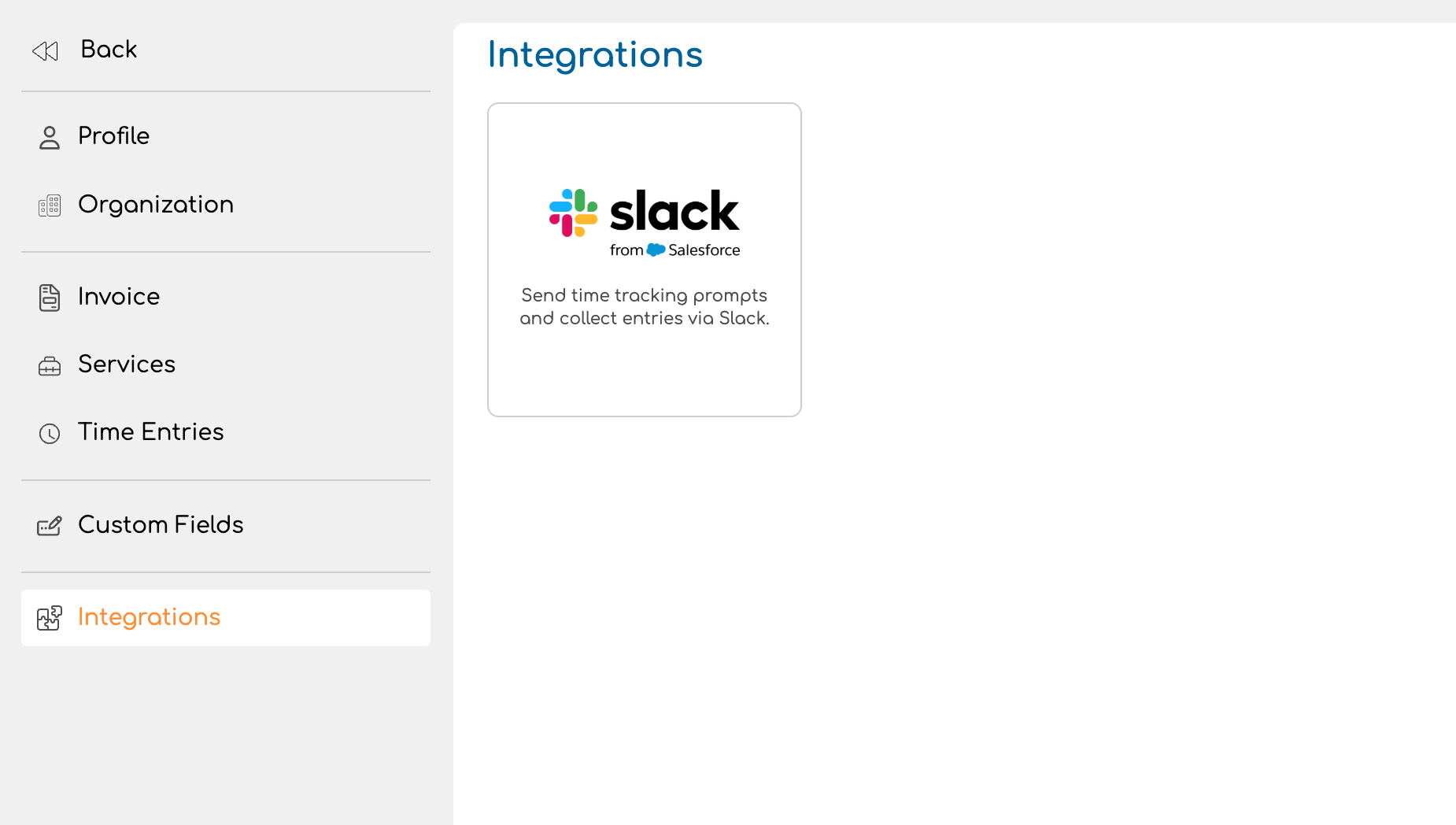
1. Navigate to the Slack integration page
Go to Settings > Integrations and click on the Slack card.
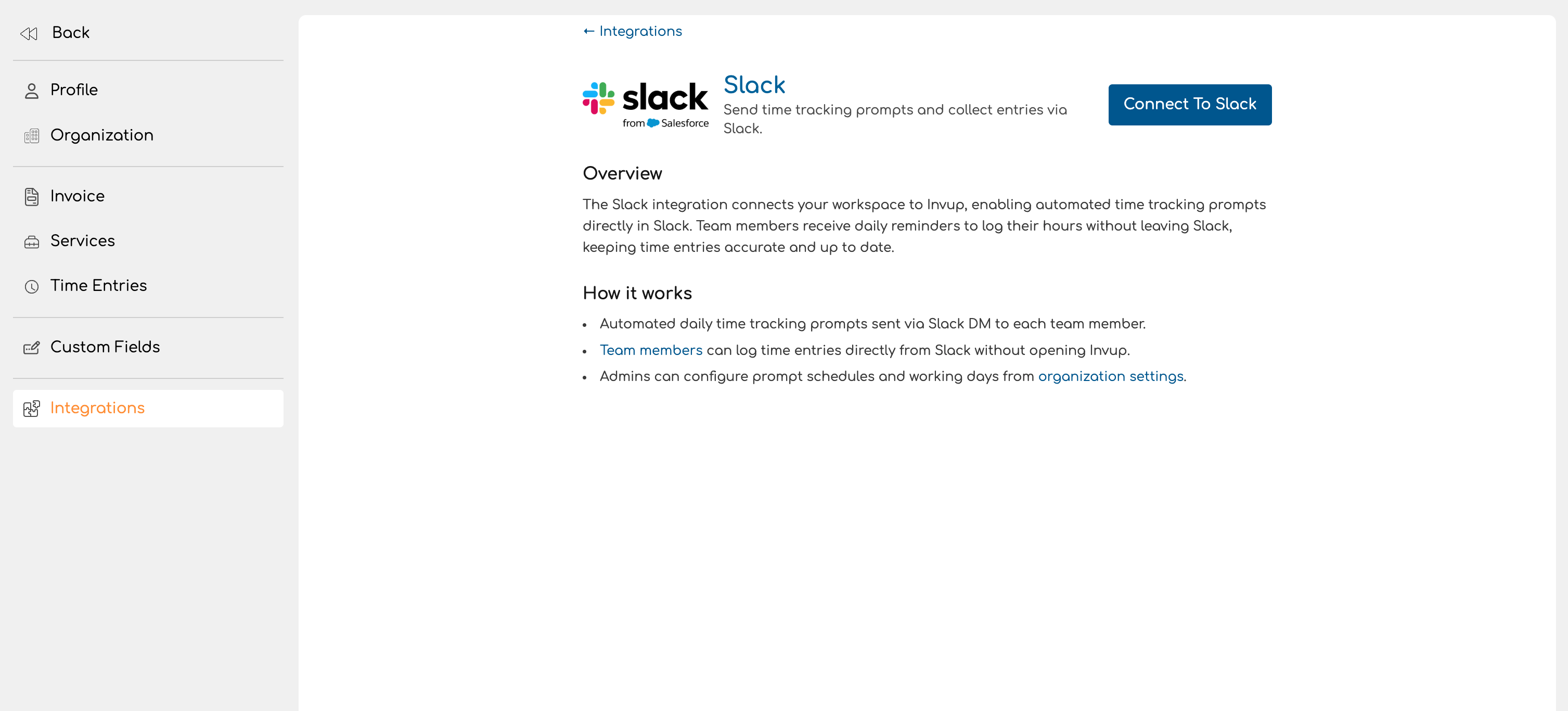
2. Click "Connect to Slack"
On the Slack integration detail page, click the Connect to Slack button in the top-right corner. You'll be redirected to Slack's authorization screen.
3. Authorize Invup in Slack
Slack displays an authorization screen asking you to approve Invup's access to your workspace. Review the permissions being requested and click Allow.
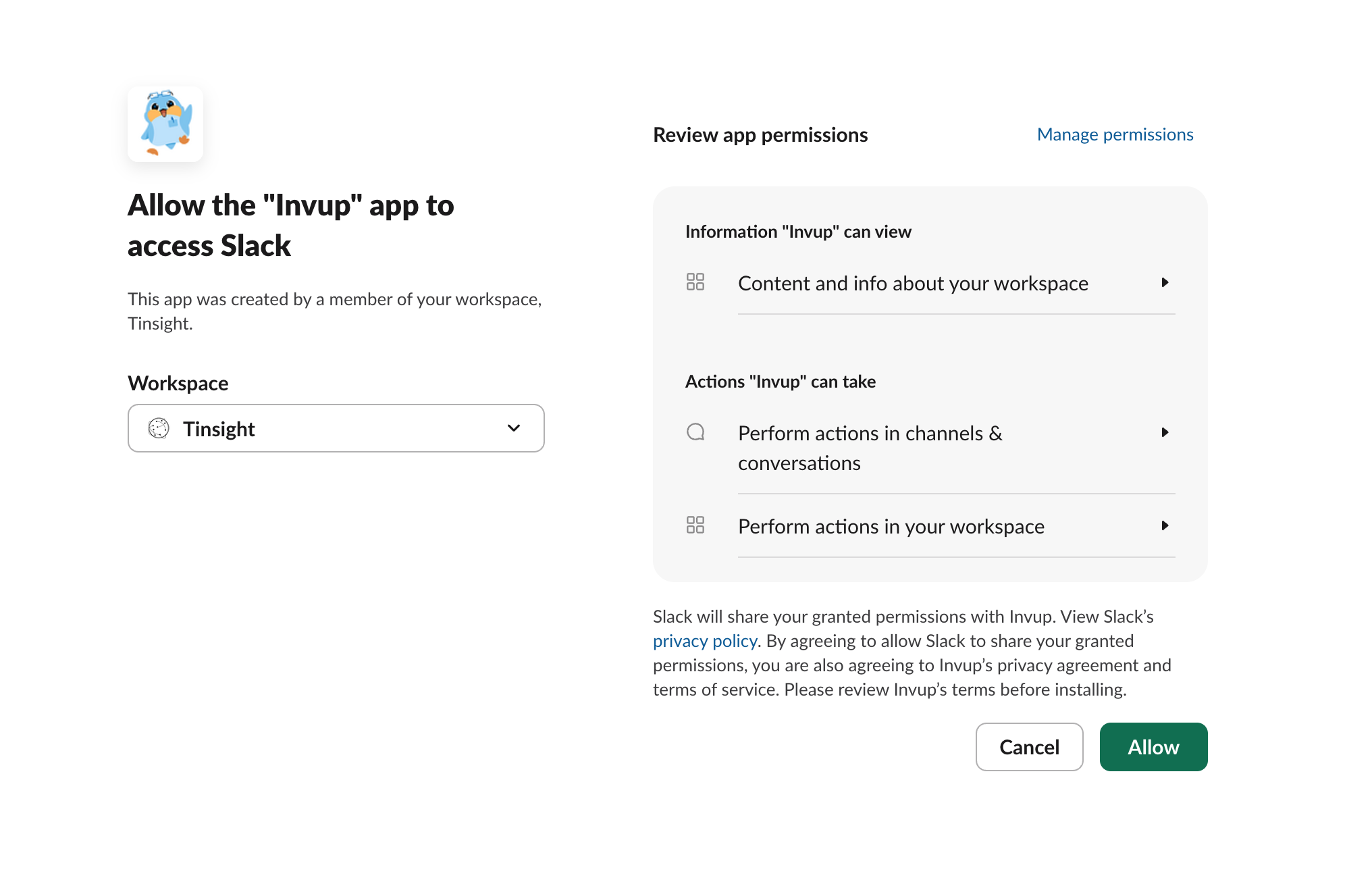
The permissions Invup requests allow it to:
- Send direct messages to team members (for daily time tracking prompts)
- Read user profiles and email addresses (to match team members between systems)
- Respond to slash commands (for the
/invupreport command)
4. Confirm the connection
- Workspace — the name of the connected Slack workspace
- Connected by — who installed the integration
- Connected on — the installation date
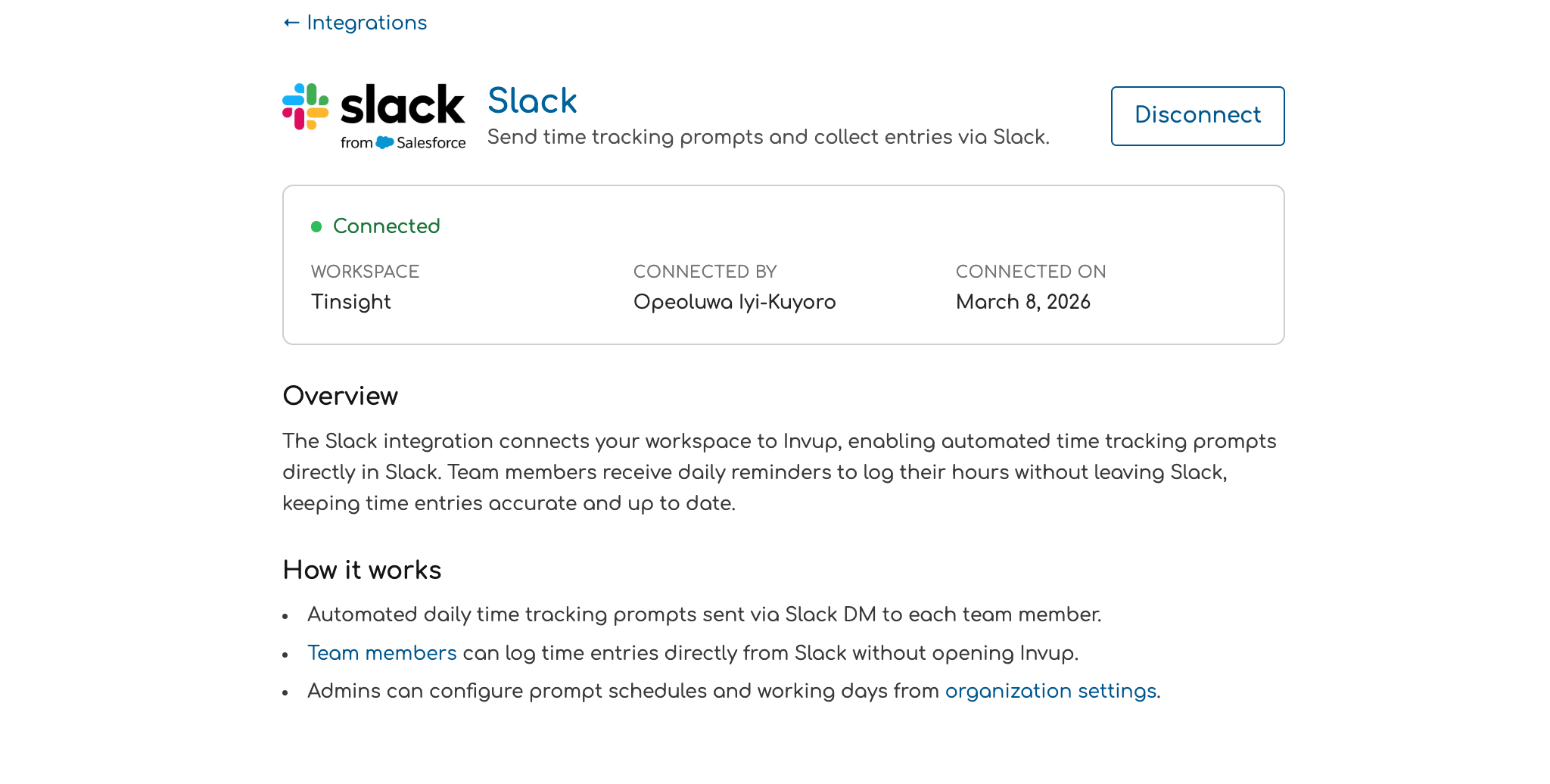
A success notification confirms the workspace is connected.
What Happens After Installation
Team member linking
Immediately after connecting, Invup automatically matches your team members to Slack users by comparing email addresses. If a team member's email in Invup matches a Slack user's email, they're linked and will start receiving daily prompts.
This linking continues automatically:
- When you add a new team member to your Invup organization, Invup looks them up in Slack by email.
- When a new user joins your Slack workspace, Invup checks if they match an existing team member.
Daily prompts begin
Once team members are linked, they'll start receiving daily time tracking prompts at the configured time (default: 4:45 PM in your organization's timezone). You can adjust the prompt time and working days in Settings > Organization.
What to check
After installation, verify the following:
- Go to the integration page and confirm the workspace name is correct.
- Check team member linking — the integration page shows how many team members are mapped. If some aren't linked, their Invup and Slack emails likely don't match.
- Adjust prompt settings — go to Settings > Organization to configure the prompt time and which days of the week prompts are sent.
Disconnecting the Integration
If you need to remove the Slack integration:
- Go to Settings > Integrations > Slack.
- Click the Disconnect button in the top-right corner.
- A confirmation dialog appears: "This will stop all Slack time tracking prompts for your organization. Are you sure?"
- Confirm to disconnect.
Disconnecting:
- Stops all daily prompts — team members will no longer receive Slack DMs.
- Unlinks all team members — Slack user mappings are cleared.
- Revokes the bot token — Invup can no longer access your Slack workspace.
- Preserves existing time entries — any time entries already logged through Slack remain in Invup.
You can reconnect the same workspace at any time by following the installation steps again.
Troubleshooting
"Connect to Slack" redirects but nothing happens
Make sure you have permission to authorize apps in your Slack workspace. Some workspaces restrict app installation to Slack workspace admins. Ask your Slack administrator to approve the Invup app.
Team members aren't linked after installation
Invup matches by email address. If a team member's Invup email doesn't match their Slack email, they won't be linked automatically. Update the email in either system so they match, and the next sync will link them.
Workspace is already connected to another organization
Each Slack workspace can only be connected to one Invup organization. If you see an error about the workspace being in use, the workspace must be disconnected from the other organization first.
Mapping Team Members to Slack Users
For the Slack integration to send daily prompts and accept time entries, Invup needs to know which Slack user corresponds to which team member. This connection is called mapping, and it happens automatically — Invup matches team members to Slack users by comparing email addresses.
Why Mapping Is Needed
When Invup sends a daily time tracking prompt, it needs to know which Slack user to message. Mapping creates the link between a team member's Invup account and their Slack account. Without this link, the team member won't receive prompts and can't log time through Slack.
How Automatic Mapping Works
Invup maps team members to Slack users by matching email addresses. When a team member's email in Invup matches a Slack user's email in the connected workspace, they're linked automatically.
This happens at three points:
1. On installation
When you first connect your Slack workspace, Invup immediately syncs all Slack users and matches them to your team members by email. Most of your team should be mapped within seconds of connecting.
2. When a new team member is added to Invup
When you add a new team member to your organization, Invup looks up their email in the connected Slack workspace. If a matching Slack user is found, the mapping is created automatically.
3. When a new user joins the Slack workspace
When someone joins your Slack workspace, Invup checks if their email matches an existing team member. If it does, the mapping is created automatically.
Checking Mapping Status
On the Slack integration page
Admins and owners can view the mapping summary on the Slack integration settings page (Settings > Integrations > Slack). This shows the total number of team members, how many are mapped, and how many are unmapped.
On the team member list
For contributors, the team member list (Settings > Organization > Team) shows a mapping badge next to each contributor's role:
- Matched (green) — the contributor is linked to a Slack account and will receive prompts.
- Unmatched (gray) — the contributor hasn't been matched yet. They'll be matched automatically on the next sync.
Hovering over the badge shows a tooltip explaining the status.
What Happens When a Team Member Isn't Mapped
If a team member isn't mapped to a Slack user:
- They won't receive daily time tracking prompts in Slack.
- They can't use the
/invupslash command (Slack won't recognize them as an Invup user). - They can still log time through the Invup web app as normal.
The most common reason for an unmapped team member is a mismatched email address — their email in Invup doesn't match their email in Slack.
Fixing Unmapped Team Members
Since mapping is automatic and email-based, the fix is to make the emails match:
Option A: Update the email in Invup Go to Settings > Organization > Team, find the team member, and update their email to match their Slack email. A note reminds you: "Changing the email may require Slack to re-sync the mapping."
Option B: Update the email in Slack Have the team member (or a Slack admin) update their Slack profile email to match their Invup email.
After either change, the mapping will be picked up on the next automatic sync.
Re-syncing the Slack User List
In most cases, mapping happens automatically and no manual action is needed. However, if you've made email changes and want to trigger a fresh sync, disconnecting and reconnecting the Slack workspace will re-run the full sync. See How to Install the Slack Integration for steps.
Edge Cases
Team member isn't in Slack
If a team member doesn't have a Slack account in your workspace, they can't be mapped. They'll remain unmapped and won't receive Slack prompts. They can still use the Invup web app to log time normally.
Team member has a different email in Slack
Mapping depends on email addresses matching exactly. If someone uses jane@company.com in Invup but jane.doe@company.com in Slack, the mapping won't work. Update one of the emails so they match.
One Slack workspace, multiple Invup organizations
Each Slack workspace can only be connected to one Invup organization. If you have multiple organizations, you'll need separate Slack workspaces for each.
Team member changes their email
If a team member changes their email in either Invup or Slack, the existing mapping may become invalid. After the change, the next sync will attempt to re-match using the new email. If the emails no longer match, the team member will become unmapped.
Configuring Daily Time Tracking Prompts
Daily prompts are automated Slack direct messages that remind each team member to log their hours. Every working day at a scheduled time, each linked team member receives a message listing their assigned projects with buttons to record time — right inside Slack.
This page covers how prompts are configured, what team members see, and how they interact with the prompt to log time.
How Daily Prompts Work
Each working day, Invup checks which team members are linked to Slack and assigned to at least one project. At the configured prompt time, it sends each eligible team member a direct message listing their projects. The team member can then log time entries directly from that message.
Who receives prompts
A team member receives a daily prompt when all of the following are true:
- Their Invup account is linked to a Slack user (matched by email)
- Their status is active
- They're assigned to at least one project (either directly or through a service)
- Daily prompts are enabled for the organization
If any of these conditions aren't met, the team member won't receive a prompt. For help with linking, see Mapping Team Members to Slack Users.
Configuring Prompt Settings
Daily prompt settings are managed in Settings > Organization, under the Schedule Settings section.
Timezone
The Timezone setting determines when prompts are sent. Prompts are delivered at the scheduled time in your organization's timezone. For example, if your organization is set to America/New_York and the prompt time is 4:45 PM, all team members receive their prompt at 4:45 PM Eastern — regardless of where they personally are located.
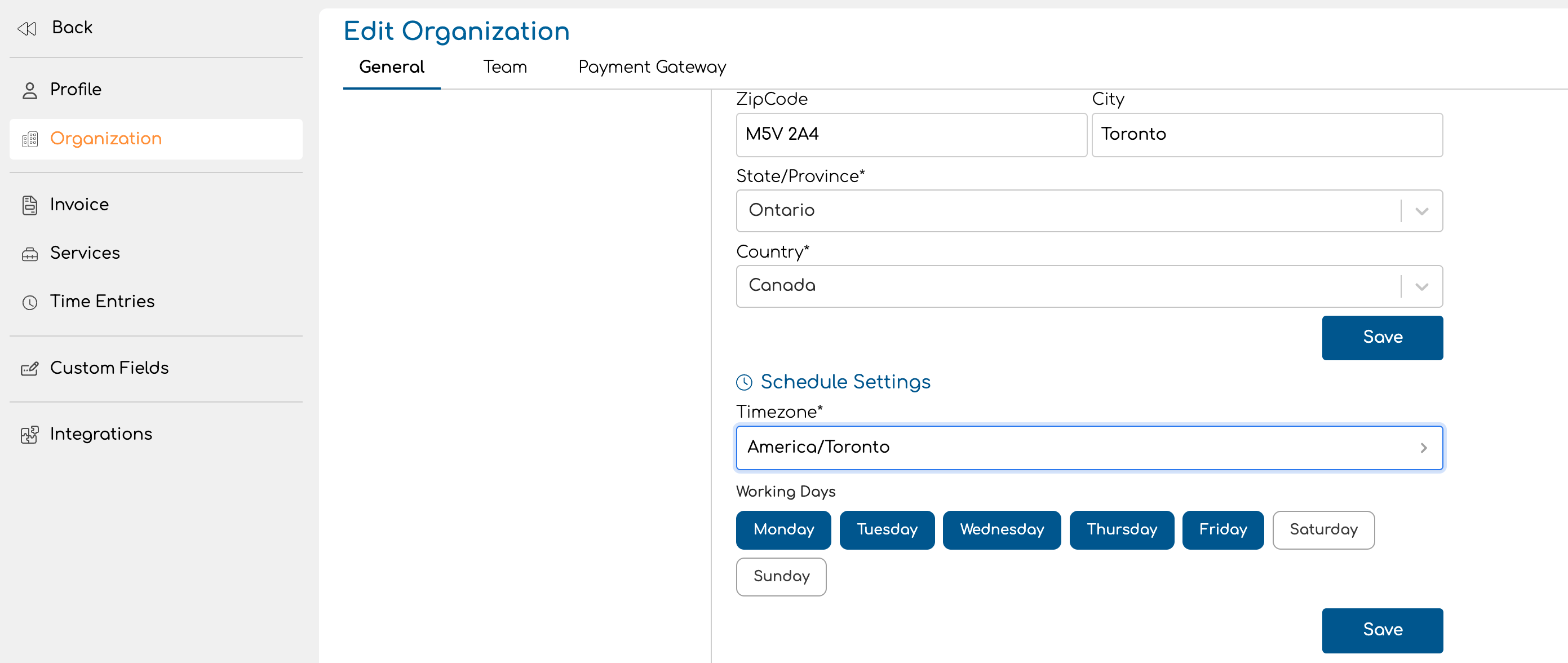
Working Days
The Working Days setting controls which days of the week prompts are sent. By default, Monday through Friday are selected. Click a day to toggle it on or off. At least one working day must be selected.
Prompts are only sent on working days. If Saturday and Sunday are not selected (the default), no prompts go out on weekends.
This setting also affects the /invup report slash command — the "logged X of Y working days" count in reports is based on these configured days.
Prompt Time
Prompts are sent at 4:45 PM in your organization's timezone by default. This time is designed to catch team members before the end of the workday so they can log hours while the day's work is fresh.
What the Prompt Looks Like
When a team member receives a daily prompt, the message includes:
- A greeting with the team member's first name and the date
- A list of assigned projects, each with its own action:
- Non-service projects: A Record time button (or Edit time with a checkmark and duration if time has already been logged)
- Service-based projects: A dropdown to select a service (each option shows a checkmark and duration if already logged)
- Locked projects: A lock icon with the unlock date — the button is disabled
- A dashboard link (for non-contributor team members) to log time in the web app instead
How client names appear
If a project is linked to a client, the client name appears below the project name in the prompt — helping team members identify which project to log time to when they work with multiple clients.
How Team Members Interact with the Prompt
Logging time on a non-service project
- Click the Record time button next to the project.
- A modal opens with fields for Hours, Minutes, and an optional Description.
- Fill in the duration and click Submit.
- The prompt message updates in place — the button now shows Edit time with a checkmark and the logged duration.
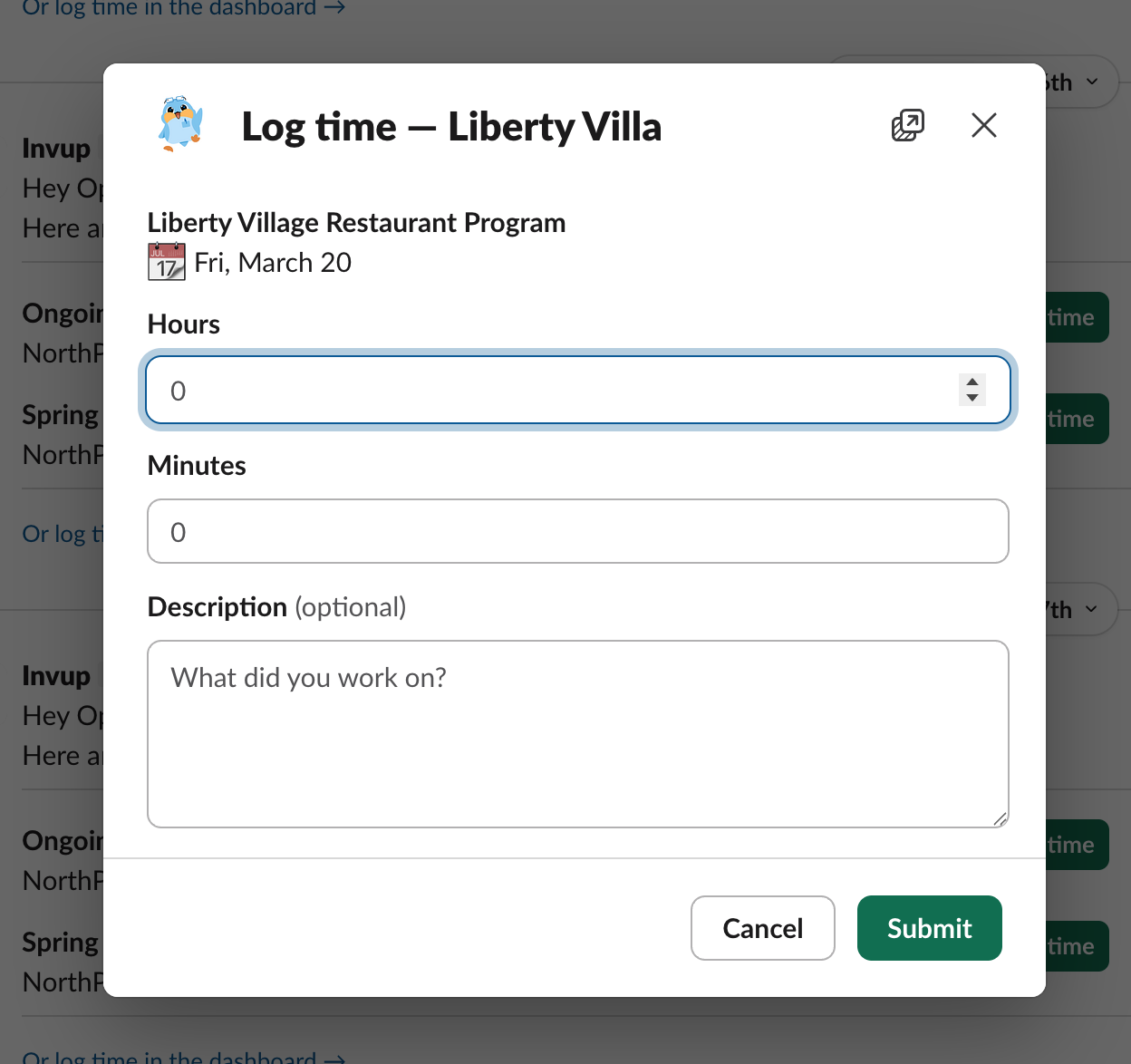
Logging time on a service-based project
- Select a service from the dropdown next to the project.
- A modal opens with the project name, service name, and the same duration and description fields.
- Fill in the duration and click Submit.
- The dropdown updates — the selected service now shows a checkmark and the logged duration.
Editing an existing entry
If time has already been logged for a project (or a specific service), the button or dropdown option shows a checkmark with the duration. Clicking it opens the same modal, pre-filled with the existing values. Update the hours, minutes, or description and click Submit to save the changes.
Locked projects
If a project's date falls within its lock period, the prompt shows a lock icon and the unlock date. Clicking the button displays a message explaining that the project is locked. Team members cannot log time to locked projects through Slack — admins can still log time through the web app.
What Happens If a Prompt Fails
If a prompt can't be delivered (for example, because of a temporary Slack outage), Invup retries automatically with increasing delays. If all retries are exhausted, the prompt for that day is marked as failed. The team member won't receive it, but this doesn't affect future days — the next working day's prompt will be sent as normal.
Failed prompts don't require any action from admins. If a pattern of failures occurs, check that the Slack integration is still connected in Settings > Integrations > Slack.
Summary
| Setting | Where to configure | Default |
|---|---|---|
| Timezone | Settings > Organization > Schedule Settings | EST |
| Working Days | Settings > Organization > Schedule Settings | Monday – Friday |
| Prompt Time | Default (not configurable in UI) | 4:45 PM (organization timezone) |
| Daily Prompts Enabled | Enabled automatically when Slack is connected | On |
Slack Slash Commands
The /invup slash command lets you check your time tracking progress directly in Slack. You can pull up summaries for the current week, last week, or any month — without opening the Invup web app.
All commands are visible only to you (they don't post to the channel).
Quick Reference
| Command | What it does |
|---|---|
/invup help |
Shows all available commands |
/invup report |
This week's time summary |
/invup report this-week |
This week's time summary (same as above) |
/invup report last-week |
Last week's time summary |
/invup report [month] |
A specific month's time summary |
/invup help
Shows the list of available commands with their syntax.
Example:
/invup help
Response:
Available commands:
/invup report— This week's summary/invup report last-week— Last week's summary/invup report [month]— Monthly summary (e.g.,/invup report march)/invup help— Show this help message
/invup report
Generates a summary of your time entries for the current week (Monday through Sunday). This is the default report — running /invup report and /invup report this-week produce the same result.
Example:
/invup report
Response includes:
- Header with the date range (e.g., "Mon Mar 17 – Sun Mar 23")
- Total hours for the week
- Project breakdown — each project you logged time to, showing:
- Project name (and client name, if linked)
- Duration and percentage of total
- A visual progress bar
- Working days count — how many of your configured working days had logged time (e.g., "Logged 4 of 5 working days")
If no time has been logged for the week, the response says: "No time logged this week yet. Use the daily prompt to record your hours!"
/invup report last-week
Same format as the weekly report, but for the previous week (Monday through Sunday).
Example:
/invup report last-week
/invup report [month]
Generates a summary for a specific month. You can use the full month name or a common abbreviation.
Accepted month names:
| Full name | Abbreviations |
|---|---|
| January | jan |
| February | feb |
| March | mar |
| April | apr |
| May | — |
| June | jun |
| July | jul |
| August | aug |
| September | sep, sept |
| October | oct |
| November | nov |
| December | dec |
Month names are case-insensitive — March, march, and MARCH all work.
Examples:
/invup report march
/invup report jan
/invup report september
Response includes everything in the weekly report, plus:
- Weekly breakdown — hours logged per week within the month (e.g., "Week 1 (Mar 1–Mar 7): 38h 30m")
Which year is used?
If the requested month hasn't occurred yet in the current year, Invup uses the previous year. For example, if it's March 2026 and you run /invup report december, you'll get December 2025.
Error Messages
| Message | What it means |
|---|---|
| "This workspace isn't connected to Invup." | The Slack workspace doesn't have an active Invup integration. Ask an admin to connect it. |
| "Your Slack account isn't linked to Invup. Please ask your admin to connect you." | Your Slack email doesn't match any team member in Invup. See Mapping Team Members to Slack Users. |
"Unknown command: /invup [text]" |
You entered a command that doesn't exist. Run /invup help to see available commands. |
"Unknown argument: [text]" |
The argument after report wasn't recognized as a valid time period or month name. |
| "Can't generate a report for a future month." | You requested a month that hasn't started yet in the current year. |
Notes
- All reports use your organization's timezone to determine week and month boundaries. If your organization is set to Eastern Time, weeks run Monday 00:00 ET to Sunday 23:59 ET.
- The working days count respects your organization's working days setting. If your organization works Monday through Saturday, the count reflects six working days per week instead of five.
- Reports are private — they're only visible to you in Slack (ephemeral messages). Other people in the channel cannot see them.
- Reports show data for your entries only — admins don't see the entire organization's data through slash commands. Use the Invup web dashboard for organization-wide reporting.