Configuring Daily Time Tracking Prompts
Daily prompts are automated Slack direct messages that remind each team member to log their hours. Every working day at a scheduled time, each linked team member receives a message listing their assigned projects with buttons to record time — right inside Slack.
This page covers how prompts are configured, what team members see, and how they interact with the prompt to log time.
How Daily Prompts Work
Each working day, Invup checks which team members are linked to Slack and assigned to at least one project. At the configured prompt time, it sends each eligible team member a direct message listing their projects. The team member can then log time entries directly from that message.
Who receives prompts
A team member receives a daily prompt when all of the following are true:
- Their Invup account is linked to a Slack user (matched by email)
- Their status is active
- They're assigned to at least one project (either directly or through a service)
- Daily prompts are enabled for the organization
If any of these conditions aren't met, the team member won't receive a prompt. For help with linking, see Mapping Team Members to Slack Users.
Configuring Prompt Settings
Daily prompt settings are managed in Settings > Organization, under the Schedule Settings section.
Timezone
The Timezone setting determines when prompts are sent. Prompts are delivered at the scheduled time in your organization's timezone. For example, if your organization is set to America/New_York and the prompt time is 4:45 PM, all team members receive their prompt at 4:45 PM Eastern — regardless of where they personally are located.
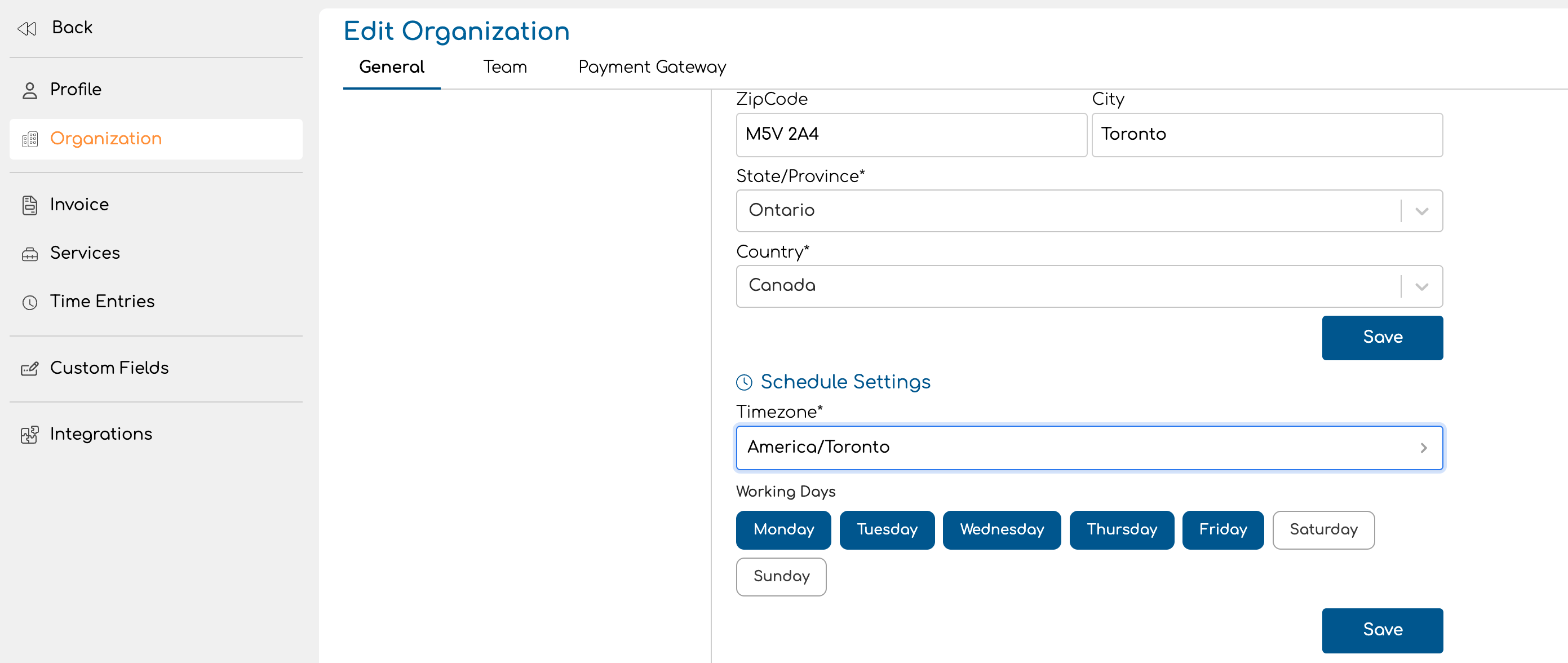
Working Days
The Working Days setting controls which days of the week prompts are sent. By default, Monday through Friday are selected. Click a day to toggle it on or off. At least one working day must be selected.
Prompts are only sent on working days. If Saturday and Sunday are not selected (the default), no prompts go out on weekends.
This setting also affects the /invup report slash command — the "logged X of Y working days" count in reports is based on these configured days.
Prompt Time
Prompts are sent at 4:45 PM in your organization's timezone by default. This time is designed to catch team members before the end of the workday so they can log hours while the day's work is fresh.
What the Prompt Looks Like
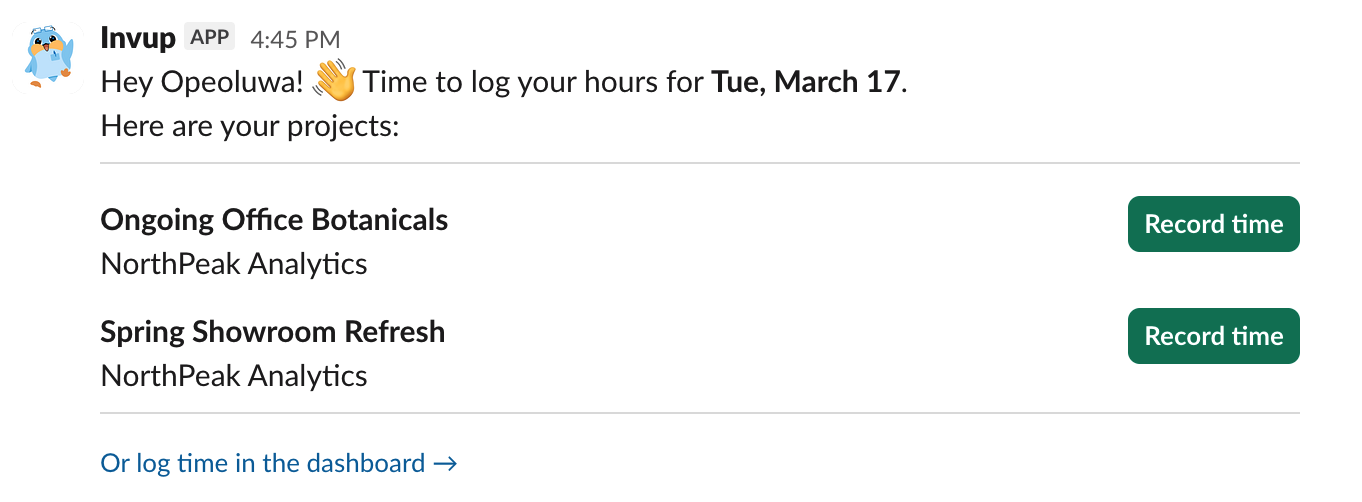
When a team member receives a daily prompt, the message includes:
- A greeting with the team member's first name and the date
- A list of assigned projects, each with its own action:
- Non-service projects: A Record time button (or Edit time with a checkmark and duration if time has already been logged)
- Service-based projects: A dropdown to select a service (each option shows a checkmark and duration if already logged)
- Locked projects: A lock icon with the unlock date — the button is disabled
- A dashboard link (for non-contributor team members) to log time in the web app instead
How client names appear
If a project is linked to a client, the client name appears below the project name in the prompt — helping team members identify which project to log time to when they work with multiple clients.
How Team Members Interact with the Prompt
Logging time on a non-service project
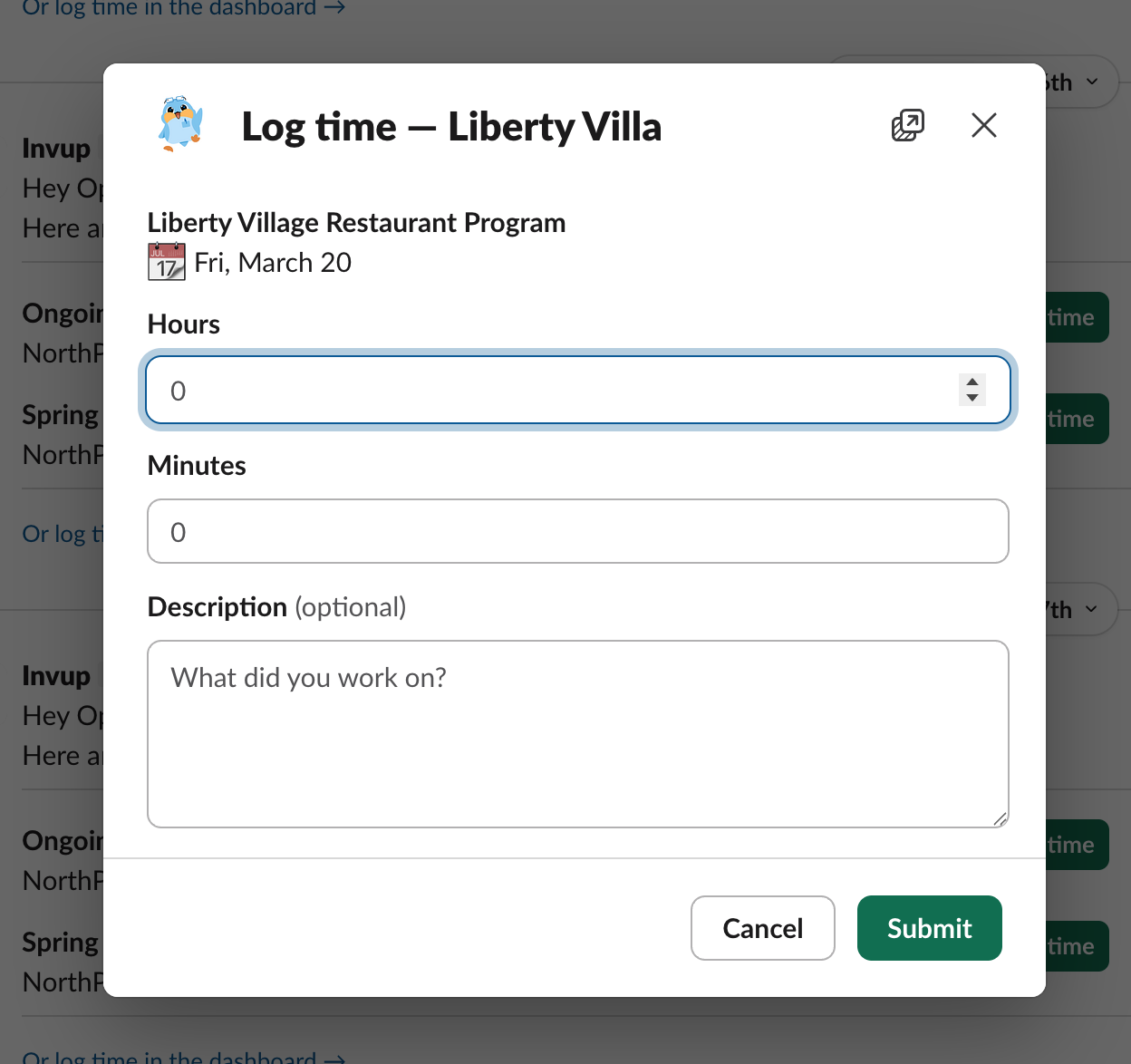
- Click the Record time button next to the project.
- A modal opens with fields for Hours, Minutes, and an optional Description.
- Fill in the duration and click Submit.
- The prompt message updates in place — the button now shows Edit time with a checkmark and the logged duration.
Logging time on a service-based project
- Select a service from the dropdown next to the project.
- A modal opens with the project name, service name, and the same duration and description fields.
- Fill in the duration and click Submit.
- The dropdown updates — the selected service now shows a checkmark and the logged duration.
Editing an existing entry
If time has already been logged for a project (or a specific service), the button or dropdown option shows a checkmark with the duration. Clicking it opens the same modal, pre-filled with the existing values. Update the hours, minutes, or description and click Submit to save the changes.
Locked projects
If a project's date falls within its lock period, the prompt shows a lock icon and the unlock date. Clicking the button displays a message explaining that the project is locked. Team members cannot log time to locked projects through Slack — admins can still log time through the web app.
What Happens If a Prompt Fails
If a prompt can't be delivered (for example, because of a temporary Slack outage), Invup retries automatically with increasing delays. If all retries are exhausted, the prompt for that day is marked as failed. The team member won't receive it, but this doesn't affect future days — the next working day's prompt will be sent as normal.
Failed prompts don't require any action from admins. If a pattern of failures occurs, check that the Slack integration is still connected in Settings > Integrations > Slack.
Summary
| Setting | Where to configure | Default |
|---|---|---|
| Timezone | Settings > Organization > Schedule Settings | EST |
| Working Days | Settings > Organization > Schedule Settings | Monday – Friday |
| Prompt Time | Default (not configurable in UI) | 4:45 PM (organization timezone) |
| Daily Prompts Enabled | Enabled automatically when Slack is connected | On |