How to Install the Slack Integration
This guide walks through connecting your Invup organization to a Slack workspace, what happens after installation, and how to disconnect if needed.
Prerequisites
Before you begin, make sure you have:
- Owner or Admin role in Invup — team members and contributors cannot install the integration.
- A Slack workspace your team uses. You'll need permission to authorize apps in that workspace (Slack workspace admin access may be required depending on your workspace settings).
- Matching email addresses — Invup matches team members to Slack users by email. For automatic linking to work, your team members' email addresses in Invup should match their Slack emails.
Each Slack workspace can only be connected to one Invup organization. If the workspace is already connected elsewhere, you'll need to disconnect it from that organization first.
Step-by-Step Installation
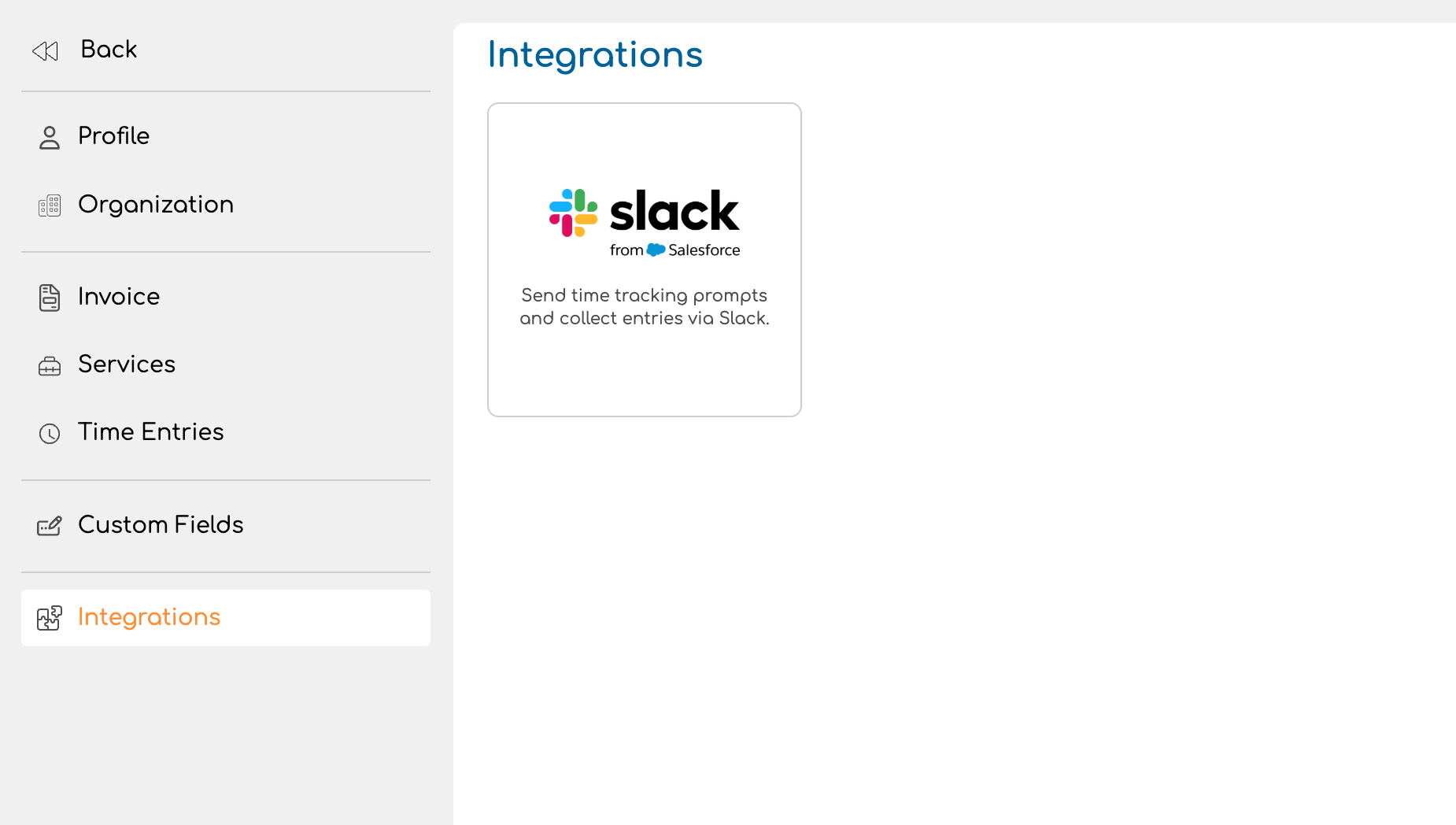
1. Navigate to the Slack integration page
Go to Settings > Integrations and click on the Slack card.
2. Click "Connect to Slack"
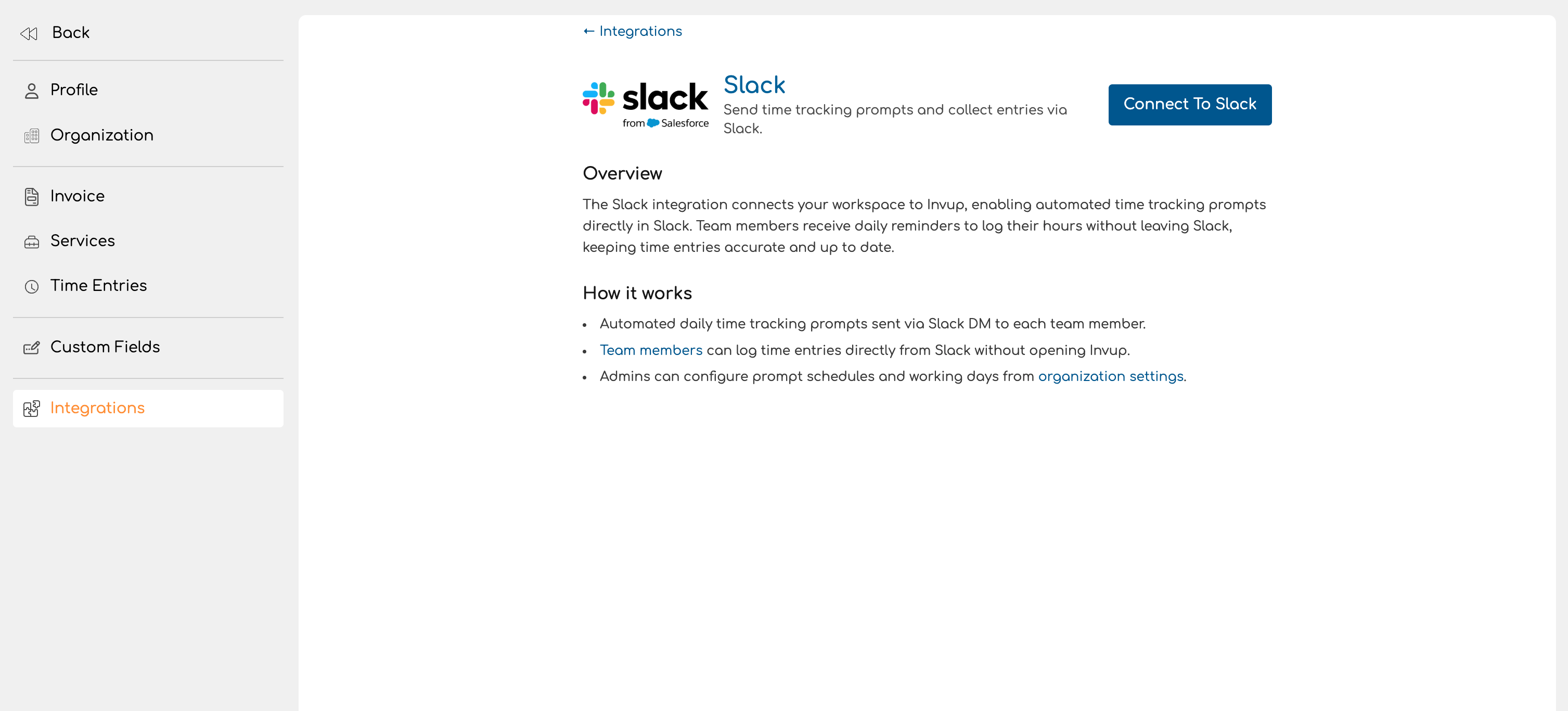
On the Slack integration detail page, click the Connect to Slack button in the top-right corner. You'll be redirected to Slack's authorization screen.
3. Authorize Invup in Slack
Slack displays an authorization screen asking you to approve Invup's access to your workspace. Review the permissions being requested and click Allow.
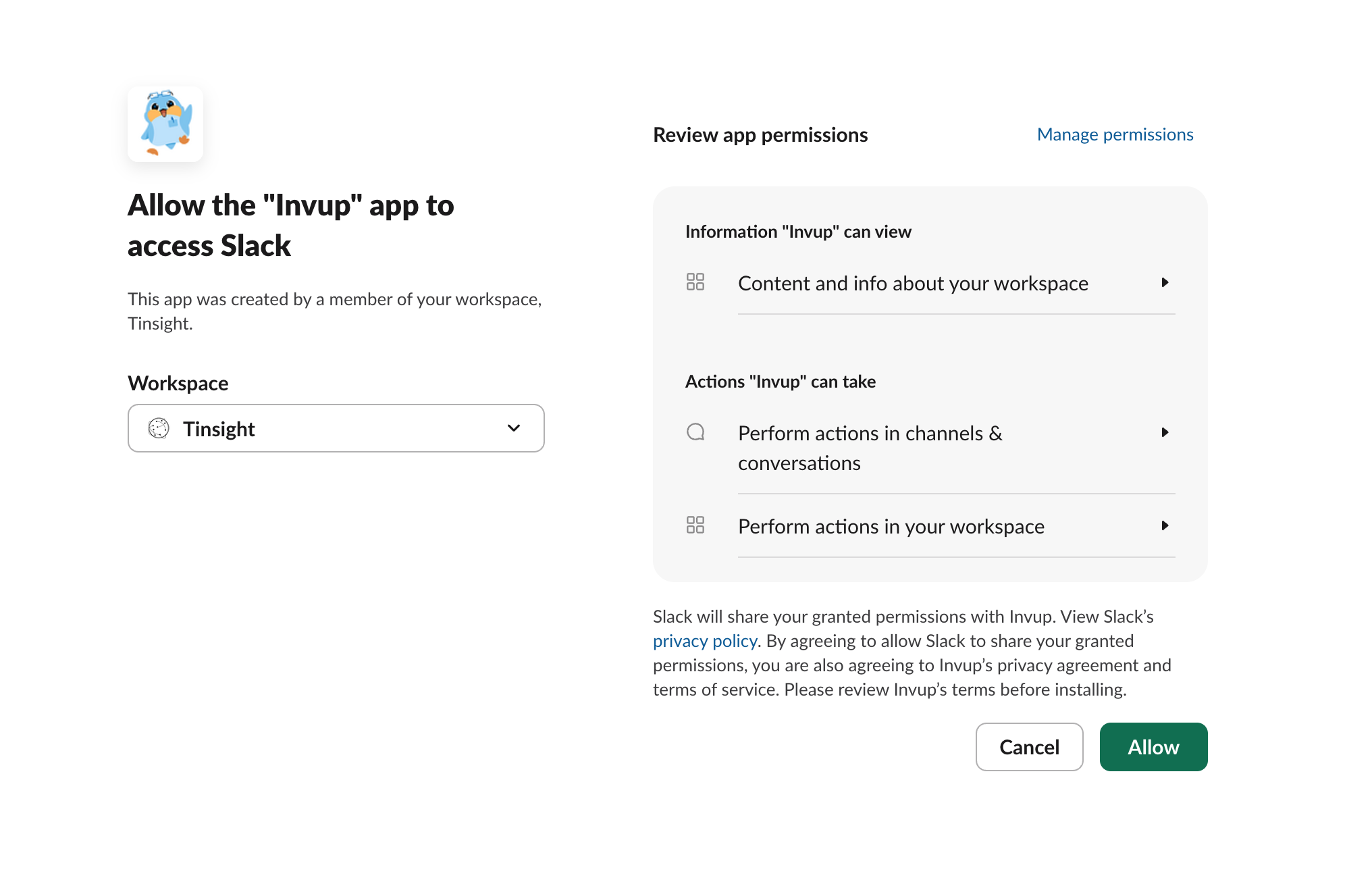
The permissions Invup requests allow it to:
- Send direct messages to team members (for daily time tracking prompts)
- Read user profiles and email addresses (to match team members between systems)
- Respond to slash commands (for the
/invupreport command)
4. Confirm the connection
- Workspace — the name of the connected Slack workspace
- Connected by — who installed the integration
- Connected on — the installation date
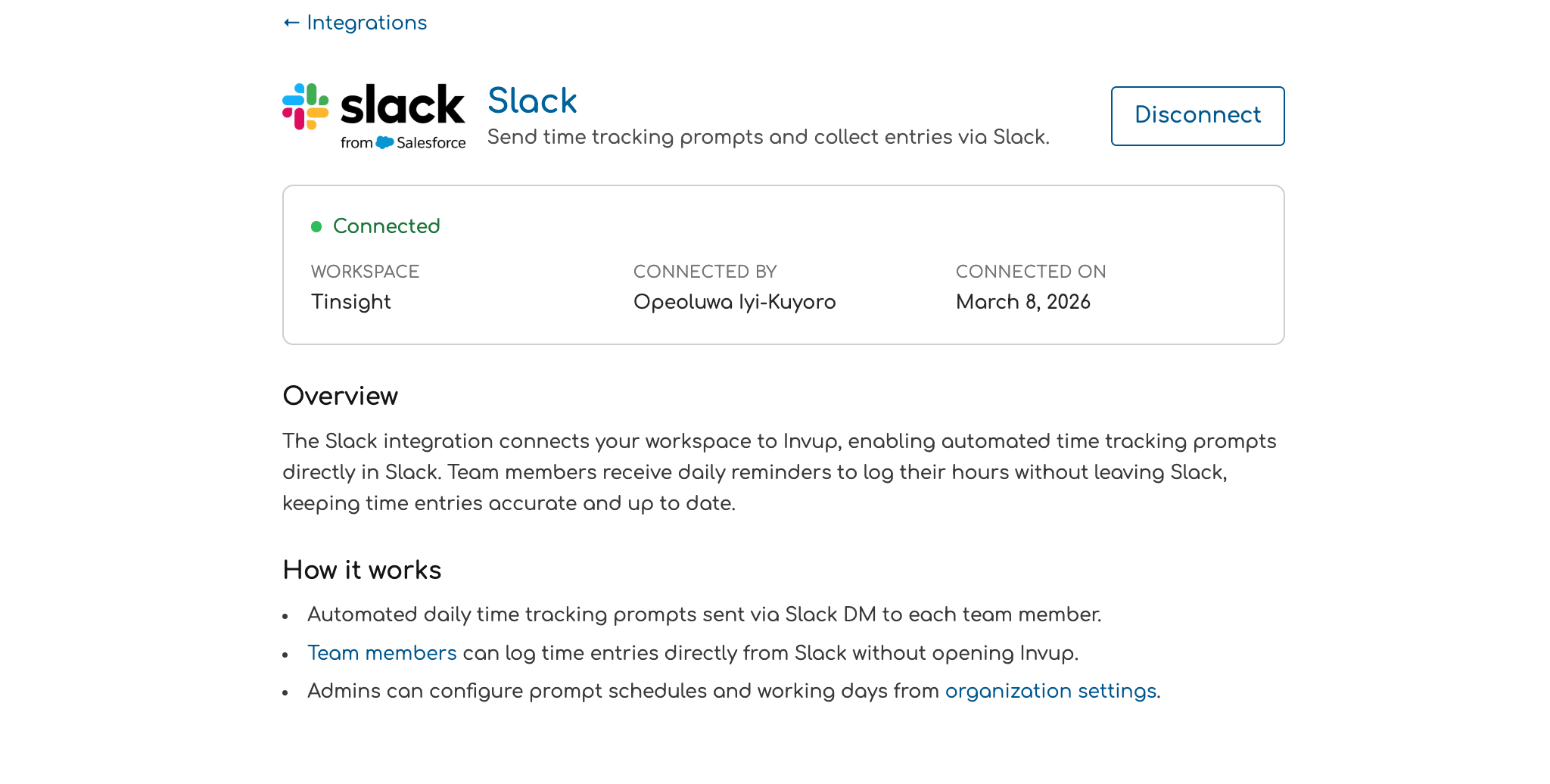
A success notification confirms the workspace is connected.
What Happens After Installation
Team member linking
Immediately after connecting, Invup automatically matches your team members to Slack users by comparing email addresses. If a team member's email in Invup matches a Slack user's email, they're linked and will start receiving daily prompts.
This linking continues automatically:
- When you add a new team member to your Invup organization, Invup looks them up in Slack by email.
- When a new user joins your Slack workspace, Invup checks if they match an existing team member.
Daily prompts begin
Once team members are linked, they'll start receiving daily time tracking prompts at the configured time (default: 4:45 PM in your organization's timezone). You can adjust the prompt time and working days in Settings > Organization.
What to check
After installation, verify the following:
- Go to the integration page and confirm the workspace name is correct.
- Check team member linking — the integration page shows how many team members are mapped. If some aren't linked, their Invup and Slack emails likely don't match.
- Adjust prompt settings — go to Settings > Organization to configure the prompt time and which days of the week prompts are sent.
Disconnecting the Integration
If you need to remove the Slack integration:
- Go to Settings > Integrations > Slack.
- Click the Disconnect button in the top-right corner.
- A confirmation dialog appears: "This will stop all Slack time tracking prompts for your organization. Are you sure?"
- Confirm to disconnect.
Disconnecting:
- Stops all daily prompts — team members will no longer receive Slack DMs.
- Unlinks all team members — Slack user mappings are cleared.
- Revokes the bot token — Invup can no longer access your Slack workspace.
- Preserves existing time entries — any time entries already logged through Slack remain in Invup.
You can reconnect the same workspace at any time by following the installation steps again.
Troubleshooting
"Connect to Slack" redirects but nothing happens
Make sure you have permission to authorize apps in your Slack workspace. Some workspaces restrict app installation to Slack workspace admins. Ask your Slack administrator to approve the Invup app.
Team members aren't linked after installation
Invup matches by email address. If a team member's Invup email doesn't match their Slack email, they won't be linked automatically. Update the email in either system so they match, and the next sync will link them.
Workspace is already connected to another organization
Each Slack workspace can only be connected to one Invup organization. If you see an error about the workspace being in use, the workspace must be disconnected from the other organization first.