Overview
The Slack integration connects your Invup organization to a Slack workspace, bringing time tracking directly into the tool your team already uses every day. Instead of switching to a separate app to log hours, team members receive a daily prompt in Slack and can record their time without leaving the conversation.
What the Integration Does
Once connected, the Slack integration provides three core capabilities:
Daily Time Tracking Prompts
Every working day at a time you choose, each linked team member receives a direct message in Slack listing the projects they're assigned to. From that message, they can log time entries — selecting a project, choosing a service (if applicable), and entering their hours — all without opening the Invup web app.
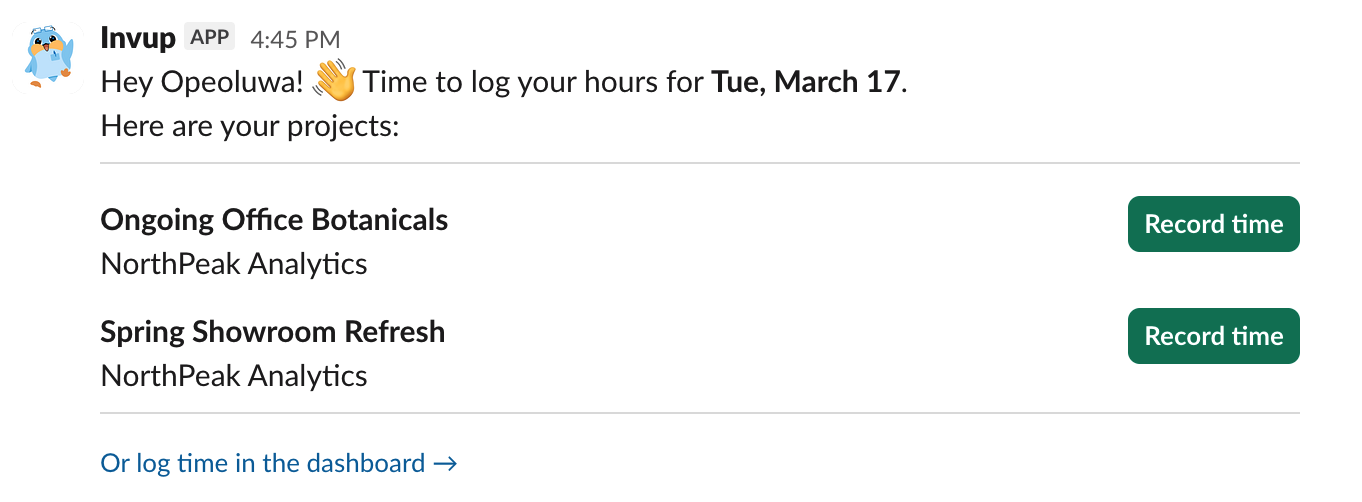
The prompt is tailored to each team member — it only shows the projects they're assigned to. If a project uses services, a dropdown lets them pick the right service. If they've already logged time for a project that day, the prompt updates to show what's been recorded.
Slash Commands for Reports
Team members can check their time tracking progress using the /invup slash command directly in Slack:
| Command | What it shows |
|---|---|
/invup help |
List of available commands |
/invup report |
This week's time summary |
/invup report last-week |
Last week's summary |
/invup report march |
A specific month's summary (any month name works) |
Reports include total hours, a project-by-project breakdown with percentages, and a count of how many working days had logged time.

Interactive Time Entry
When a team member clicks a button or selects a service from the daily prompt, a modal opens where they can enter their time. The modal includes fields for hours, minutes, and an optional description. After submitting, the prompt message updates in place to reflect the new entry.

Who Can Set It Up
Only owners and admins can install, configure, or disconnect the Slack integration. Team members and contributors cannot access the integration settings.
To connect your workspace, go to Settings > Integrations > Slack and click Connect to Slack. You'll be redirected to Slack to authorize the connection.
What Team Members Experience
Once the integration is connected and team members are linked (matched by email address), here's what they experience:
- A daily DM arrives at the configured prompt time (default: 4:45 PM in your organization's timezone) on working days.
- The message lists their assigned projects with buttons to log time.
- Clicking a button opens a quick modal to enter hours, minutes, and an optional description.
- After submitting, the prompt updates to show the logged entry.
- They can use
/invup reportat any time to check their progress.
Team members don't need to do anything to set up the integration — it's handled by an admin, and linking happens automatically by matching email addresses between Invup and Slack.
Contributors and Slack
Contributors who are linked to Slack manage their time tracking exclusively through Slack. Their daily prompts and slash commands work the same way as for other team members.
How Team Members Are Linked
When the integration is installed, Invup automatically matches team members to Slack users by comparing email addresses. If a team member's Invup email matches a Slack user's email, they're linked automatically.
This linking also happens when:
- A new team member is added to your Invup organization
- A new user joins your Slack workspace
Admins can view the linking status on the integration settings page, which shows how many team members are mapped, and which ones aren't (usually because their emails don't match between the two systems).
Prerequisites
Before setting up the Slack integration, you need:
- A Slack workspace that your team uses
- Owner or Admin role in Invup — team members and contributors cannot install the integration
- Matching email addresses between Invup team members and Slack users (for automatic linking)
Each Slack workspace can only be connected to one Invup organization. If your workspace is already connected to a different organization, you'll need to disconnect it there first.
Key Settings
Once connected, you can configure:
| Setting | Where | Default |
|---|---|---|
| Daily prompt enabled | Organization settings | On |
| Prompt time | Organization settings | 4:45 PM (organization timezone) |
| Working days | Organization settings | Monday – Friday |
The prompt time uses your organization's timezone, so if your organization is set to Eastern Time and the prompt is at 4:45 PM, all team members receive it at 4:45 PM ET regardless of where they are.
What's in This Book
| Page | Description |
|---|---|
| Overview (this page) | What the Slack integration does and who can set it up |
| Setting Up the Slack Integration | Step-by-step guide to connecting your Slack workspace |
| Daily Prompts | How daily time tracking prompts work, how to configure timing and working days |
| Slash Commands | Available commands and report formats |