> ## Documentation Index
> Fetch the complete documentation index at: https://docs.invup.me/llms.txt
> Use this file to discover all available pages before exploring further.
# Roles and permissions
> The four built in roles, what separates them, and when to build your own.
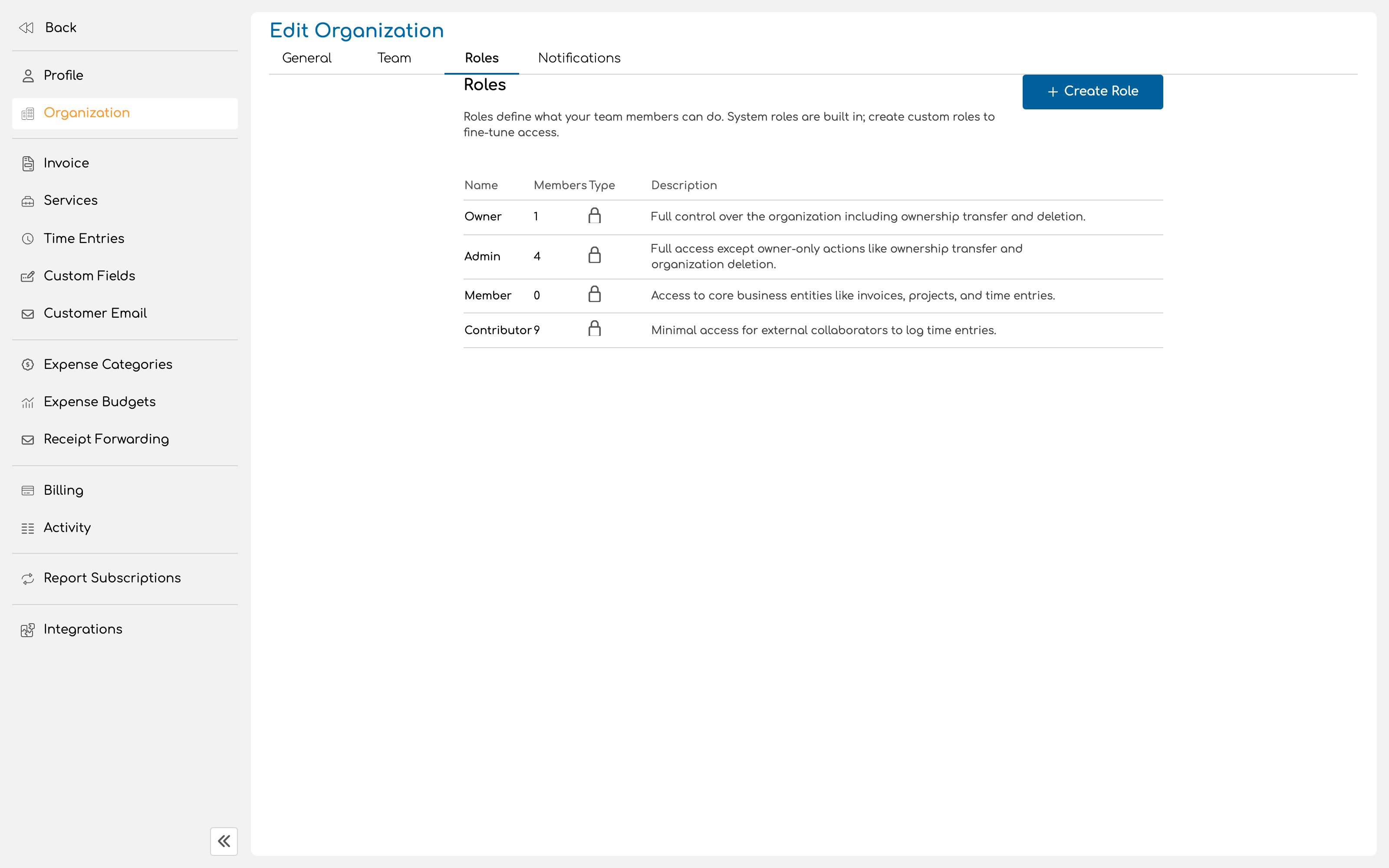
A role decides what a person can see and do. Invup ships with four, and they were chosen to cover the shape most businesses actually have rather than to offer a spectrum.
 ## The four system roles
Complete control over the organization, with nothing withheld.
Two things belong to the owner alone: transferring ownership, and deleting the organization. Every organization has exactly one owner at any moment.
Everything the owner can do, apart from those two owner only actions.
In practice an admin runs the business inside Invup: settings, billing, the team, clients, projects and invoices. If you are wondering whether someone should be owner or admin, the answer is almost always admin.
The default for new invitations, and the right role for most people.
Members work with the core business entities: clients, projects, invoices, time entries and expenses. They can view form responses. What they cannot reach is the machinery around the business: organization settings, billing, and team management.
Members manage their own time entries, expenses and report subscriptions. They do not manage other people's.
The narrowest role, intended for external collaborators.
A contributor can see the organization exists, see the list of services, view their own time reports, and log time against the projects they are assigned to. That is close to the whole of it.
Contributors are managed through Slack and do not log in to Invup. See [Invite your team](/setup/invite-your-team).
System roles cannot be edited or deleted. If one of them nearly fits but not quite, the answer is a custom role rather than a workaround.
## Choosing a role
| If the person... | Give them |
| ----------------------------------------------- | ----------- |
| Owns the business and holds final say | Owner |
| Runs operations, billing or finance | Admin |
| Does the work and handles clients | Member |
| Only logs time, and works outside your business | Contributor |
Roles govern access, not money. Two people logging the same hour on the same project bill the same amount, whatever their roles. Rates are set separately, in [Rates](/setup/rates).
## Custom roles
When none of the four describes a real position in your business, build a role that does. A bookkeeper who should reach invoices and payments but never project rates is a good example, and so is an office manager who administers the team without seeing revenue.
Custom roles are available on the Pro plan.
Give the role the name your business already uses, such as Billing Manager or Practice Coordinator, and write a description explaining what it is for. The description is what stops the list becoming unreadable a year from now.
Choose the actions people in this role can take. Selecting an action automatically grants the matching view access, so you do not have to remember to add "view invoices" alongside "create invoices".
At least one permission is required.
Assign the role to existing team members, or select it when sending an invitation.
### Deleting a custom role
A role that is still in use cannot be deleted. Invup tells you how many team members and pending invitations hold it, and you reassign those first.
This is deliberate. Deleting a role out from under people would silently change what they can do.
## A principle worth holding to
Grant the narrowest role that lets someone do their job, then widen it when they hit a wall.
The alternative, making everyone an admin because it is easier, works right up until the day it does not. Organization settings, billing and team management are exactly the places where an accidental change is expensive and hard to trace.
## Next
Set up the businesses you invoice.
Decide what an hour of each person's time is worth.
## The four system roles
Complete control over the organization, with nothing withheld.
Two things belong to the owner alone: transferring ownership, and deleting the organization. Every organization has exactly one owner at any moment.
Everything the owner can do, apart from those two owner only actions.
In practice an admin runs the business inside Invup: settings, billing, the team, clients, projects and invoices. If you are wondering whether someone should be owner or admin, the answer is almost always admin.
The default for new invitations, and the right role for most people.
Members work with the core business entities: clients, projects, invoices, time entries and expenses. They can view form responses. What they cannot reach is the machinery around the business: organization settings, billing, and team management.
Members manage their own time entries, expenses and report subscriptions. They do not manage other people's.
The narrowest role, intended for external collaborators.
A contributor can see the organization exists, see the list of services, view their own time reports, and log time against the projects they are assigned to. That is close to the whole of it.
Contributors are managed through Slack and do not log in to Invup. See [Invite your team](/setup/invite-your-team).
System roles cannot be edited or deleted. If one of them nearly fits but not quite, the answer is a custom role rather than a workaround.
## Choosing a role
| If the person... | Give them |
| ----------------------------------------------- | ----------- |
| Owns the business and holds final say | Owner |
| Runs operations, billing or finance | Admin |
| Does the work and handles clients | Member |
| Only logs time, and works outside your business | Contributor |
Roles govern access, not money. Two people logging the same hour on the same project bill the same amount, whatever their roles. Rates are set separately, in [Rates](/setup/rates).
## Custom roles
When none of the four describes a real position in your business, build a role that does. A bookkeeper who should reach invoices and payments but never project rates is a good example, and so is an office manager who administers the team without seeing revenue.
Custom roles are available on the Pro plan.
Give the role the name your business already uses, such as Billing Manager or Practice Coordinator, and write a description explaining what it is for. The description is what stops the list becoming unreadable a year from now.
Choose the actions people in this role can take. Selecting an action automatically grants the matching view access, so you do not have to remember to add "view invoices" alongside "create invoices".
At least one permission is required.
Assign the role to existing team members, or select it when sending an invitation.
### Deleting a custom role
A role that is still in use cannot be deleted. Invup tells you how many team members and pending invitations hold it, and you reassign those first.
This is deliberate. Deleting a role out from under people would silently change what they can do.
## A principle worth holding to
Grant the narrowest role that lets someone do their job, then widen it when they hit a wall.
The alternative, making everyone an admin because it is easier, works right up until the day it does not. Organization settings, billing and team management are exactly the places where an accidental change is expensive and hard to trace.
## Next
Set up the businesses you invoice.
Decide what an hour of each person's time is worth.