
Managing Project Members & Rates
Every team member who needs to log time to a project must first be assigned to it. This page covers how to add and remove team members on a project, and how to set custom rates at the project level — both for non-service projects (project-member rates) and for service-based projects (project-service-member rates).
Two Modes of Member Assignment
How you assign team members depends on whether the project uses services:
| Project mode | How members are assigned | Rate override level |
|---|---|---|
| Without services | Directly to the project via the Members multi-select | Project-member rate |
| With services | To individual services within the project, via each service card | Project-service-member rate |
Both modes are configured on the project form (create or edit). The Enable Services toggle determines which mode is active.
Non-Service Projects: Adding Members Directly
When a project does not use services, team members are assigned directly.
- Open the project (create or edit).
- In the Members multi-select, choose the team members who should have access to this project.
- Click Save (or Create Project if creating).
Selected team members can immediately log time to this project. To remove a team member, deselect them from the Members multi-select and save.
Setting project-member rates
When you add team members to a non-service project, a Member Rate table appears below the member selector. Each selected team member gets a row with a Hourly Rate (/hr) input.
This rate — the project-member rate — overrides both the project's default rate and the team member's base rate when they log time to this project. It's the most specific rate available on non-service projects.
If you leave a team member's rate blank, the input shows a placeholder indicating which rate will apply instead:
- "Project rate: X/hr" — if the project has a default rate
- "Base rate: X/hr" — if the project has no rate, but the team member has a base rate
The description above the table explains: "Rates here take priority. If empty, the project's hourly rate is used. If the project has no rate, the member's base rate applies."
Where project-member rates fit in the rate hierarchy
For non-service projects, the rate hierarchy is:
| Priority | Rate level | Source |
|---|---|---|
| 1 | Project-member rate | The rate you set in the Member Rate table |
| 2 | Project rate | The project's default Hourly Rate field |
| 3 | Member base rate | The team member's organization-level base rate |
Service-Based Projects: Adding Members Through Services
When a project uses services, team members are assigned to specific services within the project — not to the project directly. A team member might be assigned to "Tax Advisory" and "Bookkeeping" but not "Audit" on the same project.
Member assignment on service-based projects is managed through the service cards on the project form. For step-by-step instructions, see Managing Project Services & Rates.
Setting project-service-member rates
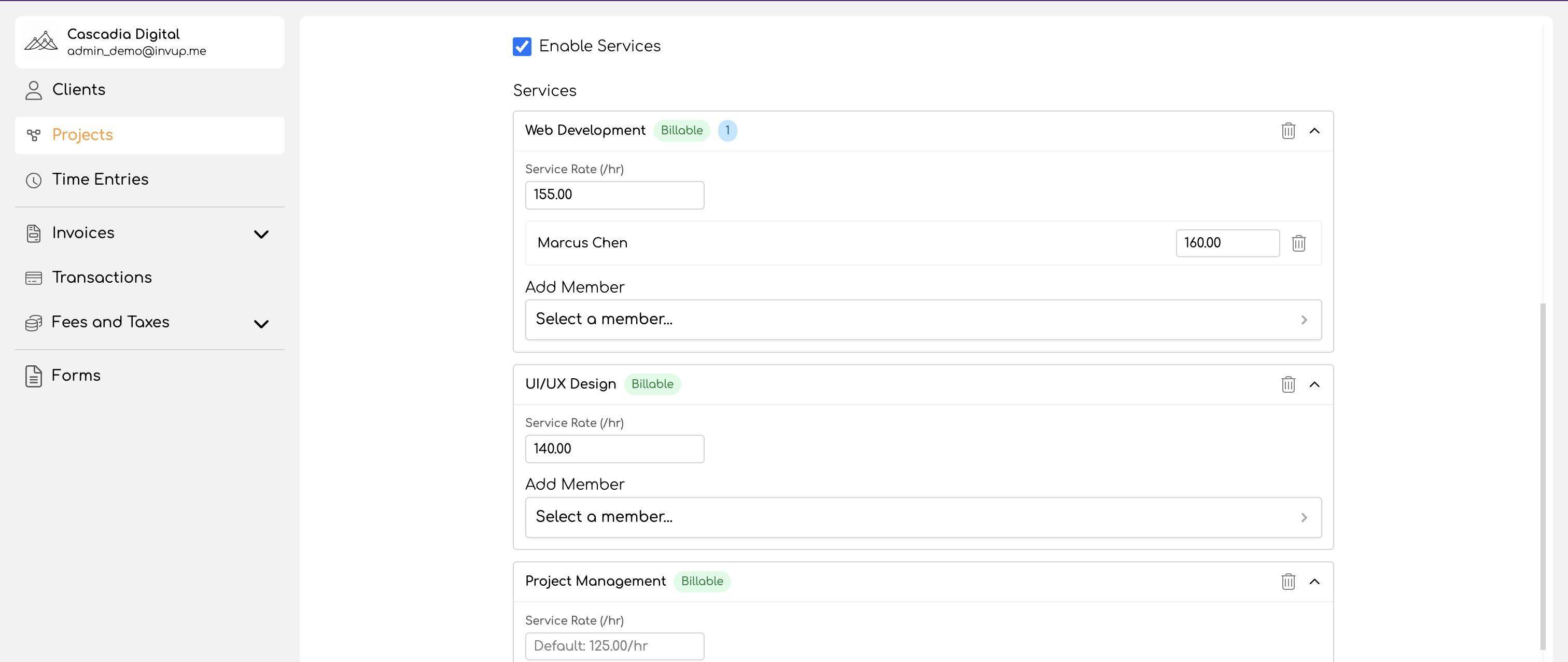
Each service card on the project form shows the team members assigned to that service. Each team member has a Hourly Rate (/hr) input where you can set a custom rate for that specific team member on that specific service within this project.
This is the project-service-member rate — the most granular rate level in Invup. It overrides every other rate in the chain.
Where project-service-member rates fit in the rate hierarchy
For service-based projects, the rate hierarchy checks these levels:
| Priority | Rate level | Source |
|---|---|---|
| 0 | Non-billable check | $0.00 if the service is non-billable |
| 1 | Project-service-member rate | The rate you set per team member on the service card |
| 2 | Member-service rate | Set on the service detail page |
| 3 | Project-service rate | The service card's Service Rate field |
| 4 | Service base rate | The service's default rate |
| 5 | Project rate | The project's default Hourly Rate |
| 6 | Member base rate | The team member's organization-level base rate |
Removing Members
From a non-service project
Deselect the team member from the Members multi-select and save. Their project-member rate is removed along with the assignment.
From a service-based project
Remove the team member from the individual service card. If a team member is assigned to multiple services, you need to remove them from each service separately.
Removing a team member from a project does not delete their existing time entries — those entries remain in the project's history.
When to Use Project-Level Rate Overrides
Use project-member rates when a team member should be billed at a different rate on a specific project than their base rate. This is common when different clients have different negotiated rates — for example, a consulting firm might charge a senior consultant at $275/hr for most clients but at $225/hr for a long-standing client's project.
Use project-service-member rates when the override needs to be specific to both the team member and the type of work. For example, an architecture firm might charge a principal architect at $300/hr for "Schematic Design" but $250/hr for "Construction Administration" on the same project.
Rely on defaults when all team members on a project should be billed at the same rate. Set the project's default hourly rate and skip individual overrides — simpler to manage and less prone to configuration errors.
For a complete explanation of how rates are resolved, see Understanding the Rate Hierarchy.