Services
Managing your organization's service library and member-specific rates.
Overview
Services represent the types of work your organization performs — things like "Design", "Development", "Consulting", or "Project Management". They provide a way to categorize time entries, control billing rates at a granular level, and distinguish between work that should be invoiced and work that should not.
Services are managed at the organization level, forming a shared service library that can be attached to any project.
What Is a Service?
A service is a reusable work category with the following properties:
| Property | Description |
|---|---|
| Name | The display name (e.g., "Development", "Design Review") |
| Description | Optional notes about what the service covers |
| Rate | An optional base hourly rate for this service |
| Billable / Non-billable | Whether time logged to this service should be billed |
Services exist independently from projects. You create them once in your organization's service library, then attach them to whichever projects need them. The same service can be used across many projects, each with its own rate override if needed.
Billable vs Non-Billable Services
Every service is either billable or non-billable. This distinction affects how time entries are rated and invoiced.
Billable services (the default) follow the normal rate chain to resolve an hourly rate. Time logged to a billable service is included when generating invoices.
Non-billable services automatically resolve to a rate of $0.00, regardless of any rates configured on the service, project, or team member. Use non-billable services for internal activities you want to track for time reporting but not bill — things like team meetings, internal training, or administrative tasks.
The Service Library
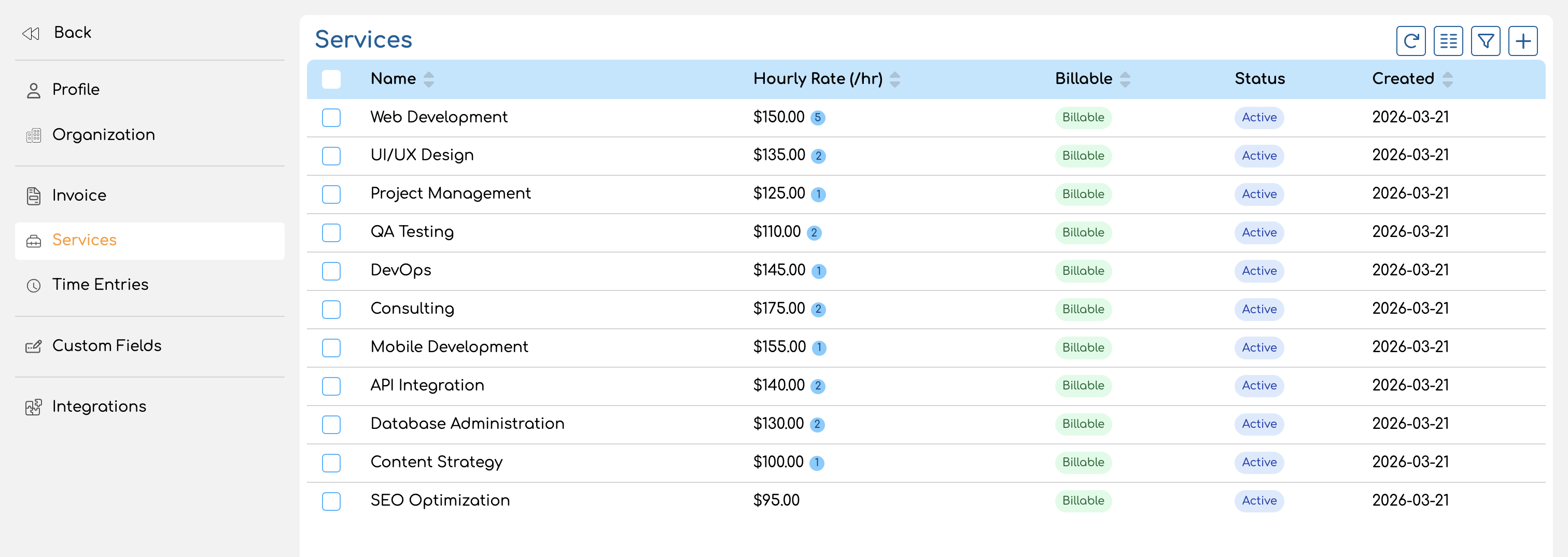
Your organization's service library is the central place where all services are defined. You can find it under Settings > Services (or via the main navigation).
From the service library you can:
- Create new services with a name, optional description, base rate, and billable setting
- Edit existing services to update their properties or manage member rate overrides
- Archive services you no longer need — archived services are hidden from active lists but preserved for historical data
- Delete services that have never been used on a time entry
Archiving vs Deleting
Archiving hides a service from active lists and dropdowns without removing it. Archived services still appear on historical time entries and reports. You can unarchive a service at any time to bring it back.
Deleting permanently removes a service. This is only possible if the service has no time entries — if any time has been logged to a service, you must archive it instead. This protects your historical data from being lost.
How Services Connect to Projects
Projects can optionally enable services. When a project has services enabled:
- You select which services from the library are available on that project.
- Team members must choose a service when logging time.
- Each service can have a custom rate on that project, overriding its base rate.
When a project does not use services, time entries are logged directly against the project with no service breakdown.
For details on adding services to projects and configuring project-level rates, see Managing Project Services & Rates.
How Services Connect to Time Tracking
When a team member logs a time entry on a service-based project, they select both a project and a service. The service determines:
- Categorization — what type of work was performed
- Billing — whether the entry is billable (based on the service's billable setting)
- Rate — which hourly rate applies (the service participates in the rate chain)
How Services Connect to Rates
Services introduce additional levels into the rate chain, allowing fine-grained rate control. You can set rates at four service-related levels:
| Level | Where to set it | What it does |
|---|---|---|
| Service base rate | Service library (service detail page) | Default rate for this service across all projects |
| Member-service rate | Service detail page, under member rate overrides | Custom rate for a specific team member on this service, across all projects |
| Project-service rate | Project form, on the service card | Custom rate for this service on a specific project |
| Project-service-member rate | Project form, on the service card's member list | Custom rate for a specific team member on this service within a specific project |
These levels are checked in order from most specific to least specific when resolving a time entry's rate. See Rate Locking for the full priority order.
What's in This Book
This book covers everything you need to know about services in Invup:
- Overview (this page) — what services are and how they connect to the rest of the platform
- Creating and Managing Services — how to create, edit, archive, and delete services in your service library
- Member Rate Overrides — how to set team member-specific rates on individual services
How to Create and Manage Services
Your organization's service library is where you define the types of work your team performs. This page walks through creating, editing, archiving, and deleting services, and explains each field on a service.
For an introduction to what services are and how they fit into the platform, see Services Overview.
The Service List
You can find your service library under Settings > Services. The list shows all services in your organization with the following columns:
| Column | Description |
|---|---|
| Name | The service name |
| Hourly Rate (/hr) | The service's base hourly rate, or "—" if none is set. A badge shows how many team members have rate overrides |
| Billable | "Billable" (green) or "Not billable" (gray) |
| Status | "Active" (blue) or "Archived" (orange) |
| Created | When the service was created |
You can sort by name, hourly rate, billable status, or created date. Active services appear before archived ones by default.
Filtering the List
- Billable — show only billable or only non-billable services
- Status — show only active or only archived services
- Has Rate Overrides — filter to services that have a rate override for a specific team member
Creating a Service
To create a new service, click Create Service above the list. A form appears with the following fields:
| Field | Required | Description |
|---|---|---|
| Name | Yes | A descriptive name for the service (e.g., "Development", "Design Review"). Maximum 255 characters. |
| Description | No | Optional notes explaining what the service covers. |
| Hourly Rate (/hr) | No | The default hourly rate for this service. If left blank, the rate will be resolved from lower levels in the rate chain when time is logged. Must be $0.00 or higher. |
| Billable | Yes | Whether time logged to this service should be billed. Checked by default. Non-billable services always resolve to a $0.00 rate. |
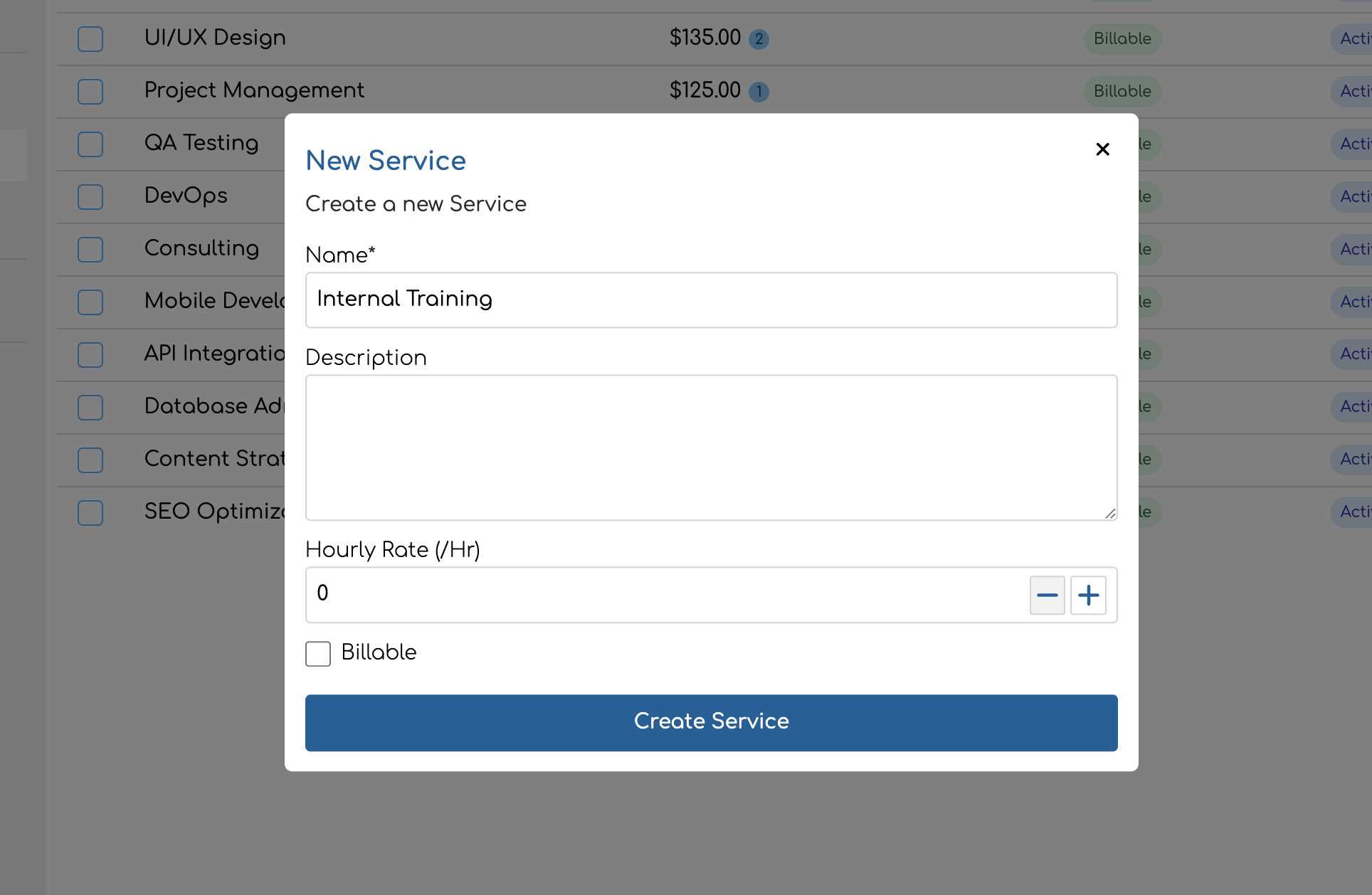
Click Create Service to save. The service is immediately available in your library and can be attached to projects.
Editing a Service
Click any service in the list to open its detail page. From here you can:
- Update the name, description, hourly rate, or billable setting
- Manage member rate overrides (see below)
- Archive or delete the service via the action menu in the top right
After making changes, click Save Changes. The button is disabled until you modify something.
Service Fields Reference
| Field | Type | Editable | Notes |
|---|---|---|---|
| Name | Text | Yes | Required. Max 255 characters. |
| Description | Text | Yes | Optional. |
| Hourly Rate | Currency | Yes | Optional. Base rate for this service. Must be $0.00 or higher if provided. |
| Billable | Checkbox | Yes | Defaults to checked. Non-billable services always resolve to $0.00. |
| Status | Active / Archived | Yes | Toggled via the Archive/Unarchive action in the menu. |
| Member Rate Overrides | Rate table | Yes | Custom rates for specific team members on this service. |
Member Rate Overrides
On the service detail page, the Member Rate Overrides section lets you set custom hourly rates for specific team members when they perform this service.
To add a rate override:
- Use the member dropdown to select one or more team members.
- Enter a custom hourly rate for each selected team member.
- Click Save Changes.
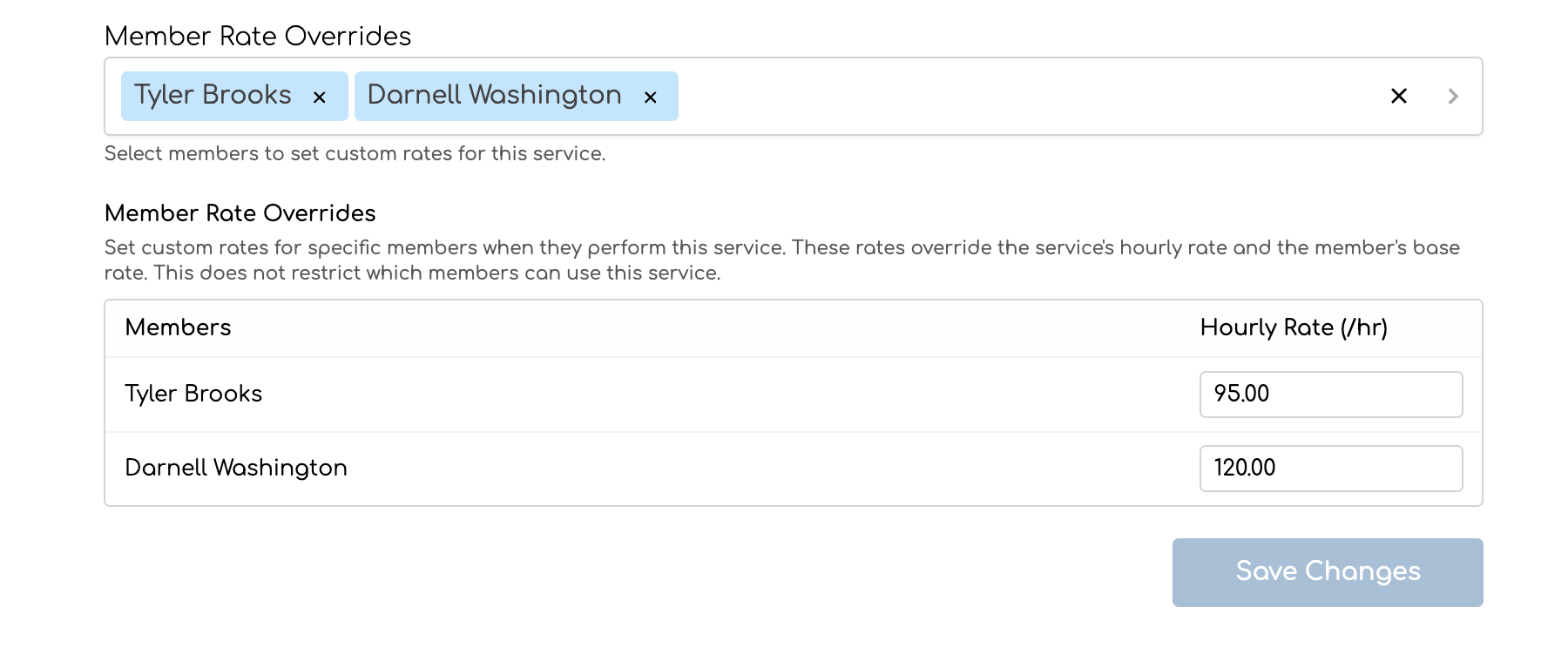
If you leave a team member's rate blank, the input shows a placeholder indicating which rate will apply instead — either the service rate or the team member's base rate.
These overrides apply organization-wide. When a team member with an override logs time to any project using this service, the override rate takes priority over the service's base rate. For the full priority order, see Rate Locking — How Rate Resolution Works.
Setting a rate override does not restrict which team members can use the service. Any team member assigned to a project's service can log time to it, regardless of whether they have an override.
Archiving Services
When you no longer need a service but want to keep its historical data, archive it instead of deleting it.
To archive a service:
- Open the service detail page.
- Click the action menu (three dots) in the top right.
- Click Archive.
Archived services:
Deleting Services
To permanently remove a service:
- Open the service detail page.
- Click the action menu (three dots) in the top right.
- Click Delete.
- Confirm the deletion in the dialog.
A service can only be deleted if it has no time entries associated with it. If the service has been used to log time, you'll see a message explaining that it cannot be deleted — archive it instead.
Bulk Deleting Services
You can delete multiple services at once from the service list:
- Select the services using the row checkboxes.
- Open the actions menu and click Delete.
- Confirm the deletion.
Services that have time entries are automatically skipped during bulk deletion — they won't be deleted, and you'll be informed of the count that was skipped. You can delete up to 100 services at a time.
Assigning Services to Projects
Once created, services can be attached to any project that has services enabled. This is done from the project form, not from the service library.
For step-by-step instructions on adding services to projects and configuring project-specific rates, see Managing Project Services & Rates.
Tips for Organizing Your Service Library
- Be specific but not too granular. A service like "Development" is useful for categorization and billing. A service like "Fixed bug in login form on Tuesday" is too narrow — use the time entry description for that level of detail.
- Use the billable flag for internal work. Services like "Team Meeting", "Internal Training", or "Admin" should be non-billable so they're tracked for reporting without inflating invoices.
- Set base rates on services when possible. Even if you override rates at the project or team member level, a base rate serves as a sensible default and makes it clear what the "standard" rate is.
- Archive instead of deleting. Archiving preserves your historical data and keeps past time entries and reports accurate. Only delete services that were created by mistake and never used.
- Use member rate overrides for seniority-based pricing. If a senior developer charges $200/hr and a junior charges $120/hr for the same "Development" service, set overrides on the service rather than creating separate services for each seniority level.
Member-Specific Service Rates
A member-service rate is a custom hourly rate set for a specific team member on a specific service. It applies across all projects that use that service, making it the right tool when a team member should always be billed at a different rate for a particular type of work — regardless of which project they're on.
What Is a Member-Service Rate?
By default, all team members who log time to a service are billed at the same rate — the service's base rate (or whichever rate the rate chain resolves). A member-service rate overrides this for a specific team member, so they get a different rate whenever they log time to that service.
For example, if a "Consulting" service has a base rate of $200/hr, you could set a member-service rate of $300/hr for a senior consultant and $150/hr for a junior associate. Each team member is then billed at their own rate whenever they log time to "Consulting" — on any project.
How to Set a Member-Service Rate
Member-service rates are configured on the service detail page, under the Member Rate Overrides section.
- Go to Settings > Services and click the service you want to configure.
- In the Member Rate Overrides dropdown, select one or more team members.
- A table appears with each selected team member and a Hourly Rate (/hr) input.
- Enter the custom rate for each team member.
- Click Save Changes.
Rate input placeholders
When you add a team member but leave their rate blank, the input shows a placeholder indicating which rate would apply instead:
- "Service rate: X/hr" — if the service has a base rate, the placeholder shows it
- "Base rate: X/hr" — if the service has no base rate, the placeholder shows the team member's organization-level base rate
When you first select a team member, the input is automatically pre-filled with the service rate (if set) or the team member's base rate — so you have a starting point to adjust.
Removing a rate override
To remove a team member's rate override, deselect them from the Member Rate Overrides dropdown and click Save Changes. Their time entries will then fall through to the next level in the rate chain.
Where Member-Service Rates Fit in the Rate Chain
For service-based projects, the rate chain checks multiple levels from most specific to least specific. The member-service rate sits in the middle:
| Priority | Source | Scope |
|---|---|---|
| 1 | Non-billable check | If the service is non-billable, rate is $0.00 |
| 2 | Project-service-member rate | This team member + this service + this project |
| 3 | Member-service rate | This team member + this service (all projects) |
| 4 | Project-service rate | This service + this project |
| 5 | Service base rate | This service (all projects, all team members) |
| 6 | Project rate | This project (all services, all team members) |
| 7 | Member base rate | This team member (all projects, all services) |
The first non-null rate wins. A rate of $0.00 is a valid rate and does not fall through.
This means a member-service rate is overridden only by a project-service-member rate — the most specific level, set per-project. It takes priority over the service's base rate, the project rate, and the team member's base rate.
For the full rate chain explanation, see Rate Locking — How Rate Resolution Works.
Member-Service Rates vs Project-Level Overrides
Both member-service rates and project-level rate overrides let you customize what a team member is charged. The difference is scope:
| Rate level | Where to set it | Applies to |
|---|---|---|
| Member-service rate | Service detail page (Settings > Services) | All projects using this service |
| Project-service-member rate | Project form, on the service card | Only this specific project |
Use member-service rates when the team member should always be billed at a different rate for this type of work, regardless of which project they're on. This is the typical case for seniority-based or role-based pricing.
Use project-service-member rates when the rate is specific to a particular engagement — for example, a negotiated discount for one client's project that shouldn't carry over to other projects.
Both can coexist. If a team member has a member-service rate of $200/hr for "Development" but a project-service-member rate of $175/hr on Project X, they'll be billed at $175/hr on Project X and $200/hr everywhere else.
Practical Examples
Experience-based pricing — Architecture firm
An architecture firm has three architects who all perform "Design" work but at different experience levels. Rather than creating separate services for each, they create one "Design" service with a base rate of $150/hr and set member-service rates:
| Team member | Member-service rate |
|---|---|
| Principal Architect | $250/hr |
| Project Architect | $150/hr (matches the service base rate, so no override needed) |
| Junior Designer | $95/hr |
Now when any of them logs time to "Design" on any project, the correct rate is applied automatically.
Specialist premium — Marketing agency
A marketing agency bills most team members at $200/hr for their "Strategy" service. However, one team member is a brand strategist with a niche specialty who commands a higher rate. They set a member-service rate of $325/hr for that team member on the "Strategy" service. Everyone else continues at the $200/hr base rate.
Client-specific discount with a global baseline — Accounting firm
A senior accountant at an accounting firm has a member-service rate of $275/hr for "Tax Advisory". A long-standing client has negotiated a discounted rate of $225/hr for all advisory work on their engagement. On that client's project, the firm sets a project-service-member rate of $225/hr. The senior accountant is billed at $225/hr on that project and $275/hr on all other engagements.
Important Notes
- Setting a member-service rate does not restrict which team members can log time to the service. Any team member assigned to a project's service can log time, regardless of whether they have a rate override.
- Member-service rates only affect service-based projects. Projects without services use the simpler project-member rate chain.
- If your organization uses the "At Creation" rate lock policy, the rate is frozen at the moment the time entry is created. Changing a member-service rate afterward won't affect existing locked entries.