
Rate Locking
Rate locking freezes the hourly rate on a time entry so that future rate changes don't retroactively alter historical billing data. This page covers the two mechanisms Invup provides — rate lock policies (which control when a rate is frozen on individual entries) and project lock dates (which prevent all modifications to entries before a given date).
Why Rate Locking Exists
Without rate locking, changing a team member's hourly rate would ripple backward through every time entry that team member has ever logged. A rate increase meant to apply going forward could silently inflate past totals that have already been invoiced, creating discrepancies between what was billed and what the system now reports.
Rate locking preserves billing integrity by capturing the rate that was in effect at the moment that matters — either when the entry was created or when it was invoiced — and making that rate permanent.
Rate Lock Policies
The Rate Lock Policy is an organization-level setting that controls when an entry's rate gets frozen. You can find it under Settings > Time Entries.
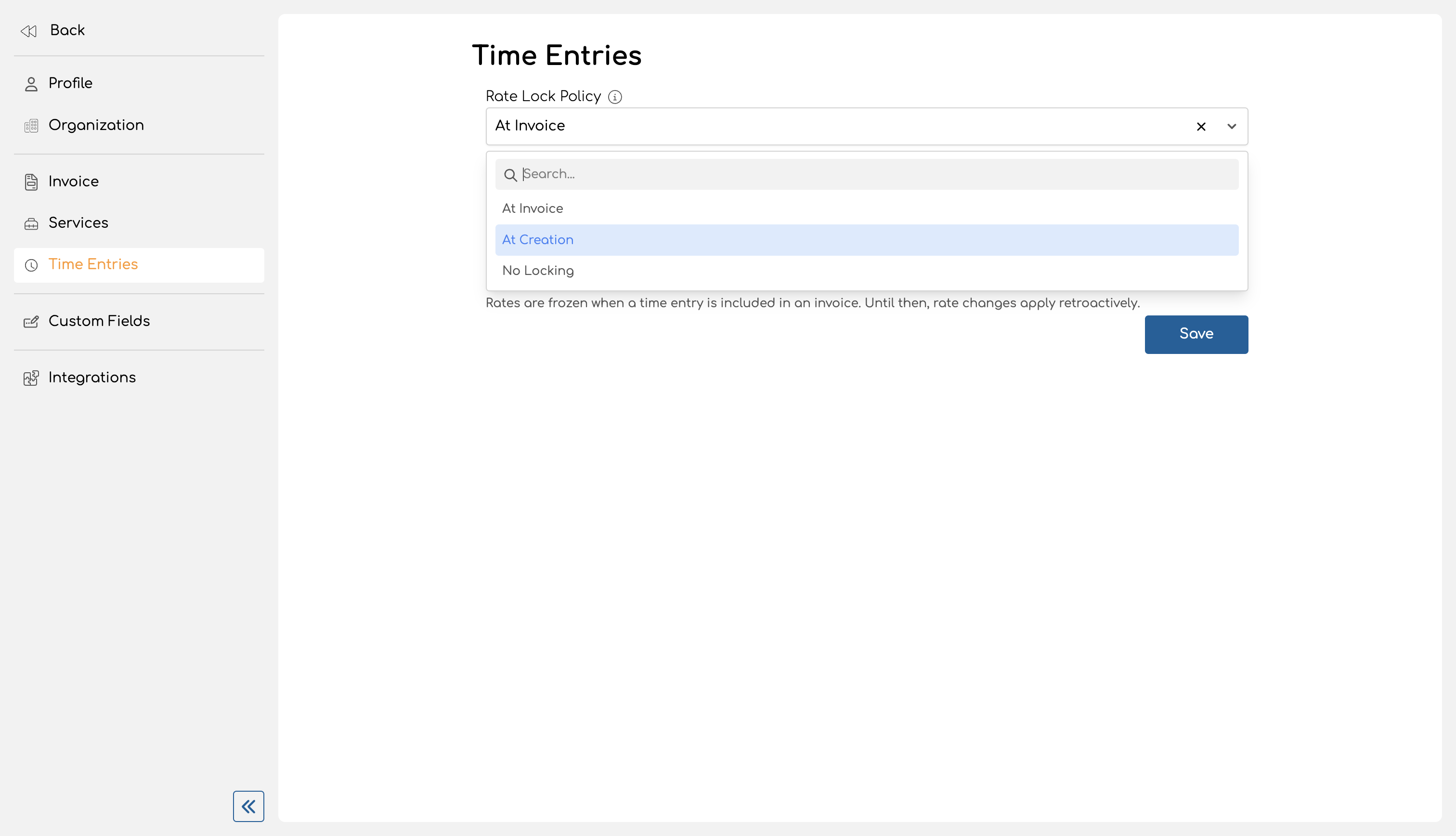
There are three policies:
At Invoice (default)
Rates are frozen when a time entry is included in an invoice. Until that point, any rate change you make will apply retroactively to existing entries. This is the best option if you want maximum flexibility to adjust rates before billing.
At Creation
Rates are frozen the moment a time entry is created. The rate that applies at creation time is captured and stored permanently on the entry. Future rate changes do not affect existing entries — only new entries going forward.
This is the most conservative option. It's a good fit if your billing rates rarely change mid-engagement or if you need a clear audit trail of exactly what rate was in effect when work was logged.
No Locking
Rates are always calculated dynamically. Changing a rate at any level affects all time entries — past and future. Use this only if you intentionally want rate changes to propagate everywhere (e.g., correcting a rate that was entered incorrectly from the start).
How Rate Resolution Works
When a time entry is created, Invup resolves the applicable rate by walking a prioritized chain. The first non-null rate wins. The chain differs depending on whether the project uses services.
Service-based projects:
| Priority | Source | Description |
|---|---|---|
| 0 | Non-billable check | If the service is marked non-billable, the rate is $0.00 |
| 1 | Project-Service-Member rate | Rate set for this specific team member on this service within this project |
| 2 | Member-Service rate | Rate set for this team member on this service (organization-wide) |
| 3 | Project-Service rate | Rate set for this service within this project |
| 4 | Service base rate | The service's default hourly rate |
| 5 | Project rate | The project's hourly rate |
| 6 | Member base rate | The team member's organization-level base rate |
Non-service projects:
| Priority | Source | Description |
|---|---|---|
| 1 | Project-Member rate | Rate set for this team member on this project |
| 2 | Project rate | The project's hourly rate |
| 3 | Member base rate | The team member's organization-level base rate |
When a rate is locked (under the "At Creation" or "At Invoice" policy), both the resolved rate and its source are stored on the time entry. This is called the locked rate source — it tells you which level of the chain provided the frozen rate (e.g., project-service-member-rate, project-member-rate, member-rate, etc.).
What Happens When You Change a Rate After Entries Are Locked
| Scenario | Locked entries | Unlocked entries |
|---|---|---|
| You change a team member's project rate | Keep their original locked rate | Recalculated dynamically using the new rate |
| You change a service rate | Keep their original locked rate | Recalculated dynamically using the new rate |
| You detach a service from a locked entry | Locked rate and source are preserved — the entry remembers the rate even though the service link is gone | N/A |
In short: locked entries are immutable with respect to their rate. The lock icon in the UI makes this visible at a glance.
Re-stamping on Update
When the "At Creation" policy is active and you update a time entry's project or service (the fields that affect which rate chain is used), the locked rate is re-stamped. The system resolves the new rate based on the updated project/service combination and freezes that instead.
Changing non-rate-affecting fields (duration, description, date) preserves the original locked rate.
Project Lock Date
The project lock date is a separate, complementary mechanism. While the rate lock policy controls whether a rate is frozen, the project lock date controls whether an entry can be modified at all.
Each project has an optional "Lock entries until" date field, found on the project details page.
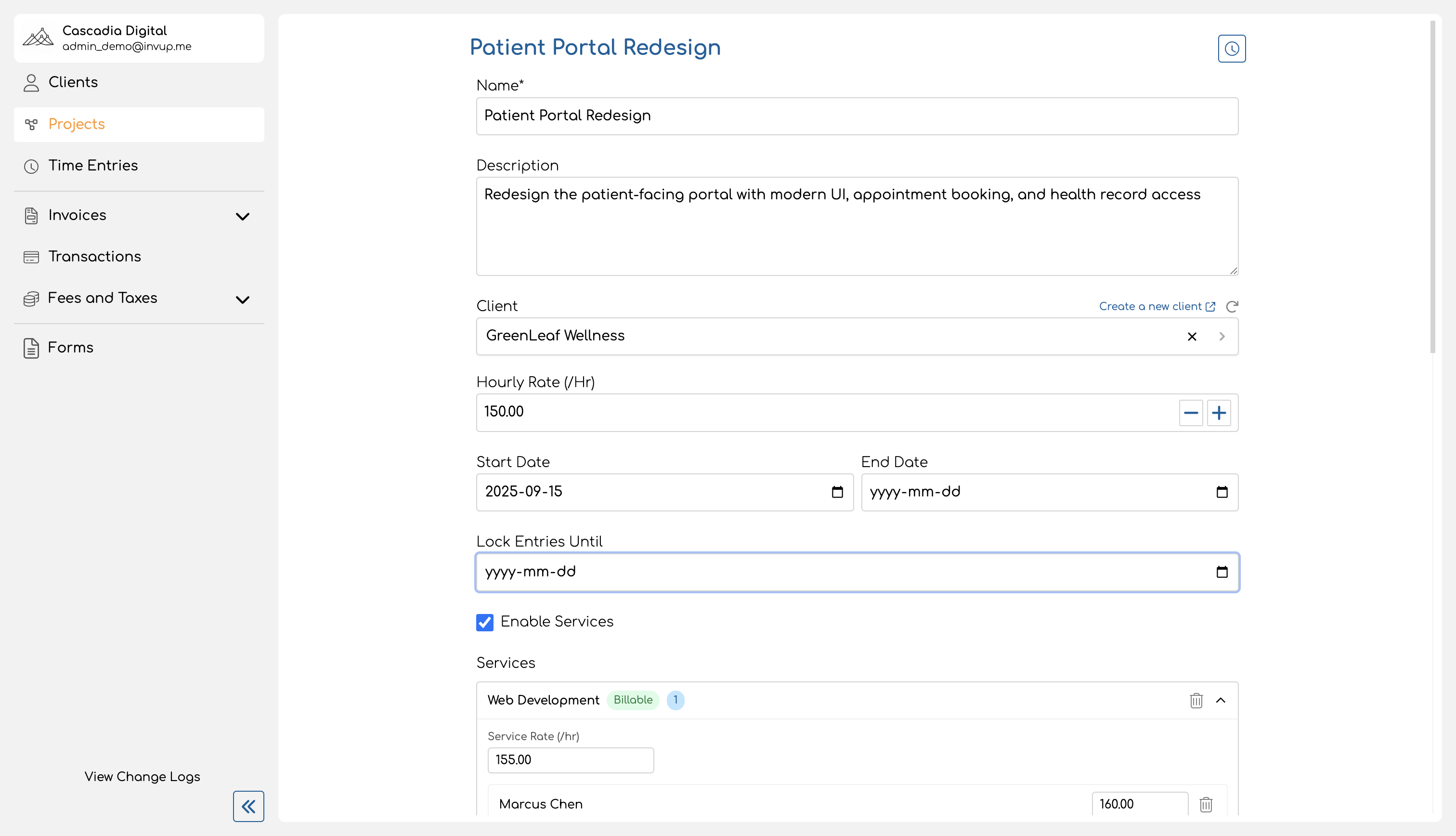
How It Works
- All time entries dated on or before the lock date are fully locked — they cannot be created, edited, or deleted by regular team members or contributors.
- Entries dated after the lock date remain fully editable.
- If the lock date is not set (null), no entries are locked by date.
Advancing the Lock Date
When you move the lock date forward, entries that were previously editable become locked. For example, if the lock date is January 31 and you advance it to February 28, all February entries are now locked too.
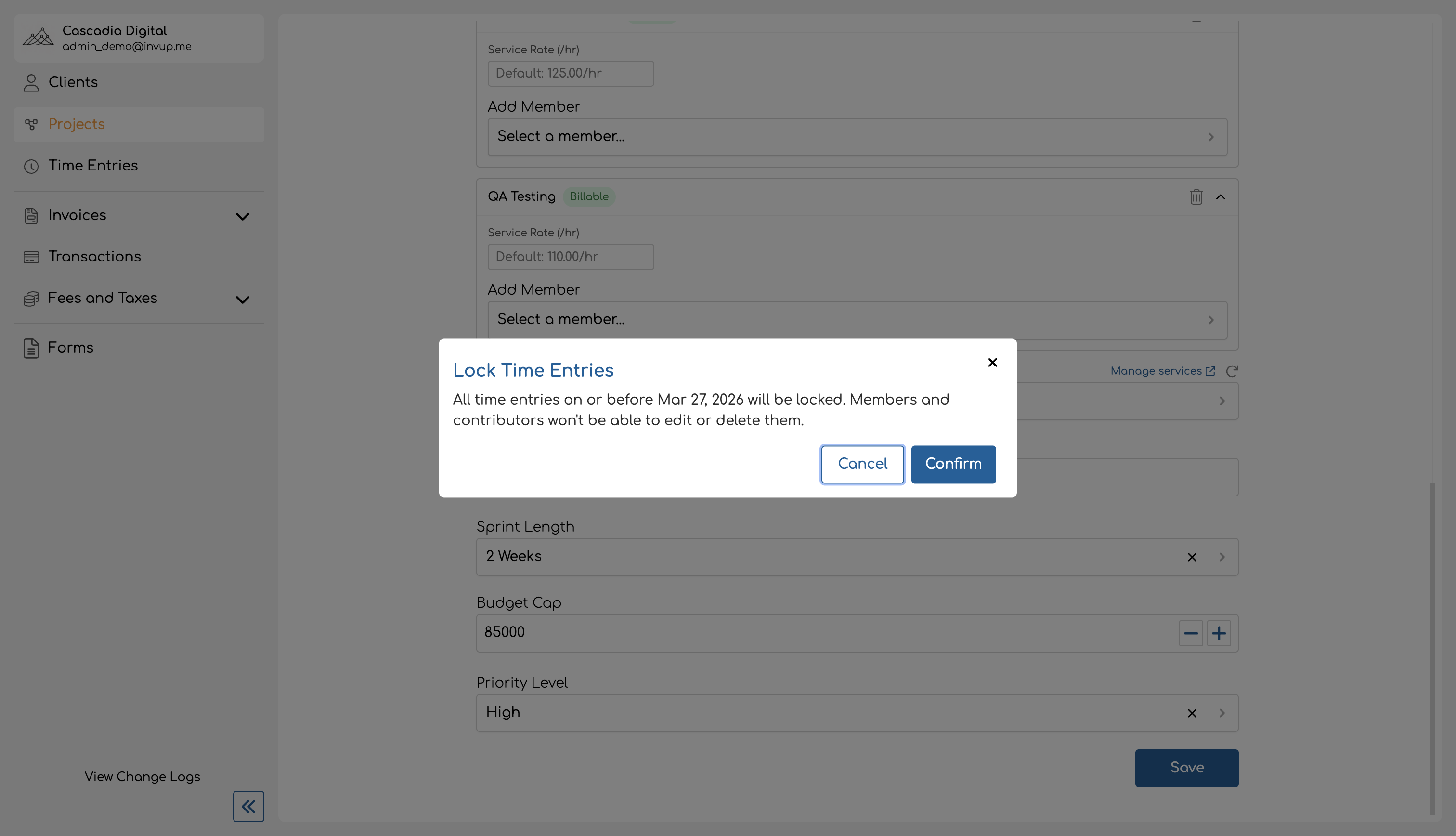
A confirmation dialog appears whenever you set or advance the lock date, warning that all entries on or before the chosen date will become locked.
Permissions
- Owners and Admins can set and change the lock date on any project.
- Team Members and Contributors cannot modify the lock date. When an entry falls within the locked period, the edit and delete buttons are disabled and a tooltip explains that the entry is locked.
Identifying Locked Entries in the UI
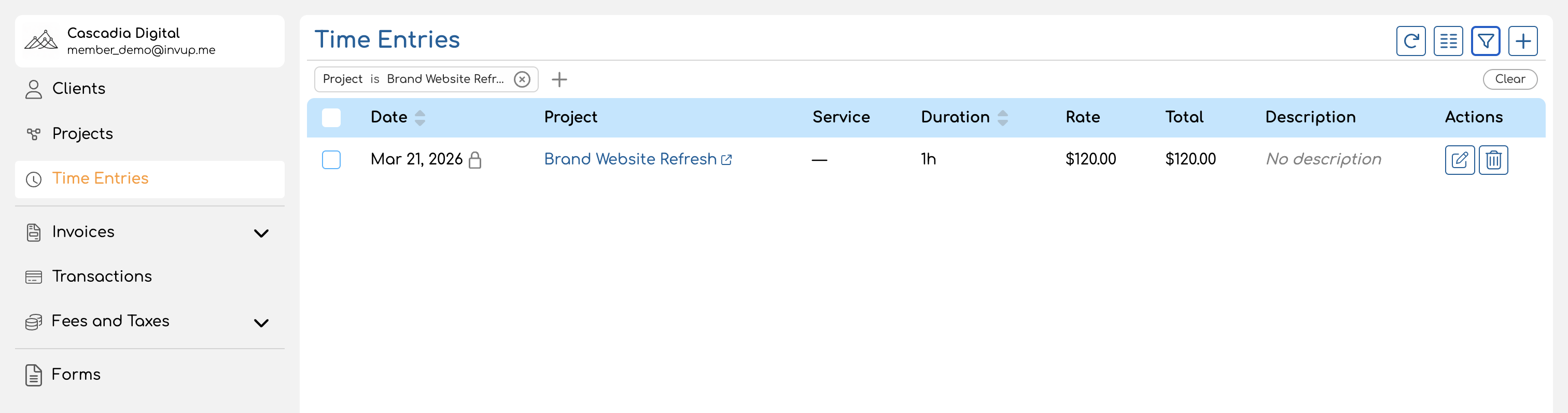
There are two lock indicators on the time entries list:
-
Date column lock icon — A small lock icon appears next to the date when the entry falls on or before the project's lock date. Hovering shows the tooltip: "Locked — period has been invoiced." This indicates the entire entry is locked (no edits or deletes allowed for non-admin users).
-
Rate column lock icon — A small lock icon appears next to the rate value when the entry has a frozen rate. Hovering shows the tooltip: "This rate is locked." This indicates the rate won't change even if the underlying rate configuration is updated.
An entry can have both indicators simultaneously (e.g., an entry within the lock date range that also has a frozen rate), or just one (e.g., a rate locked at creation on an entry that's still within the editable date range).
Summary
| Mechanism | What it protects | Configured at | Who can configure |
|---|---|---|---|
| Rate Lock Policy | The hourly rate on individual entries | Organization settings | Owner / Admin |
| Project Lock Date | The entire entry (no create, edit, or delete) | Project details | Owner / Admin |
Both mechanisms work together to ensure that historical time tracking data remains accurate and consistent with what has been billed.