
How to Create and Manage Services
Your organization's service library is where you define the types of work your team performs. This page walks through creating, editing, archiving, and deleting services, and explains each field on a service.
For an introduction to what services are and how they fit into the platform, see Services Overview.
The Service List
You can find your service library under Settings > Services. The list shows all services in your organization with the following columns:
| Column | Description |
|---|---|
| Name | The service name |
| Hourly Rate (/hr) | The service's base hourly rate, or "—" if none is set. A badge shows how many team members have rate overrides |
| Billable | "Billable" (green) or "Not billable" (gray) |
| Status | "Active" (blue) or "Archived" (orange) |
| Created | When the service was created |
You can sort by name, hourly rate, billable status, or created date. Active services appear before archived ones by default.
Filtering the List
- Billable — show only billable or only non-billable services
- Status — show only active or only archived services
- Has Rate Overrides — filter to services that have a rate override for a specific team member
Creating a Service
To create a new service, click Create Service above the list. A form appears with the following fields:
| Field | Required | Description |
|---|---|---|
| Name | Yes | A descriptive name for the service (e.g., "Development", "Design Review"). Maximum 255 characters. |
| Description | No | Optional notes explaining what the service covers. |
| Hourly Rate (/hr) | No | The default hourly rate for this service. If left blank, the rate will be resolved from lower levels in the rate chain when time is logged. Must be $0.00 or higher. |
| Billable | Yes | Whether time logged to this service should be billed. Checked by default. Non-billable services always resolve to a $0.00 rate. |
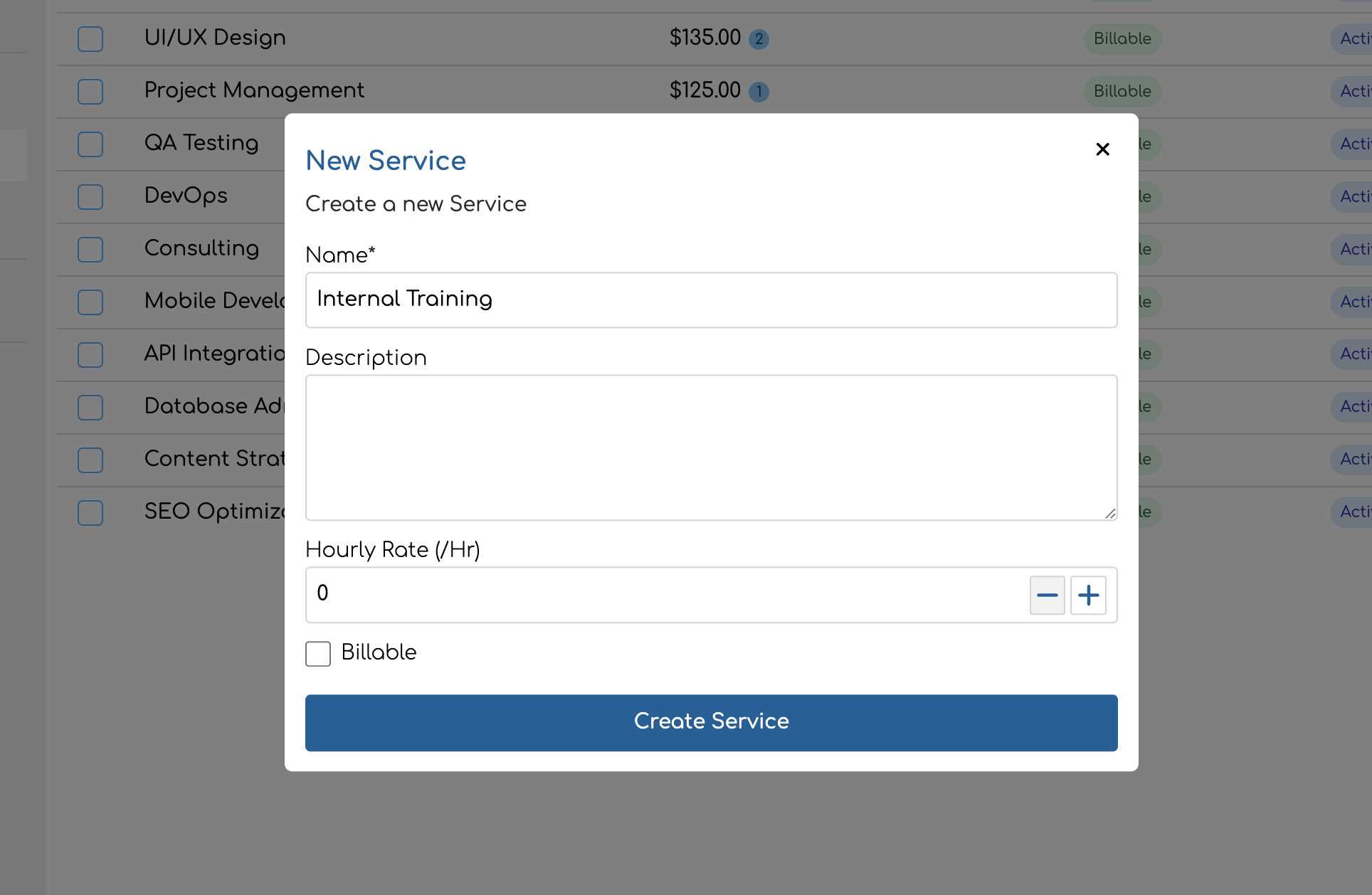
Click Create Service to save. The service is immediately available in your library and can be attached to projects.
Editing a Service
Click any service in the list to open its detail page. From here you can:
- Update the name, description, hourly rate, or billable setting
- Manage member rate overrides (see below)
- Archive or delete the service via the action menu in the top right
After making changes, click Save Changes. The button is disabled until you modify something.
Service Fields Reference
| Field | Type | Editable | Notes |
|---|---|---|---|
| Name | Text | Yes | Required. Max 255 characters. |
| Description | Text | Yes | Optional. |
| Hourly Rate | Currency | Yes | Optional. Base rate for this service. Must be $0.00 or higher if provided. |
| Billable | Checkbox | Yes | Defaults to checked. Non-billable services always resolve to $0.00. |
| Status | Active / Archived | Yes | Toggled via the Archive/Unarchive action in the menu. |
| Member Rate Overrides | Rate table | Yes | Custom rates for specific team members on this service. |
Member Rate Overrides
On the service detail page, the Member Rate Overrides section lets you set custom hourly rates for specific team members when they perform this service.
To add a rate override:
- Use the member dropdown to select one or more team members.
- Enter a custom hourly rate for each selected team member.
- Click Save Changes.
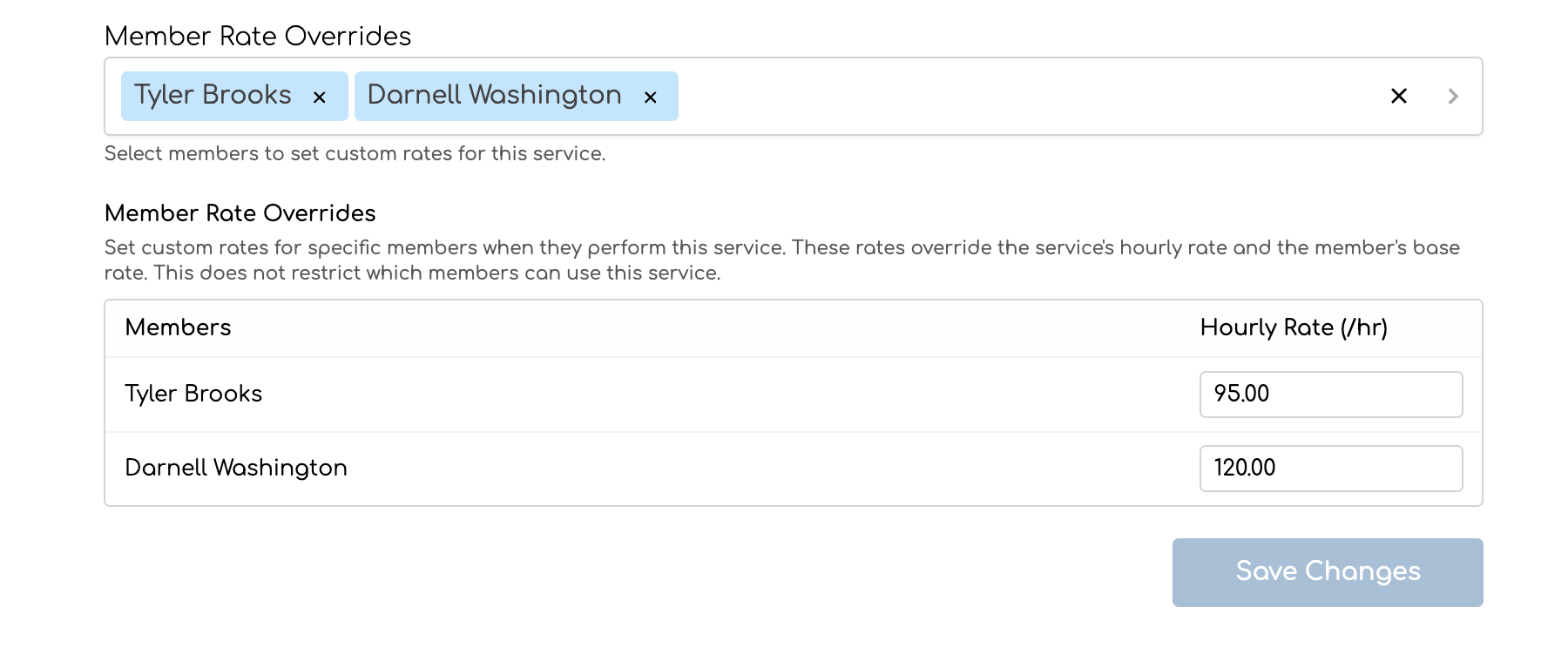
If you leave a team member's rate blank, the input shows a placeholder indicating which rate will apply instead — either the service rate or the team member's base rate.
These overrides apply organization-wide. When a team member with an override logs time to any project using this service, the override rate takes priority over the service's base rate. For the full priority order, see Rate Locking — How Rate Resolution Works.
Setting a rate override does not restrict which team members can use the service. Any team member assigned to a project's service can log time to it, regardless of whether they have an override.
Archiving Services
When you no longer need a service but want to keep its historical data, archive it instead of deleting it.
To archive a service:
- Open the service detail page.
- Click the action menu (three dots) in the top right.
- Click Archive.
Archived services:
Deleting Services
To permanently remove a service:
- Open the service detail page.
- Click the action menu (three dots) in the top right.
- Click Delete.
- Confirm the deletion in the dialog.
A service can only be deleted if it has no time entries associated with it. If the service has been used to log time, you'll see a message explaining that it cannot be deleted — archive it instead.
Bulk Deleting Services
You can delete multiple services at once from the service list:
- Select the services using the row checkboxes.
- Open the actions menu and click Delete.
- Confirm the deletion.
Services that have time entries are automatically skipped during bulk deletion — they won't be deleted, and you'll be informed of the count that was skipped. You can delete up to 100 services at a time.
Assigning Services to Projects
Once created, services can be attached to any project that has services enabled. This is done from the project form, not from the service library.
For step-by-step instructions on adding services to projects and configuring project-specific rates, see Managing Project Services & Rates.
Tips for Organizing Your Service Library
- Be specific but not too granular. A service like "Development" is useful for categorization and billing. A service like "Fixed bug in login form on Tuesday" is too narrow — use the time entry description for that level of detail.
- Use the billable flag for internal work. Services like "Team Meeting", "Internal Training", or "Admin" should be non-billable so they're tracked for reporting without inflating invoices.
- Set base rates on services when possible. Even if you override rates at the project or team member level, a base rate serves as a sensible default and makes it clear what the "standard" rate is.
- Archive instead of deleting. Archiving preserves your historical data and keeps past time entries and reports accurate. Only delete services that were created by mistake and never used.
- Use member rate overrides for seniority-based pricing. If a senior developer charges $200/hr and a junior charges $120/hr for the same "Development" service, set overrides on the service rather than creating separate services for each seniority level.