
Overview
Services represent the types of work your organization performs — things like "Design", "Development", "Consulting", or "Project Management". They provide a way to categorize time entries, control billing rates at a granular level, and distinguish between work that should be invoiced and work that should not.
Services are managed at the organization level, forming a shared service library that can be attached to any project.
What Is a Service?
A service is a reusable work category with the following properties:
| Property | Description |
|---|---|
| Name | The display name (e.g., "Development", "Design Review") |
| Description | Optional notes about what the service covers |
| Rate | An optional base hourly rate for this service |
| Billable / Non-billable | Whether time logged to this service should be billed |
[IMAGE PLACEHOLDER: Screenshot of the service detail page showing a service named "Development" with a rate, description, and the billable toggle enabled]
Services exist independently from projects. You create them once in your organization's service library, then attach them to whichever projects need them. The same service can be used across many projects, each with its own rate override if needed.
Billable vs Non-Billable Services
Every service is either billable or non-billable. This distinction affects how time entries are rated and invoiced.
Billable services (the default) follow the normal rate chain to resolve an hourly rate. Time logged to a billable service is included when generating invoices.
Non-billable services automatically resolve to a rate of $0.00, regardless of any rates configured on the service, project, or team member. Use non-billable services for internal activities you want to track for time reporting but not bill — things like team meetings, internal training, or administrative tasks.
[IMAGE PLACEHOLDER: Screenshot of the service list showing a mix of billable and non-billable services, with the billable/non-billable badge visible on each row]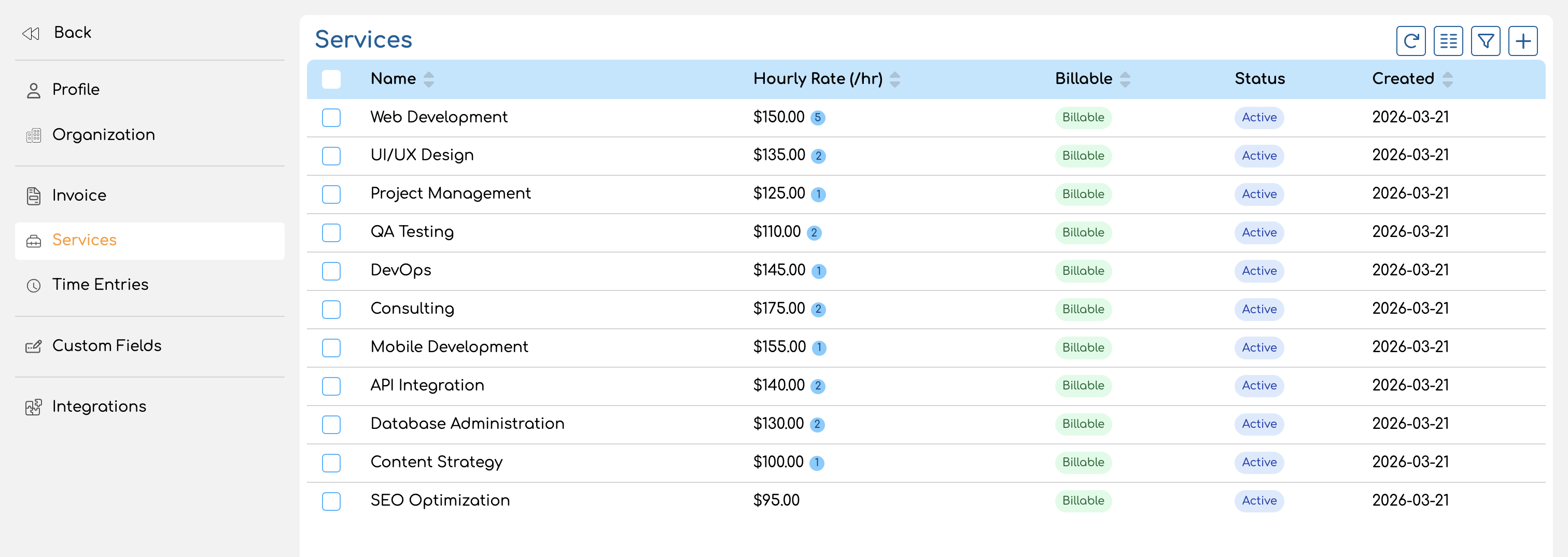
The Service Library
Your organization's service library is the central place where all services are defined. You can find it under Settings > Services (or via the main navigation).
[IMAGE PLACEHOLDER: Screenshot of the service list page showing several services in a table with columns for name, rate, billable status, member rate overrides count, and created date]
From the service library you can:
- Create new services with a name, optional description, base rate, and billable setting
- Edit existing services to update their properties or manage member rate overrides
- Archive services you no longer need — archived services are hidden from active lists but preserved for historical data
- Delete services that have never been used on a time entry
Archiving vs Deleting
Archiving hides a service from active lists and dropdowns without removing it. Archived services still appear on historical time entries and reports. You can unarchive a service at any time to bring it back.
Deleting permanently removes a service. This is only possible if the service has no time entries — if any time has been logged to a service, you must archive it instead. This protects your historical data from being lost.
How Services Connect to Projects
Projects can optionally enable services. When a project has services enabled:
- You select which services from the library are available on that project.
- Team members must choose a service when logging time.
- Each service can have a custom rate on that project, overriding its base rate.
When a project does not use services, time entries are logged directly against the project with no service breakdown.
For details on adding services to projects and configuring project-level rates, see Managing Project Services & Rates.
How Services Connect to Time Tracking
When a team member logs a time entry on a service-based project, they select both a project and a service. The service determines:
- Categorization — what type of work was performed
- Billing — whether the entry is billable (based on the service's billable setting)
- Rate — which hourly rate applies (the service participates in the rate chain)
How Services Connect to Rates
Services introduce additional levels into the rate chain, allowing fine-grained rate control. You can set rates at four service-related levels:
| Level | Where to set it | What it does |
|---|---|---|
| Service base rate | Service library (service detail page) | Default rate for this service across all projects |
| Member-service rate | Service detail page, under member rate overrides | Custom rate for a specific team member on this service, across all projects |
| Project-service rate | Project form, on the service card | Custom rate for this service on a specific project |
| Project-service-member rate | Project form, on the service card's member list | Custom rate for a specific team member on this service within a specific project |
These levels are checked in order from most specific to least specific when resolving a time entry's rate. See Rate Locking for the full priority order.
What's in This Book
This book covers everything you need to know about services in Invup:
- Overview (this page) — what services are and how they connect to the rest of the platform
- Creating and Managing Services — how to create, edit, archive, and delete services in your service library
- Member Rate Overrides — how to set team member-specific rates on individual services