Time Tracking
Creating time entries, understanding rates, and managing tracked time.
- Overview
- How to Create a Time Entry
- Understanding the Rate Hierarchy
- Rate Locking
- Bulk Managing Time Entries
- Time Entry Fields Reference
Overview
Time tracking in Invup lets your team log the hours they spend on projects, so you have accurate records for billing, reporting, and payroll. Every time entry captures who did the work, when, how long it took, and — if your projects use services — what type of work it was. Invup automatically resolves the applicable hourly rate for each entry, giving you a clear picture of billable value without manual calculations.
Key Concepts
Time Entries
A time entry is a single record of work. It includes a project, a date, a duration, an optional service, and an optional description. Each entry is attributed to the team member who logged it, and Invup calculates the applicable hourly rate automatically.
For a detailed breakdown of every field, see Time Entry Fields Reference.
Projects
Every time entry belongs to a project. Projects are how you organize work for different clients or engagements — for example, an accounting firm might have separate projects for each client's annual audit, while a marketing agency might create projects per campaign.
Projects can optionally use services to categorize work further. See the Projects book for more.
Services
Services represent the types of work your organization performs — things like "Tax Advisory", "Design", "Strategy", or "Litigation". When a project has services enabled, team members select a service when logging time, which helps categorize entries and enables service-level rate control.
Services are optional. If your projects don't need that level of categorization, you can track time directly against projects without services.
For more on services, see the Services book.
Rates
Invup automatically resolves an hourly rate for each time entry by walking a prioritized rate chain — from the most specific rate (e.g., a rate for this team member on this service within this project) down to the most general (e.g., the team member's base rate). The first rate found in the chain is the one that applies.
You can configure rates at multiple levels to match how your organization bills. For a full explanation of the rate chain and rate locking, see Rate Locking.
How Time Tracking Connects to Invoicing
Time entries provide the data you need to build accurate invoices. Each entry's duration and resolved rate give you the billable amount for that piece of work. When you create an invoice, you can reference your time entries to build line items that reflect the actual work performed.
Rate locking ensures billing integrity — once a rate is locked on a time entry (either at creation or at invoicing, depending on your organization's rate lock policy), future rate changes won't retroactively alter amounts that have already been billed.
Who Can Track Time
All team members in your organization can log time entries against projects they're assigned to. The table below summarizes what each role can do:
| Capability | Contributor | Team Member | Admin / Owner |
|---|---|---|---|
| Log their own time entries | Yes | Yes | Yes |
| Edit / delete their own entries | Yes | Yes | Yes |
| View all team members' entries | No | No | Yes |
| Edit / delete other members' entries | No | No | Yes |
| Log time on behalf of another team member | No | No | Yes |
| Delete locked entries | No | No | Yes |
| Manage rate lock policy and project lock dates | No | No | Yes |
Contributors and team members can only see and manage their own entries. Admins and owners have a separate view that shows all entries across the organization, with the ability to filter by team member.
What You Can Do
Here's a quick summary of the time tracking capabilities available in Invup:
- Log time — Create entries by selecting a project, date, duration, and optionally a service and description.
- Edit entries — Update any field on your time entries (or any entry, if you're an admin).
- Bulk manage — Select multiple entries and delete them in one action. Filter and sort the list to find what you need quickly.
- Lock rates — Choose when rates are frozen on entries — at creation, at invoicing, or never. Use project lock dates to prevent changes to entries in closed billing periods.
- Track by service — Categorize time by the type of work performed, with independent rate control at each service level.
What's in This Book
| Page | Description |
|---|---|
| Time Entry Fields Reference | Detailed reference for every field on a time entry — what it means, whether it's user-editable or system-managed, and its constraints. |
| Bulk Managing Time Entries | How to select, filter, sort, and bulk-delete time entries. Covers admin vs team member permissions. |
| Rate Locking | How rate lock policies and project lock dates protect your billing data from retroactive changes. Includes the full rate chain priority order. |
How to Create a Time Entry
This guide walks through creating a time entry in Invup — from opening the form to saving the entry. For a reference of every field and its constraints, see Time Entry Fields Reference.
Creating a Time Entry
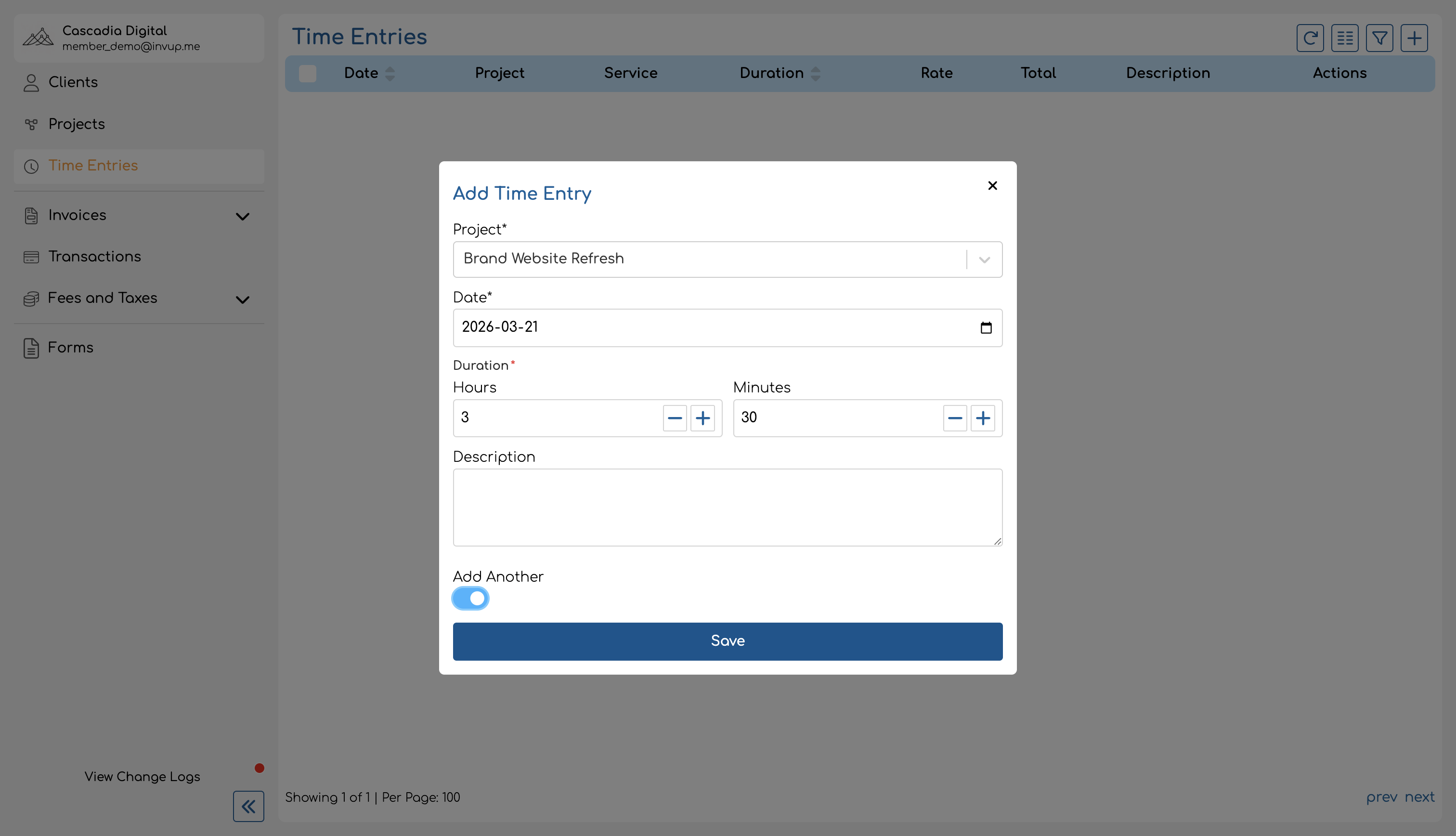
A success notification confirms the entry was created.
Form Fields
Project (required)
Select the project this work is tracked against. The dropdown lists all projects you're assigned to.
The project you choose affects which service options are available (if any) and which hourly rate is applied to the entry. Selecting the right project is important for accurate billing — for example, if a law firm tracks time for multiple clients, each client should have its own project.
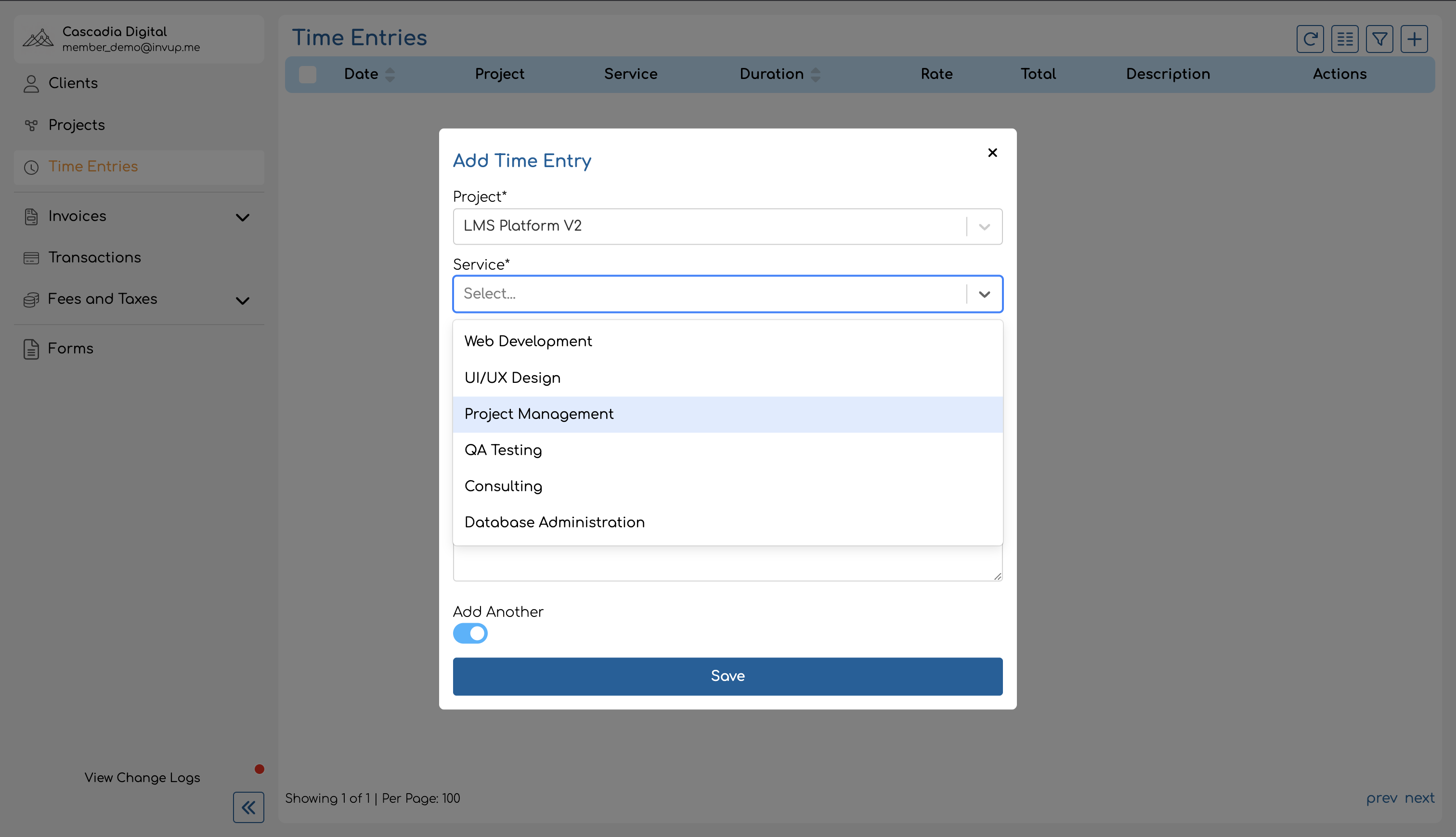
Service (conditional)
If the selected project has services enabled, a Service dropdown appears. You must select a service — it's required on service-based projects.
The service list is filtered to show only the services you're assigned to on the selected project. If you switch to a different project or team member, the service selection resets.
If the project does not use services, this field is hidden entirely.
Date (required)
The date the work was performed. Defaults to today's date. Pick a different date if you're logging time retroactively.
If the date falls on or before the project's lock date, the entry cannot be created by regular team members or contributors. Only admins and owners can create entries within a locked period.
Duration (required)
How long the work took. Duration is entered as two separate fields:
- Hours — 0 to 23
- Minutes — 0 to 59
The total duration must be at least 1 minute. For example, a 2.5-hour meeting would be entered as 2 hours and 30 minutes.
Description (optional)
Free-text notes about the work performed. Maximum 1,000 characters. Use this to capture what you worked on — for example, "Reviewed Q1 financial statements" or "Initial brand strategy workshop with client team".
If left blank, the entry displays "No description" in the time entries list.
Admin: Creating Entries for Other Team Members
Owners and admins see an additional Member field at the top of the form. This lets them log time on behalf of any team member in the organization — useful when a team member forgets to log their hours or when an admin is cleaning up records.
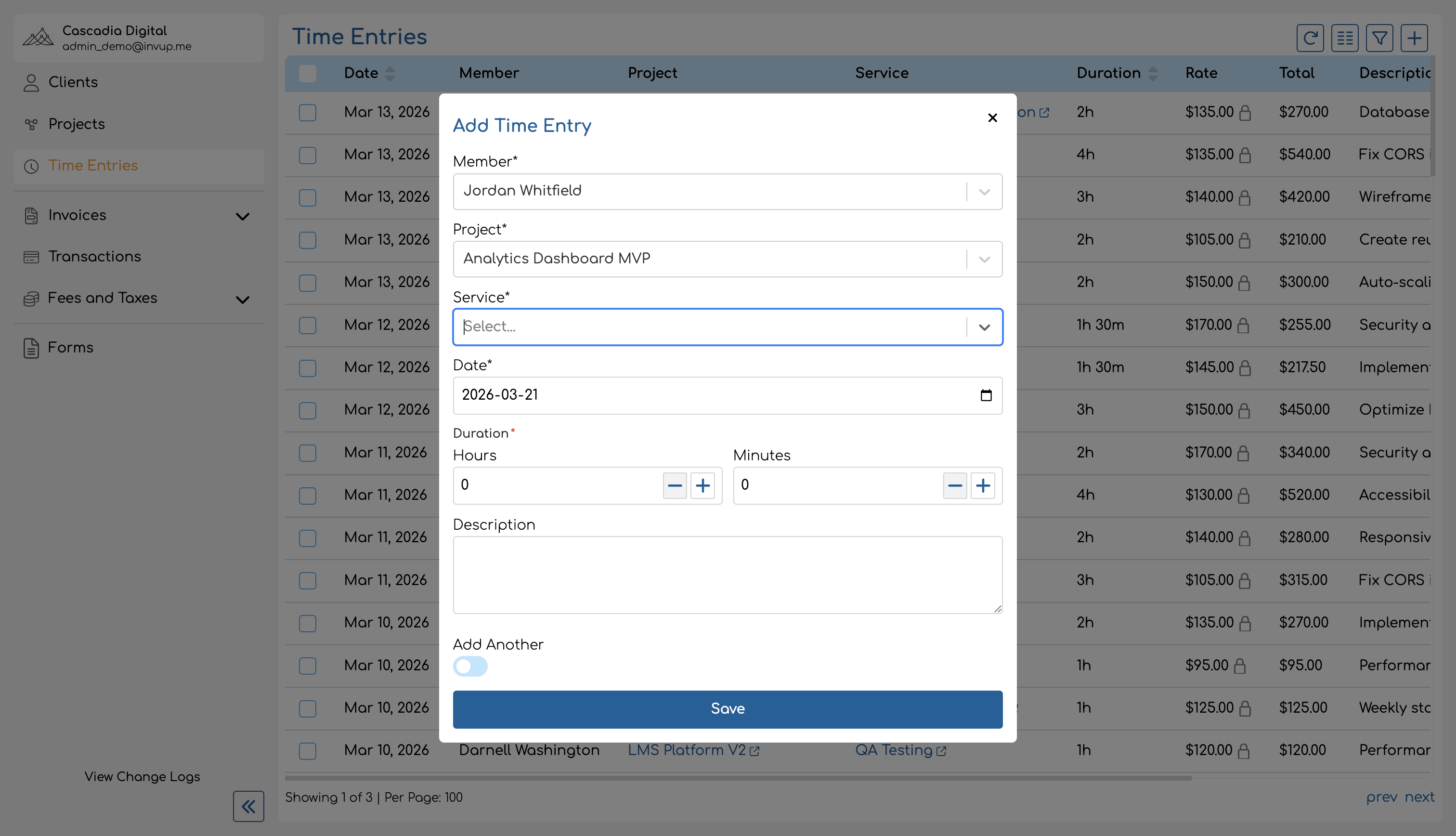
When a team member is selected, the service dropdown is filtered to show only the services that team member is assigned to on the chosen project.
Regular team members and contributors do not see this field — their entries are always attributed to themselves.
Adding Multiple Entries Quickly
When logging several entries in a row, toggle the Add another switch at the bottom of the form. With this enabled, saving an entry keeps the form open and resets most fields so you can immediately create the next one.
The form preserves the project selection (on service-based projects) and the selected team member (for admins), so you only need to fill in the fields that change between entries.
How Rates Are Assigned
You don't need to enter a rate manually. Invup automatically resolves the applicable hourly rate for each time entry by walking a prioritized rate chain. The rate depends on the combination of project, service, and team member.
After an entry is saved, you can see the resolved rate in the time entries list. If your organization uses the "At Creation" rate lock policy, the rate is frozen immediately and won't change even if you update rates later. See Rate Locking for details.
Uniqueness Constraint
Each time entry must be unique across the combination of team member + project + date + service. If you try to create a second entry for the same team member, project, date, and service, you'll receive an error. Edit the existing entry's duration instead to add more time.
For projects without services, the constraint is team member + project + date — one entry per team member per project per day.
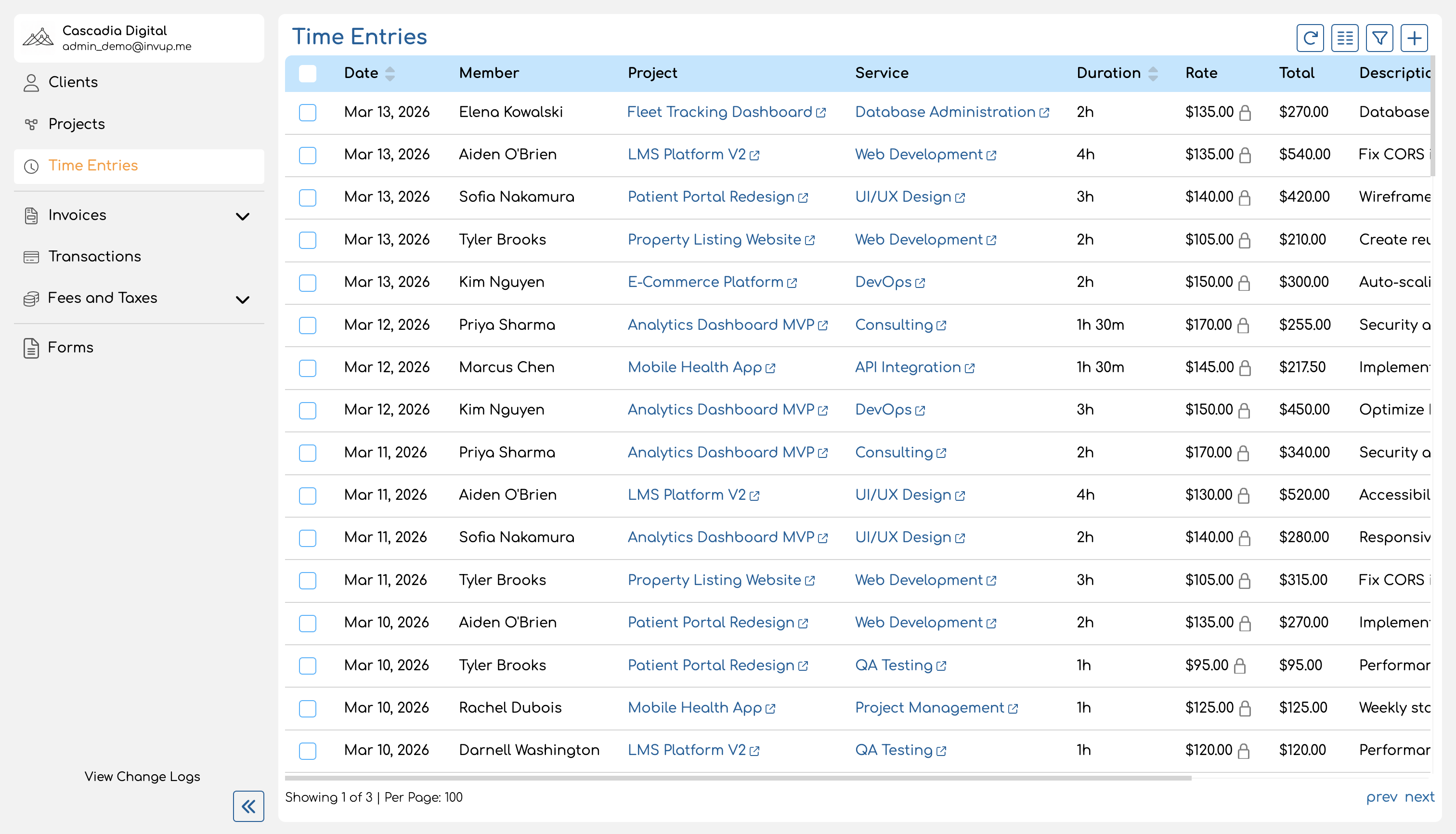
Admin View vs Team Member View
The time entries page works differently depending on your role:
| Team Member / Contributor | Admin / Owner | |
|---|---|---|
| What you see | Your own entries only | All entries across the organization |
| Creating entries | For yourself only | For any team member |
| Member column | Not shown | Shown — displays who logged each entry |
| Member filter | Not available | Available — filter by team member |
Tips for Accurate Time Tracking
- Select the right project. If your organization bills multiple clients, make sure each entry goes to the correct project. Logging time to the wrong project can lead to billing errors.
- Use services for categorization. On service-based projects, selecting the correct service ensures the right rate is applied and gives you better reporting breakdowns — for example, an architecture firm can see how much "Schematic Design" time vs "Construction Administration" time was spent on a project.
- Log time daily. It's easier to remember what you worked on and for how long if you log entries at the end of each day rather than reconstructing your week on Friday.
- Use the "Add another" toggle. When catching up on multiple entries, this saves time by keeping the form open between entries.
- Add descriptions. Brief notes make it easier to review entries later and provide context when generating invoices — especially for clients who want itemized billing.
Understanding the Rate Hierarchy
Invup lets you set hourly rates at multiple levels — on a team member, a service, a project, or any combination of the three. When a time entry is created, Invup needs to decide which rate applies. This page explains how that decision works.
The Problem
Imagine an accounting firm where:
- A senior accountant has a base rate of $275/hr
- The "Tax Advisory" service has a base rate of $250/hr
- A specific client project has a project rate of $200/hr
- That same project has a custom rate of $300/hr for Tax Advisory
- And that senior accountant has a special rate of $325/hr for Tax Advisory on that project
When the senior accountant logs an hour of Tax Advisory work on that project, which rate should Invup use? $325/hr — the most specific rate that matches the exact combination of team member, service, and project.
This is the core principle: the most specific rate wins.
Two Rate Chains
Invup uses two different rate chains depending on whether the project uses services.
Service-Based Projects
When a project has services enabled and a time entry includes a service, Invup checks these levels in order and uses the first rate it finds:
| Priority | Rate Level | What It Is | Where to Set It |
|---|---|---|---|
| 0 | Non-billable check | If the service is marked non-billable, the rate is always $0.00 | Service detail page — Billable checkbox |
| 1 | Project-service-member rate | A rate for this team member on this service within this project | Project form — service card, member rate input |
| 2 | Member-service rate | A rate for this team member on this service, across all projects | Service detail page — Member Rate Overrides |
| 3 | Project-service rate | A rate for this service on this project | Project form — service card, Service Rate input |
| 4 | Service base rate | The service's default hourly rate | Service detail page — Hourly Rate field |
| 5 | Project rate | The project's default hourly rate | Project form — Hourly Rate field |
| 6 | Member base rate | The team member's organization-level base rate | Team member settings — Base Rate field |
Non-Service Projects
When a project does not use services (or no service is selected), the chain is simpler:
| Priority | Rate Level | What It Is | Where to Set It |
|---|---|---|---|
| 1 | Project-member rate | A rate for this team member on this project | Project form — member rate input |
| 2 | Project rate | The project's default hourly rate | Project form — Hourly Rate field |
| 3 | Member base rate | The team member's organization-level base rate | Team member settings — Base Rate field |
How Resolution Works
The rules are straightforward:
- Invup walks the chain from top to bottom (most specific to least specific).
- The first non-null rate wins. As soon as Invup finds a rate at any level, it stops looking and uses that rate.
- $0.00 is a valid rate. A rate of zero does not fall through to the next level — it means "this work is free" and is used intentionally.
- If no rate is found at any level, the time entry has no rate. This can happen if no rates are configured anywhere in the chain.
Examples
Example 1: No overrides — Falls back to member base rate
Setup — Law firm: A paralegal at a law firm has a base rate of $95/hr. The project "Smith Estate Planning" has no project rate set, and the project doesn't use services.
| Level | Rate | Result |
|---|---|---|
| Project-member rate | Not set | Skip |
| Project rate | Not set | Skip |
| Member base rate | $95/hr | Used |
Resolved rate: $95/hr (from the team member's base rate)
Example 2: Project-member rate overrides the base rate
Setup — Marketing agency: A copywriter has a base rate of $120/hr. On a specific client project "Acme Brand Refresh", the agency has set a project-member rate of $150/hr for this copywriter because the client's contract specifies a higher rate.
| Level | Rate | Result |
|---|---|---|
| Project-member rate | $150/hr | Used |
| Project rate | $130/hr | Skipped |
| Member base rate | $120/hr | Skipped |
Resolved rate: $150/hr (from the project-member rate — the most specific match)
Example 3: Service rate with a project override
Setup — Architecture firm: The "Schematic Design" service has a base rate of $175/hr. On a large commercial project, the firm has set a project-service rate of $200/hr for Schematic Design because the project scope warrants a premium.
| Level | Rate | Result |
|---|---|---|
| Non-billable check | Billable | Continue |
| Project-service-member rate | Not set | Skip |
| Member-service rate | Not set | Skip |
| Project-service rate | $200/hr | Used |
| Service base rate | $175/hr | Skipped |
| Project rate | $160/hr | Skipped |
| Member base rate | $140/hr | Skipped |
Resolved rate: $200/hr (from the project-service rate)
Example 4: Most specific level wins — Project-service-member rate
Setup — Consulting firm: A senior consultant has a base rate of $250/hr. The "Strategy" service has a base rate of $300/hr. The senior consultant has a member-service rate of $350/hr for Strategy. On a specific project for a long-standing client, the firm has negotiated a discounted project-service-member rate of $275/hr.
| Level | Rate | Result |
|---|---|---|
| Non-billable check | Billable | Continue |
| Project-service-member rate | $275/hr | Used |
| Member-service rate | $350/hr | Skipped |
| Project-service rate | Not set | Skipped |
| Service base rate | $300/hr | Skipped |
| Project rate | $280/hr | Skipped |
| Member base rate | $250/hr | Skipped |
Resolved rate: $275/hr (from the project-service-member rate — the most granular level)
Even though the consultant's member-service rate ($350/hr) is higher, the project-service-member rate takes priority because it's more specific.
Example 5: Non-billable service short-circuits the chain
Setup — Any organization: A team member logs time to the "Internal Meetings" service, which is marked as non-billable. It doesn't matter what rates are configured at any other level — the non-billable check happens first.
| Level | Rate | Result |
|---|---|---|
| Non-billable check | Non-billable → $0.00 | Used |
Resolved rate: $0.00 (non-billable services always resolve to zero)
Rate Source Reference
Every rate level has a label that Invup stores alongside the resolved rate (when rate locking is active). This tells you exactly where the rate came from:
| Rate Level | Source Label | Where to Configure |
|---|---|---|
| Non-billable | non-billable |
Service detail — Billable checkbox |
| Project-service-member rate | project-service-member-rate |
Project form — service card → member rate |
| Member-service rate | member-service-rate |
Service detail — Member Rate Overrides |
| Project-service rate | project-service-rate |
Project form — service card → Service Rate |
| Service base rate | service-rate |
Service detail — Hourly Rate |
| Project rate | project-rate |
Project form — Hourly Rate |
| Project-member rate | project-member-rate |
Project form — member rate (non-service projects) |
| Member base rate | member-rate |
Team member settings — Base Rate |
You can see which rate source was used on any time entry in the time entries list. For details on how rates get frozen and what the source label means, see Rate Locking.
Frequently Asked Questions
What happens if no rate is set at any level?
The time entry will have no rate. This means it won't contribute to billable totals. To avoid this, set at least a base rate on each team member or on each project.
Can I set a rate of $0.00 intentionally?
Yes. A rate of $0.00 is valid and will not fall through to the next level. Use this when you want to explicitly mark work as having no charge — for example, a pro bono project for a nonprofit client.
If I change a rate, does it affect past time entries?
It depends on your organization's rate lock policy:
- At Creation — Past entries keep their original locked rate. The change only affects new entries.
- At Invoice — Past entries are recalculated until they appear on an invoice, at which point the rate is locked.
- No Locking — All entries (past and future) are recalculated dynamically. Changing a rate affects everything.
Does the non-service chain ever apply to a service-based project?
No. If the project has services enabled, the service chain is always used for entries that include a service. The non-service chain only applies to projects that do not have services enabled.
Where should I set rates if I want the simplest setup?
Start with member base rates — set a default hourly rate for each team member. This provides a fallback for every time entry. Then layer on overrides only where you need them (e.g., a higher rate for a specific service, or a discounted rate for a specific client project).
Rate Locking
Rate locking freezes the hourly rate on a time entry so that future rate changes don't retroactively alter historical billing data. This page covers the two mechanisms Invup provides — rate lock policies (which control when a rate is frozen on individual entries) and project lock dates (which prevent all modifications to entries before a given date).
Why Rate Locking Exists
Without rate locking, changing a team member's hourly rate would ripple backward through every time entry that team member has ever logged. A rate increase meant to apply going forward could silently inflate past totals that have already been invoiced, creating discrepancies between what was billed and what the system now reports.
Rate locking preserves billing integrity by capturing the rate that was in effect at the moment that matters — either when the entry was created or when it was invoiced — and making that rate permanent.
Rate Lock Policies
The Rate Lock Policy is an organization-level setting that controls when an entry's rate gets frozen. You can find it under Settings > Time Entries.
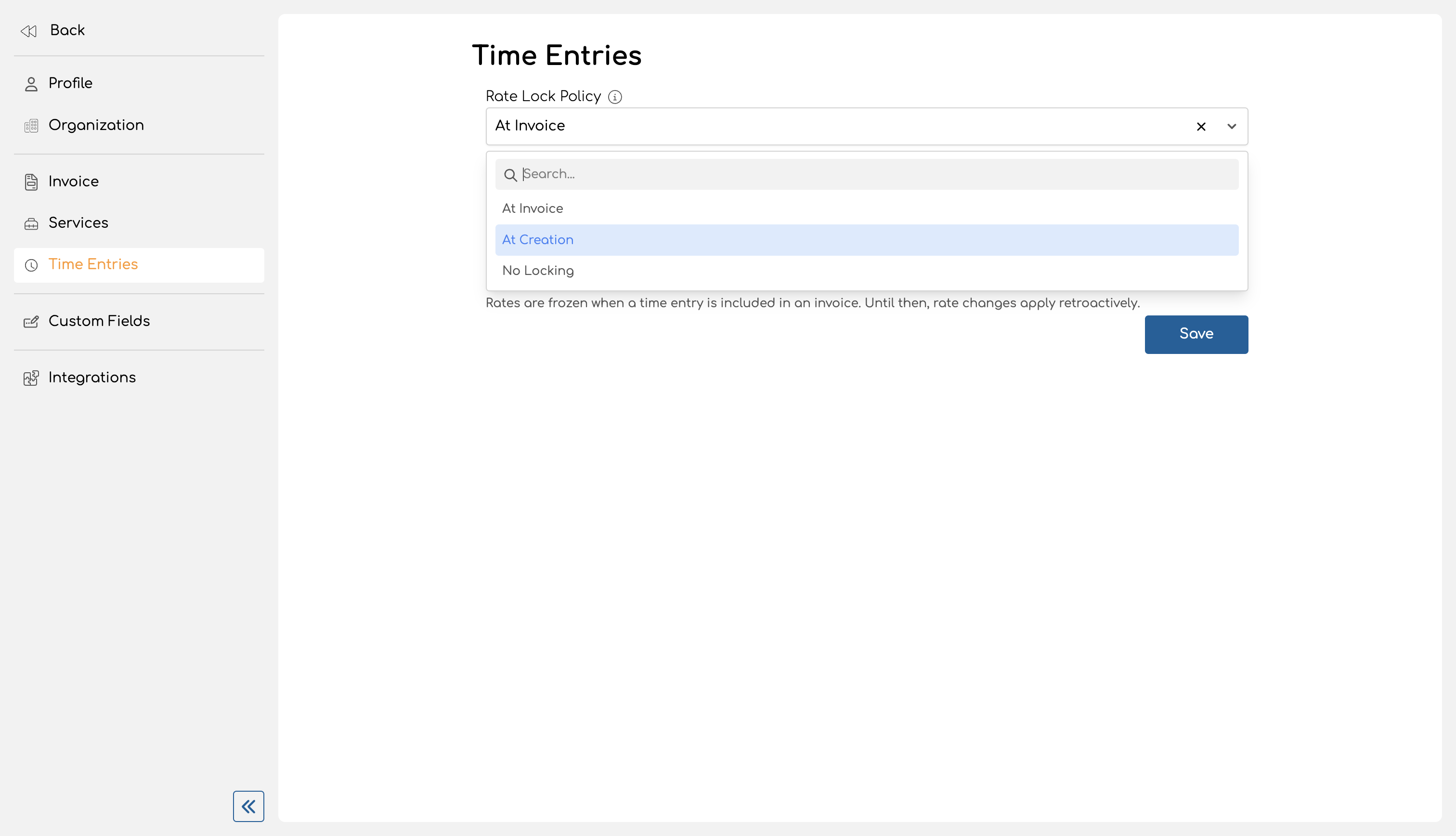
There are three policies:
At Invoice (default)
Rates are frozen when a time entry is included in an invoice. Until that point, any rate change you make will apply retroactively to existing entries. This is the best option if you want maximum flexibility to adjust rates before billing.
At Creation
Rates are frozen the moment a time entry is created. The rate that applies at creation time is captured and stored permanently on the entry. Future rate changes do not affect existing entries — only new entries going forward.
This is the most conservative option. It's a good fit if your billing rates rarely change mid-engagement or if you need a clear audit trail of exactly what rate was in effect when work was logged.
No Locking
Rates are always calculated dynamically. Changing a rate at any level affects all time entries — past and future. Use this only if you intentionally want rate changes to propagate everywhere (e.g., correcting a rate that was entered incorrectly from the start).
How Rate Resolution Works
When a time entry is created, Invup resolves the applicable rate by walking a prioritized chain. The first non-null rate wins. The chain differs depending on whether the project uses services.
Service-based projects:
| Priority | Source | Description |
|---|---|---|
| 0 | Non-billable check | If the service is marked non-billable, the rate is $0.00 |
| 1 | Project-Service-Member rate | Rate set for this specific team member on this service within this project |
| 2 | Member-Service rate | Rate set for this team member on this service (organization-wide) |
| 3 | Project-Service rate | Rate set for this service within this project |
| 4 | Service base rate | The service's default hourly rate |
| 5 | Project rate | The project's hourly rate |
| 6 | Member base rate | The team member's organization-level base rate |
Non-service projects:
| Priority | Source | Description |
|---|---|---|
| 1 | Project-Member rate | Rate set for this team member on this project |
| 2 | Project rate | The project's hourly rate |
| 3 | Member base rate | The team member's organization-level base rate |
When a rate is locked (under the "At Creation" or "At Invoice" policy), both the resolved rate and its source are stored on the time entry. This is called the locked rate source — it tells you which level of the chain provided the frozen rate (e.g., project-service-member-rate, project-member-rate, member-rate, etc.).
What Happens When You Change a Rate After Entries Are Locked
| Scenario | Locked entries | Unlocked entries |
|---|---|---|
| You change a team member's project rate | Keep their original locked rate | Recalculated dynamically using the new rate |
| You change a service rate | Keep their original locked rate | Recalculated dynamically using the new rate |
| You detach a service from a locked entry | Locked rate and source are preserved — the entry remembers the rate even though the service link is gone | N/A |
In short: locked entries are immutable with respect to their rate. The lock icon in the UI makes this visible at a glance.
Re-stamping on Update
When the "At Creation" policy is active and you update a time entry's project or service (the fields that affect which rate chain is used), the locked rate is re-stamped. The system resolves the new rate based on the updated project/service combination and freezes that instead.
Changing non-rate-affecting fields (duration, description, date) preserves the original locked rate.
Project Lock Date
The project lock date is a separate, complementary mechanism. While the rate lock policy controls whether a rate is frozen, the project lock date controls whether an entry can be modified at all.
Each project has an optional "Lock entries until" date field, found on the project details page.
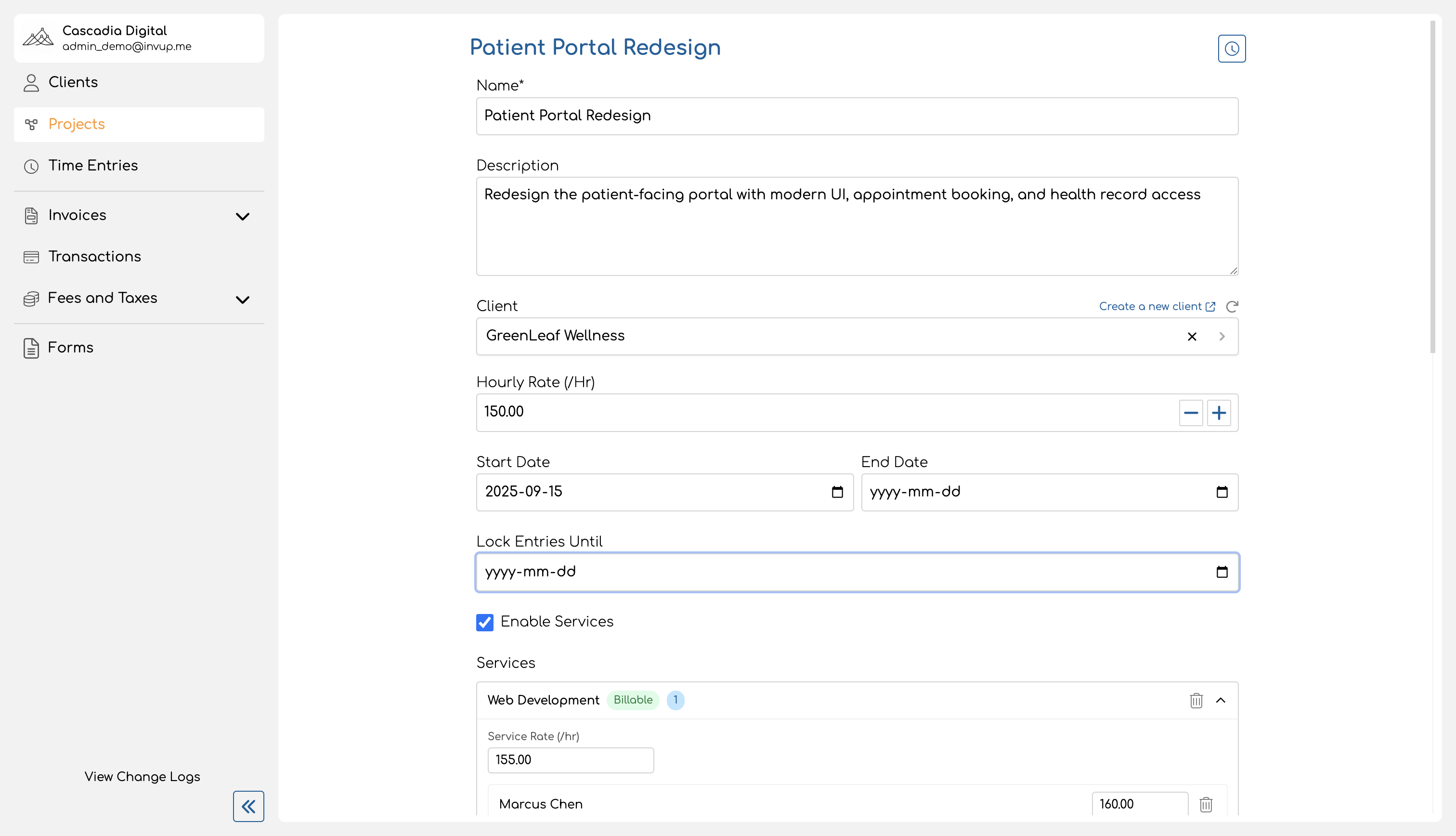
How It Works
- All time entries dated on or before the lock date are fully locked — they cannot be created, edited, or deleted by regular team members or contributors.
- Entries dated after the lock date remain fully editable.
- If the lock date is not set (null), no entries are locked by date.
Advancing the Lock Date
When you move the lock date forward, entries that were previously editable become locked. For example, if the lock date is January 31 and you advance it to February 28, all February entries are now locked too.
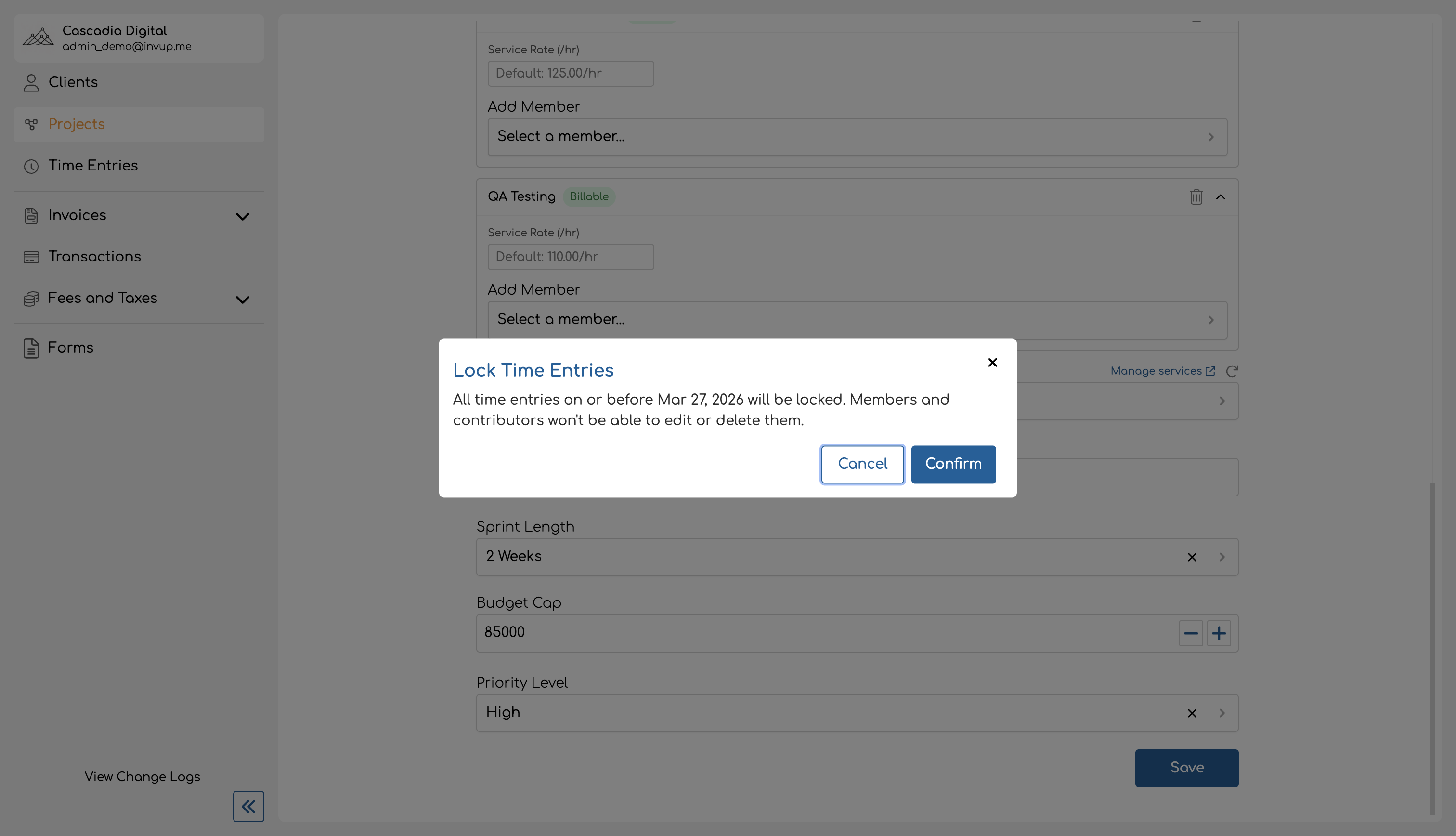
A confirmation dialog appears whenever you set or advance the lock date, warning that all entries on or before the chosen date will become locked.
Permissions
- Owners and Admins can set and change the lock date on any project.
- Team Members and Contributors cannot modify the lock date. When an entry falls within the locked period, the edit and delete buttons are disabled and a tooltip explains that the entry is locked.
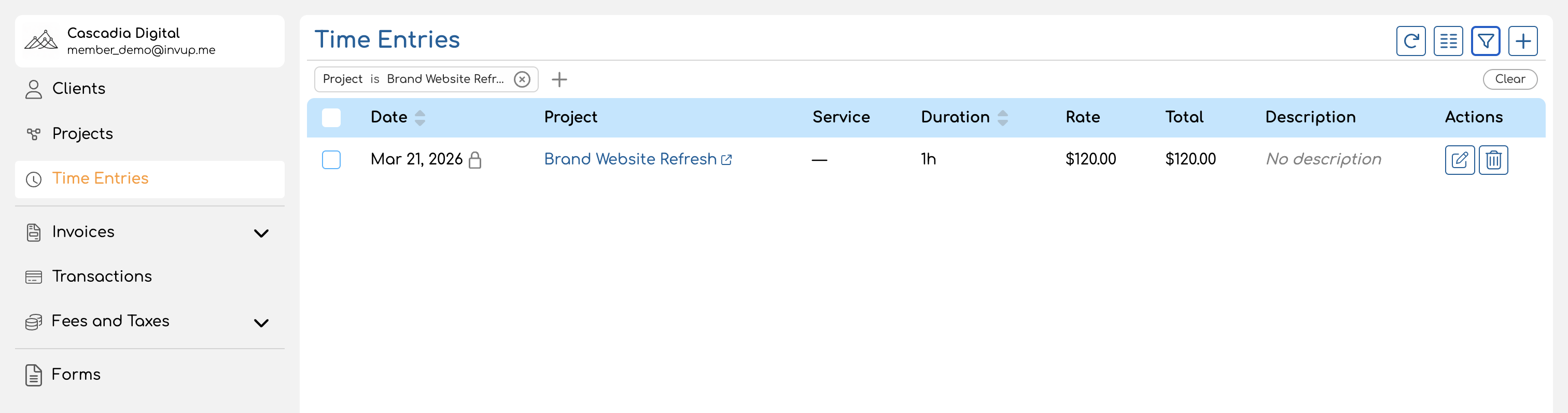
Identifying Locked Entries in the UI
There are two lock indicators on the time entries list:
-
Date column lock icon — A small lock icon appears next to the date when the entry falls on or before the project's lock date. Hovering shows the tooltip: "Locked — period has been invoiced." This indicates the entire entry is locked (no edits or deletes allowed for non-admin users).
-
Rate column lock icon — A small lock icon appears next to the rate value when the entry has a frozen rate. Hovering shows the tooltip: "This rate is locked." This indicates the rate won't change even if the underlying rate configuration is updated.
An entry can have both indicators simultaneously (e.g., an entry within the lock date range that also has a frozen rate), or just one (e.g., a rate locked at creation on an entry that's still within the editable date range).
Summary
| Mechanism | What it protects | Configured at | Who can configure |
|---|---|---|---|
| Rate Lock Policy | The hourly rate on individual entries | Organization settings | Owner / Admin |
| Project Lock Date | The entire entry (no create, edit, or delete) | Project details | Owner / Admin |
Both mechanisms work together to ensure that historical time tracking data remains accurate and consistent with what has been billed.
Bulk Managing Time Entries
Invup lets you select multiple time entries and act on them at once — useful when you need to clean up test data, remove duplicate entries, or clear out entries from a cancelled project. This page covers how to select, filter, sort, and bulk-delete time entries.
Selecting Time Entries
The time entries list has a checkbox on each row. You can select entries one at a time, or use the checkbox in the table header to select all entries on the current page.
Once at least one entry is selected, an actions menu (three-dot icon) appears in the table toolbar. This menu contains the available bulk actions.
Bulk Deleting Time Entries
To delete multiple time entries at once:
- Select the entries you want to delete using the row checkboxes.
- Open the actions menu and click Delete.
- A confirmation dialog appears showing how many entries will be deleted — for example, "Are you sure you want to delete these 5 time entries?"
- Confirm the deletion.
A success notification confirms the entries were removed. You can delete up to 100 entries at a time.
Locked entries
If a time entry falls on or before a project's lock date, it cannot be deleted by regular team members or contributors. Locked entries show a lock icon next to their date and have their action buttons disabled. See Rate Locking for details on project lock dates.
Owners and admins can still delete locked entries.
Filtering Time Entries
Filters narrow the list to show only the entries you care about. Click the Add Filter button above the table to add a filter, then choose a field and value.
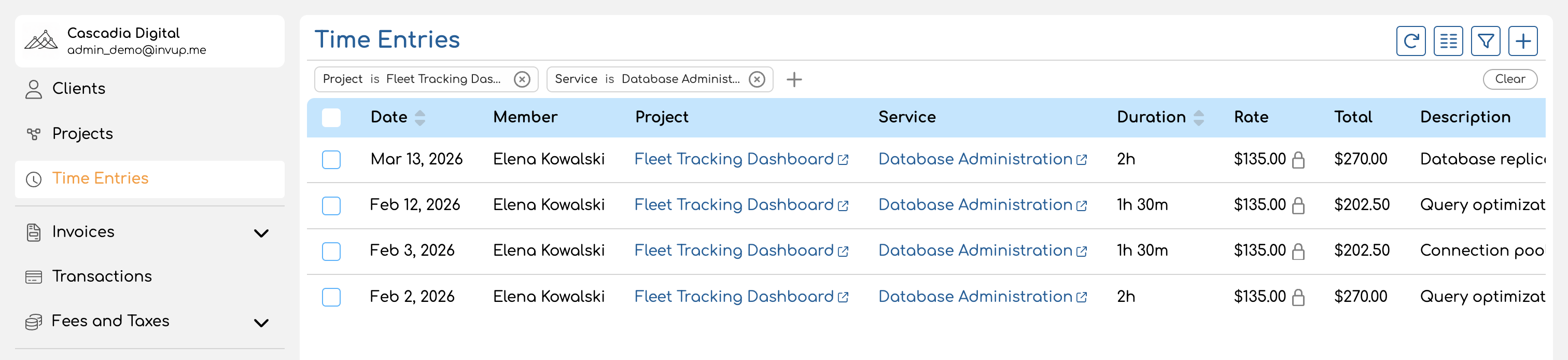
Available filters
| Filter | What it does |
|---|---|
| Project | Show only entries for a specific project |
| Service | Show only entries tagged with a specific service |
| Date | Show entries within a date range — includes presets like "This week", "Last week", "This month", and "Last month", or you can set a custom range with "From" and "To" dates |
| Duration | Filter by logged duration (numeric comparison) |
| Member | Show only entries logged by a specific team member (admin view only — see below) |
Active filters appear as removable pills above the table. Click the x on a pill to remove that filter, or use Clear Filters to reset all filters at once.
Filters and selection work well together — filter the list first to narrow it down, then select and delete the entries that match.
Sorting Time Entries
Click any sortable column header to sort the list. Click again to reverse the sort direction. The default sort is by date, newest first.
Sortable columns
| Column | Sort behavior |
|---|---|
| Date | Chronological order (default: newest first) |
| Duration | Shortest to longest, or longest to shortest |
| Created At | Order by when the entry was originally logged |
Admin Bulk Management
Owners and admins have access to an expanded view that shows time entries across all team members in the organization — not just their own.
What's different for admins
| Capability | Team member | Owner / Admin |
|---|---|---|
| View entries | Own entries only | All entries across the organization |
| Filter by team member | Not available | Available — use the Member filter |
| Bulk delete own entries | Yes | Yes |
| Bulk delete other members' entries | No | Yes |
| Delete locked entries | No | Yes |
The admin view includes a Member column showing who logged each entry. Contributors are identified with a "Contributor" badge next to their name.
Admins can filter the list to a specific team member, select their entries, and bulk-delete them — useful when offboarding someone or correcting entries logged to the wrong project.
Tips for Efficient Time Entry Management
- Filter before selecting. Narrow the list to the relevant project, date range, or team member first, then select and delete. This avoids accidentally removing entries you wanted to keep.
- Use date range filters for period cleanup. When clearing entries from a specific billing period, set the date filter to that range so only those entries appear.
- Check for locked entries first. If some entries aren't selectable, they may be within a project's lock date. Ask an admin to handle those, or adjust the project lock date if appropriate.
- Admins: use the member filter. When managing entries for a specific team member (e.g., during offboarding), filter by their name first to isolate their entries from the rest of the organization.
Time Entry Fields Reference
Every time entry in Invup is a record of work performed by a team member on a specific date, tracked against a project. This page documents each field on a time entry — what it means, whether you set it or the system manages it, and any constraints to be aware of.
Field Reference
The table below lists every field on a time entry. Fields are grouped into three categories:
- User-editable — you provide these when creating or editing an entry
- Conditional — you may need to provide these depending on the project configuration
- System-managed — set automatically by Invup; you cannot edit these directly
| Field | Category | Required | Description |
|---|---|---|---|
| Project | User-editable | Yes | The project this time entry is tracked against. Every entry must belong to a project. |
| Date | User-editable | Yes | The calendar date when the work was performed. |
| Duration | User-editable | Yes | How long the work took. Entered as hours and minutes in the form (e.g., 2 hours 30 minutes). Must be at least 1 minute. |
| Description | User-editable | No | Optional notes about the work performed. Maximum 1,000 characters. |
| Service | Conditional | Depends | The type of work performed (e.g., "Design", "Development"). Required when the project uses services; hidden when it does not. |
| Team member | Conditional | Depends | The team member who performed the work. When you log your own time, this is set automatically. Owners and admins can create entries on behalf of other team members by selecting them in the form. |
| Rate | System-managed | — | The hourly rate for this entry, resolved automatically from the rate chain. You cannot set this directly — it is calculated based on the project, service, and team member combination. |
| Rate locked | System-managed | — | Whether the rate on this entry has been frozen. When locked, the rate no longer changes even if the underlying rate configuration is updated. See Rate Locking for details. |
| Rate source | System-managed | — | The level of the rate chain that provided the current rate (e.g., the project-level rate, the team member's base rate, or a project-service-member rate). Useful for understanding why a particular rate was applied. |
User-Editable Fields in Detail
Project
Every time entry must be associated with a project. When creating an entry, you select a project from a dropdown that lists all projects you are assigned to.
Changing the project on an existing entry may affect the resolved rate, since the rate chain depends on the project. If your organization uses the "At Creation" rate lock policy, the locked rate will be re-stamped when the project changes.
Date
The date the work was performed. This is a calendar date with no time-of-day component.
The date also determines whether an entry is locked by a project's lock date. If the entry's date falls on or before the project's lock date, the entry is fully locked for non-admin users.
Duration
Time spent on the work. In the form, duration is split into two inputs:
- Hours — 0 to 23
- Minutes — 0 to 59
The total duration must be at least 1 minute. Internally, duration is stored as total minutes (e.g., 2 hours 30 minutes = 150 minutes).
Description
Free-text notes about the work. This field is optional and supports up to 1,000 characters. If left blank, the entry displays "No description" in the time entries list.
Service
Available only on projects that use services. When the project has services enabled, this field is required — you must select which service the work falls under (e.g., "Design", "Development", "Consulting").
The selected service affects rate resolution. Each service can have its own hourly rate at multiple levels, and the rate chain takes the service into account when calculating the entry's rate.
If the project does not use services, this field is hidden entirely.
Team Member (admin only)
When owners or admins create a time entry, an additional Member field appears at the top of the form, allowing them to log time on behalf of any team member in the organization.
Regular team members do not see this field — their entries are automatically attributed to themselves.
System-Managed Fields in Detail
Rate
The hourly rate applied to this entry. Invup resolves the rate automatically by walking a prioritized chain of rate sources — from the most specific (e.g., a rate set for this team member on this service within this project) to the most general (e.g., the team member's base rate).
The exact chain depends on whether the project uses services. See Rate Locking for the full rate chain priority order.
You cannot manually set the rate on a time entry. To change it, update the rate at the appropriate level (project, service, team member, or a combination).
Rate Locked
A yes/no indicator showing whether the rate has been frozen. A locked rate will not change even if you update rates elsewhere.
When and whether rates get locked depends on your organization's rate lock policy:
| Policy | When the rate locks |
|---|---|
| At Invoice | When the entry is included in an invoice |
| At Creation | Immediately when the entry is created |
| No Locking | Never — the rate is always calculated dynamically |
Rate Source
Shows which level of the rate chain provided the entry's rate. This is helpful for auditing — if an entry's rate looks unexpected, the source tells you where to look.
Common sources include:
- Project-service-member rate — a rate set for this specific team member on this service within this project
- Member-service rate — a rate set for this team member on this service across the organization
- Project-service rate — the default rate for this service within this project
- Service rate — the service's base rate
- Project-member rate — a rate set for this team member on this project (non-service projects)
- Project rate — the project's default rate
- Member rate — the team member's base rate
Uniqueness Constraint
Each time entry must be unique across the combination of team member + project + date + service. You cannot log two separate entries for the same team member on the same project, date, and service. If you need to record additional time, edit the existing entry's duration instead.
For projects without services, the constraint is team member + project + date — one entry per team member per project per day.
Summary
| Category | Fields |
|---|---|
| User-editable | Project, Date, Duration, Description |
| Conditional | Service (if project uses services), Team Member (admin only) |
| System-managed | Rate, Rate Locked, Rate Source |