Connecting Slack needs Manage integrations. Changing the prompt settings also needs Edit organization. Owners and admins have both. On Pro, a custom role can be given them in Roles and permissions.
Connect or reconnect Slack
1
Open the Slack page
Go to Settings, then Integrations, then Slack. If Slack is not connected yet, select Connect to Slack.
2
Notice the reconnect banner
When Invup needs a permission it does not have yet, the Slack page shows a banner: Invup needs a quick reconnect to add new Slack features. A line under it lists the missing permissions by their Slack names, and the button reads Reconnect Slack.The banner appears whenever Slack is missing a permission Invup needs. When Chat is available, that includes the Chat permissions, so the banner is also how Chat logging reaches an existing connection. If you do not see it, there is nothing to reconnect.
3
Approve the permissions in Slack
Invup hands you to Slack, which lists the permissions before you approve. Approve to return to Invup.Reconnecting keeps your existing workspace link and settings. It refreshes the permissions, the workspace name and the connection date, and you become the person shown as having connected Slack.Reconnecting also re-matches people by email. Anyone whose Invup email no longer matches their Slack account is unlinked and stops being prompted.
4
Check the connection
Back on the Slack page, the connection shows as Connected with the workspace name, who connected it, and when. The banner is gone.
The permissions Chat logging adds
Chat logging asks for two permissions on top of the ones Slack already uses.
Chat still works without the reaction permission. People just do not see the reactions, and the banner stays until you reconnect.
Set the organization prompt settings
1
Turn prompts on and set the default time
In the Daily Prompt Settings card, use Enable daily time tracking prompts and Prompt time, then save. You will see Daily prompt settings saved.Prompts are on by default, with a default time of 4:45 PM.
2
Check working days and timezone
The working days shown on the Slack page are read only. Change them, and the organization timezone, in the schedule settings described in Organization profile.Prompts go out only on working days, and Monday to Friday is the default.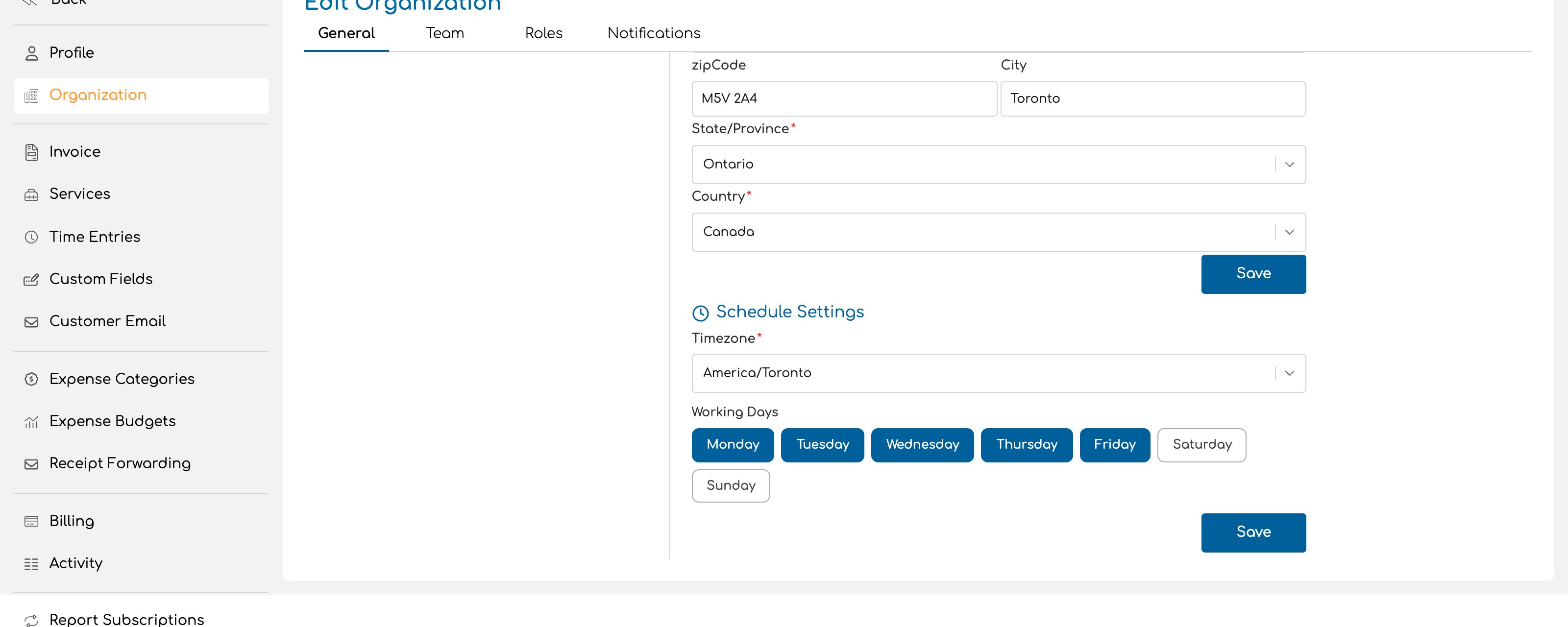
How the organization settings and each member’s choice work together
- The switch is the master switch for prompts. Turn it off and Invup stops sending daily prompts and the one-time onboarding message. It does not stop a member in Chat mode from messaging Invup their hours.
- Members choose their own mode and time. Each person picks Chat, Form or Off, and their own time, with
/invup preferences. A time a member changes to a different value wins over your default time. A member who saves without changing the time keeps following your default, so a later change to the default reaches them. - The timezone comes from each member’s Slack profile. Your organization timezone is only the fallback.
- Working days gate the prompt. A prompt is sent only on a working day in the member’s own timezone.
Who gets prompted
A person is prompted when they are linked to Slack, active, assigned to at least one project that is active that day, and not set to Off. Invup links people by matching their Invup email to their Slack account. Someone who is not linked, or whose membership is not active, gets no reply when they message Invup. Someone who is not linked and sends/invup is told their account isn’t linked. See Invite your team.
Is Chat available to us?
Chat is switched on for every organization at once. Until it is, the Chat option does not appear in/invup preferences.
When a member does not see Chat, their /invup preferences dialog says why:
- Chat is not available yet. Chat has not been switched on yet. There is nothing to change on your side.
- Chat needs a quick Slack reconnect by your admin. Chat is available, but Slack has not been reconnected with the new permissions. Reconnect Slack to clear it.
Reminder emails
Once Chat is switched on, if Slack is still missing the Chat permissions, Invup emails a reminder. It goes to your owners and admins by default. To send it elsewhere, set the addresses for Slack reconnect needed in the notification routing of your organization settings. The email is titled Reconnect Slack to turn on chat time logging. It names your organization and the Slack workspace, lists what Slack will ask you to allow, and has one button, Reconnect Slack, which opens the Slack page in Invup. You may be asked to sign in first. Reminders are sent weekly, up to four times, and stop once someone reconnects.Things worth knowing
- People in two organizations choose separately in each workspace. The mode, time and onboarding answer belong to one organization and its Slack workspace. Running
/invup preferencesin one workspace changes nothing in the other. - A first prompt can land in the organization’s timezone. Until Invup has a person’s Slack timezone, their first prompt is scheduled in the organization timezone. Invup picks the timezone up within a day, or straight away when they open
/invup preferences. - The zone beside Prompt time is the organization’s. The Slack page shows your organization timezone next to Prompt time. It is used only for members with no Slack timezone yet.
- The onboarding message is not tied to working days. Members who have not answered it receive it once Chat is available.
- Plan limits still apply. Recording through Slack counts toward your time entry limit. The Free plan has a cap, and when an organization reaches it nothing more is recorded until your next billing period or a plan change. A batch that would cross the limit records nothing. See Choose your plan.
Next
Log your time in Slack
What your team sees and how they log hours.
Roles and permissions
Who can manage integrations and change settings.
Organization profile
Timezone and working days.
Invite your team
Bring in the people who will be prompted.