Organization settings are restricted. Owners and admins can change them. Members see a read only view and need an administrator to make changes.
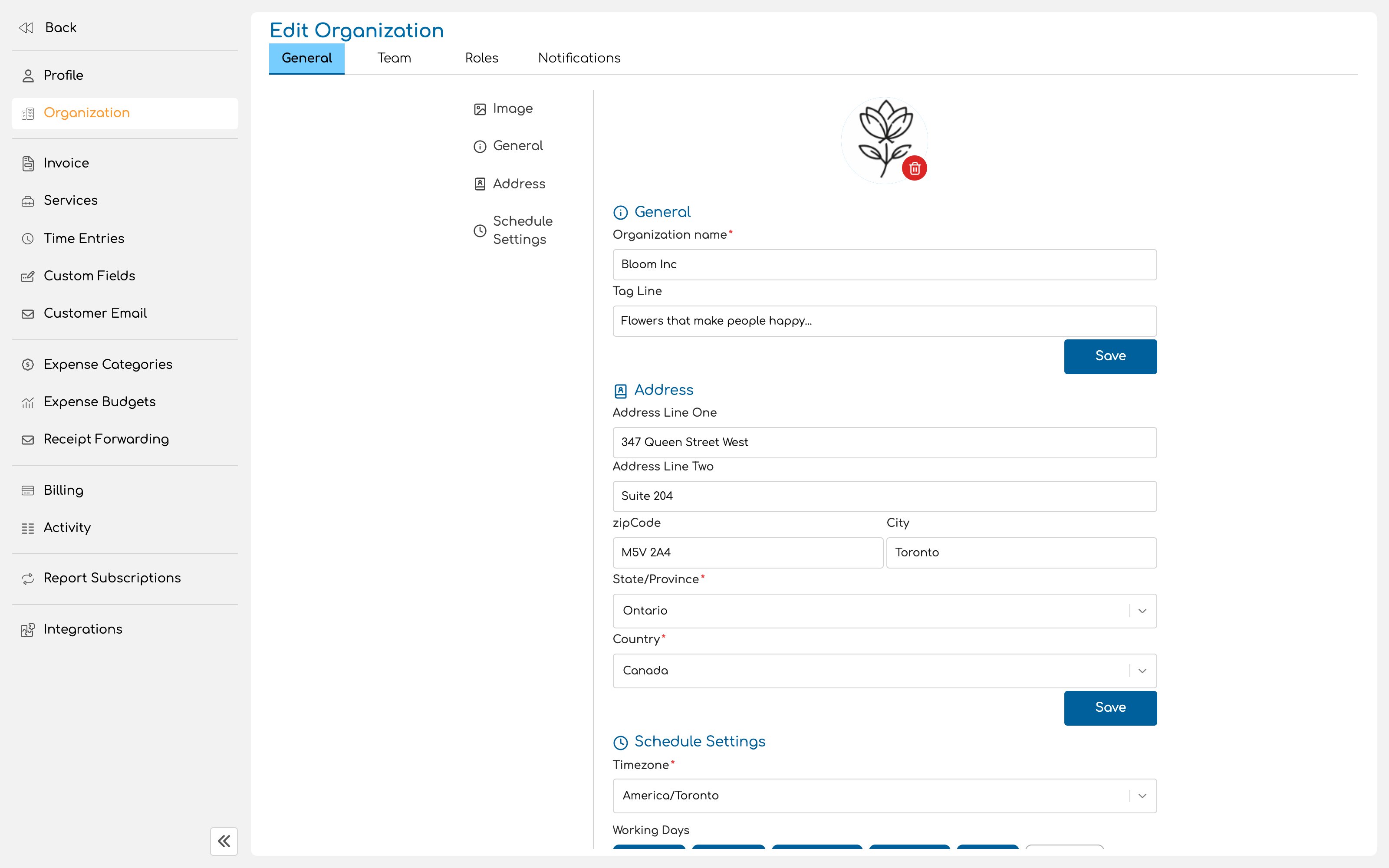
Details
Name is your business as your clients know it. It appears on invoices, in emails, and on the portal where clients pay. Tagline is a short line describing what you do. It is optional. Logo appears in the product. There is a separate logo for invoices, covered in Invoice settings, so that you can use a version sized for a document if you need to. Address, email and phone are your business contact details. These reach your clients, so use the details you would want a client to act on.Timezone
Every date and time displayed anywhere in Invup uses your organization’s timezone, regardless of where the person looking at it happens to be. A colleague in Toronto opening an entry logged at 9am by someone in Vancouver sees 9am, as long as the organization runs on Pacific time. There is one clock, and it belongs to the business rather than to the browser.Working days
Working days record which days of the week your business operates. At least one day must be selected. The setting drives the daily time tracking prompts sent through the Slack integration, so a team that works Tuesday to Saturday is not nudged on a Monday and left alone on a Saturday.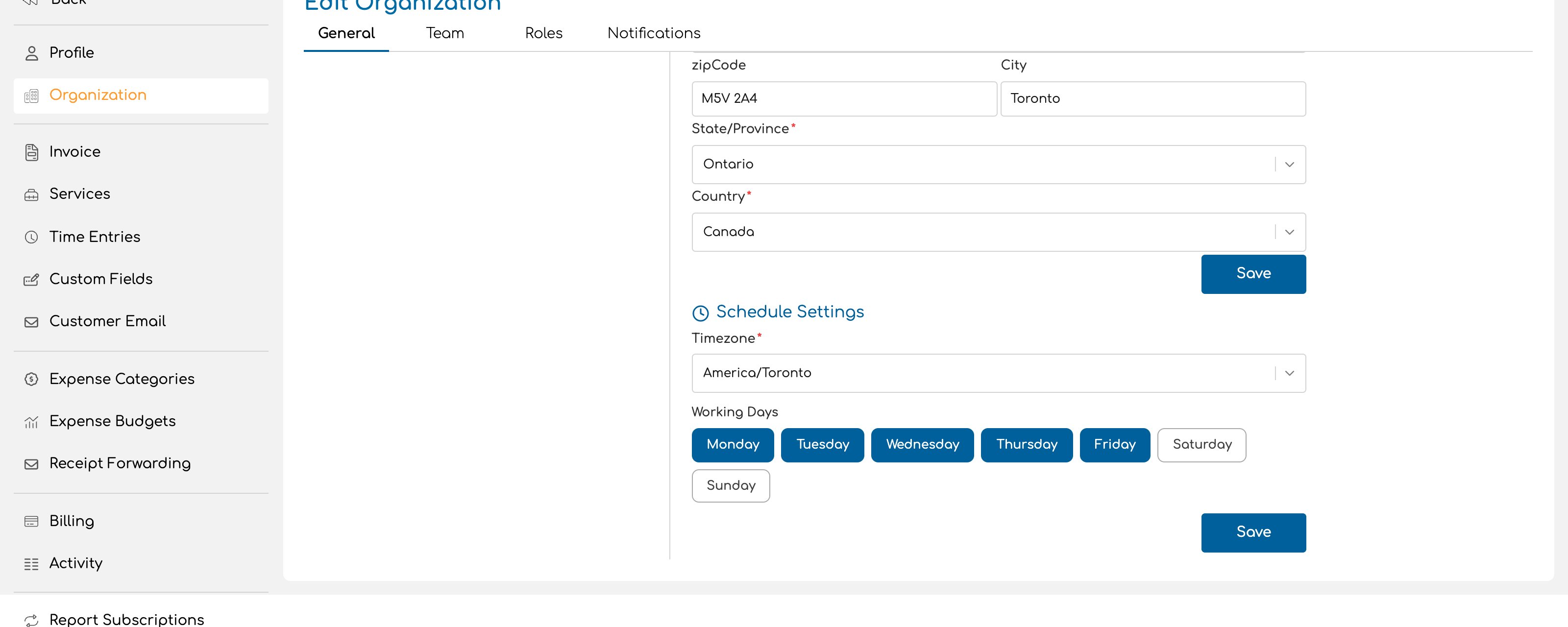
Compliance address
Separate from your contact address, the compliance address records the registered legal entity behind the business: company name, street, city, region, postal code and country. This is the address used where a legal entity has to be identified rather than a mailing address. It sits behind an additional permission, so not everyone who can edit the organization can edit it.Notification routing
Notification routing decides who inside your business hears about what. Rules are grouped around invoices, payments and forms. Leave a rule blank and it falls back to the default, which is the organization owner and all admins. Set explicit recipients on a rule and only those addresses are notified. This is worth revisiting once your team grows past a handful of people, when “everyone who is an admin” stops being the right answer for every category of event.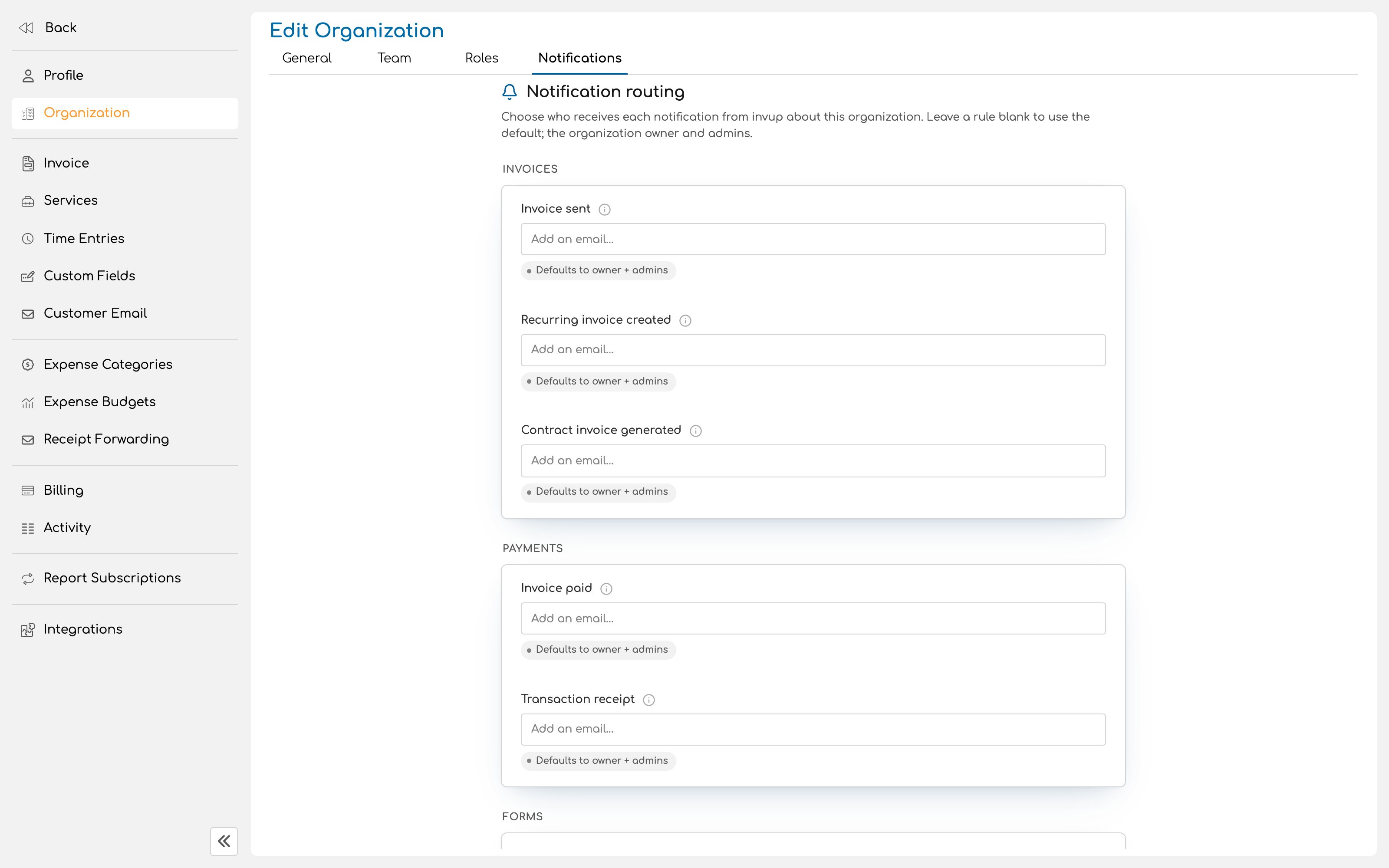
Working across several organizations
One account can belong to several organizations, each with its own clients, projects, team and settings. Nothing is shared between them, and you switch between them inside the product.Next
Choose your plan
Understand the limits you are working inside before you invite anyone.
Invite your team
Bring in the people who will be logging the work.