Changing this setting needs Manage integrations. Owners and admins have it. On Pro, a custom role can be given it in Roles and permissions.
What you are deciding
You are deciding one thing: whether an AI app may reach your organization at all. You are not deciding what any particular app may see. Each connection carries its own member’s role, so a member’s AI app can only reach what that member could reach by signing in. There is nothing to configure per person and no allowlist of apps to maintain.Turn connections on or off
1
Open the AI connections page
In your organization settings, open AI connections under Connected apps.The page shows whether connections are Enabled or Turned off, and how many connections your members currently hold.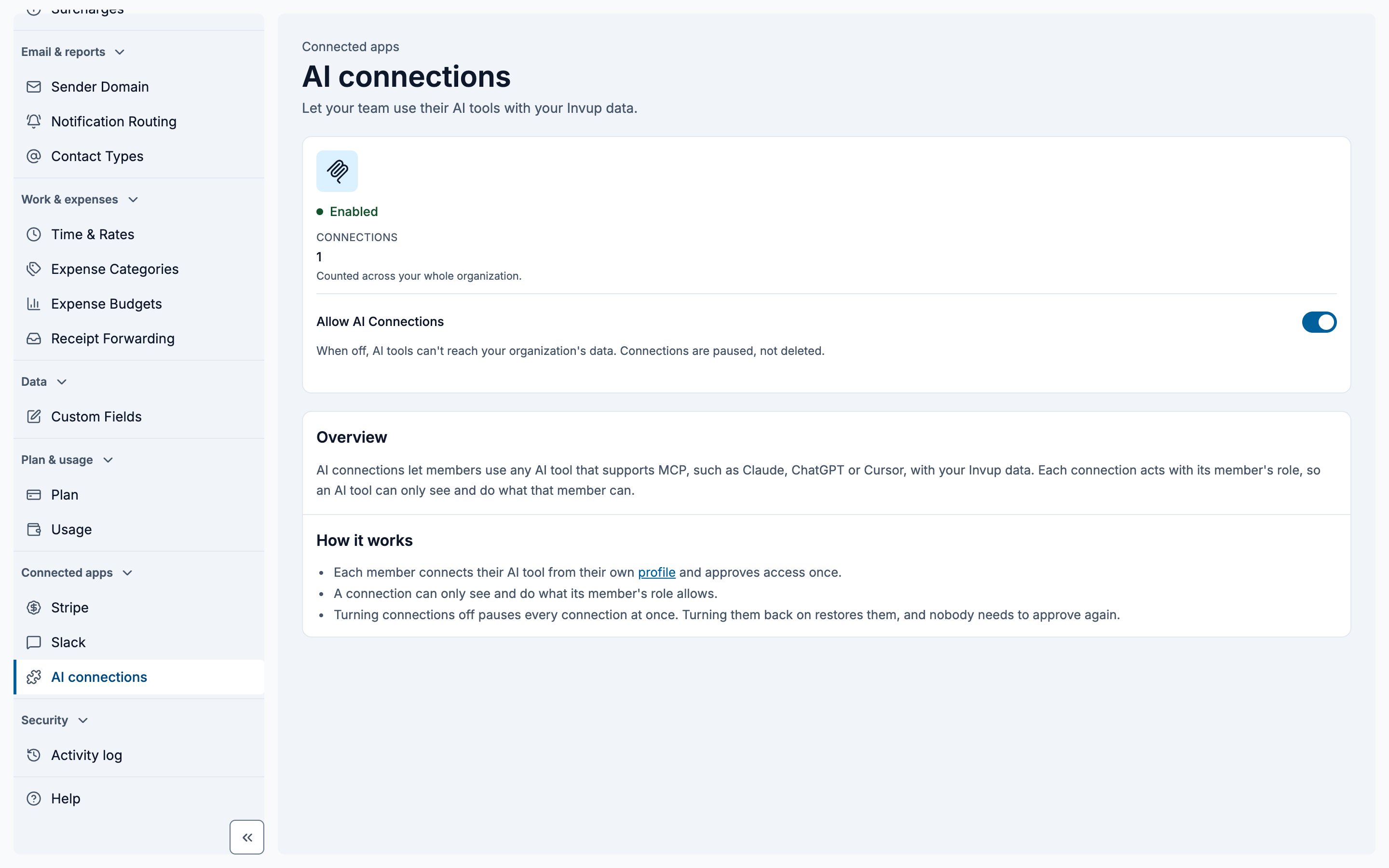
2
Use the Allow AI Connections switch
Allow AI Connections is the master switch. It is on by default for organizations on Pro.When you turn it off, Invup asks you to confirm and tells you how many connections will stop working. Nothing is deleted.You will see AI connections turned off successfully or AI connections turned on successfully. Existing connections work again.
What “paused, not deleted” means
Turning connections off pauses them. It does not revoke them.- Members see their connections listed as Disabled by organization rather than losing them.
- Turning the switch back on restores every connection at once. Nobody has to approve anything again.
- The exception is time: a connection that goes unused for more than 30 days stops working for good, and its member has to connect it again. A long pause will quietly cross that line.
If your plan does not include it
On Free, the AI connections page shows an upgrade card instead of the switch: Connect your AI tools to Invup. If an organization moves off Pro while connections exist, the connections are paused the same way, and members are told the organization is no longer on the Pro plan. Moving back to Pro restores them, subject to the same 30 day rule.Watching what connections do
Every call an AI app makes is recorded in your organization’s activity log, under Security, then Activity log, in the MCP family. An entry reads like Quinn Harper used Claude in Cascadia Digital to log a time entry, and refused calls are recorded too, with the reason. Approving, disconnecting and expiry are recorded as well, so you can see who connected what and when it ended.Things worth knowing
- The switch is organization-wide, not per member. There is no way to allow one person and block another. Use roles for that: a connection can never exceed its member’s role.
- A member needs dashboard access. Someone whose role does not grant access to the member dashboard cannot connect an app, and an existing connection stops working if their access is removed.
- Deactivating a member stops their connections working. So does removing them from the organization.
- Invup can pause connections globally. If that happens, the page says AI connections are temporarily unavailable. Your setting and your members’ connections are kept, and they work again once the service is back.
Next
Connect your AI app
What your team does once you have turned this on.
What your AI app can do
The full list of what a connection can read and change.
Roles and permissions
The real control surface for what a connection can reach.
Choose your plan
AI connections are part of the Pro plan.