Your organization must be on the Pro plan with AI connections allowed. If it is not, your AI connections page says so and tells you who to ask. See Set up AI connections.
Where your connections live
Open your personal settings and go to AI connections, under In your organizations. This page is yours, not your organization’s: it lists the apps you personally have approved, grouped by organization.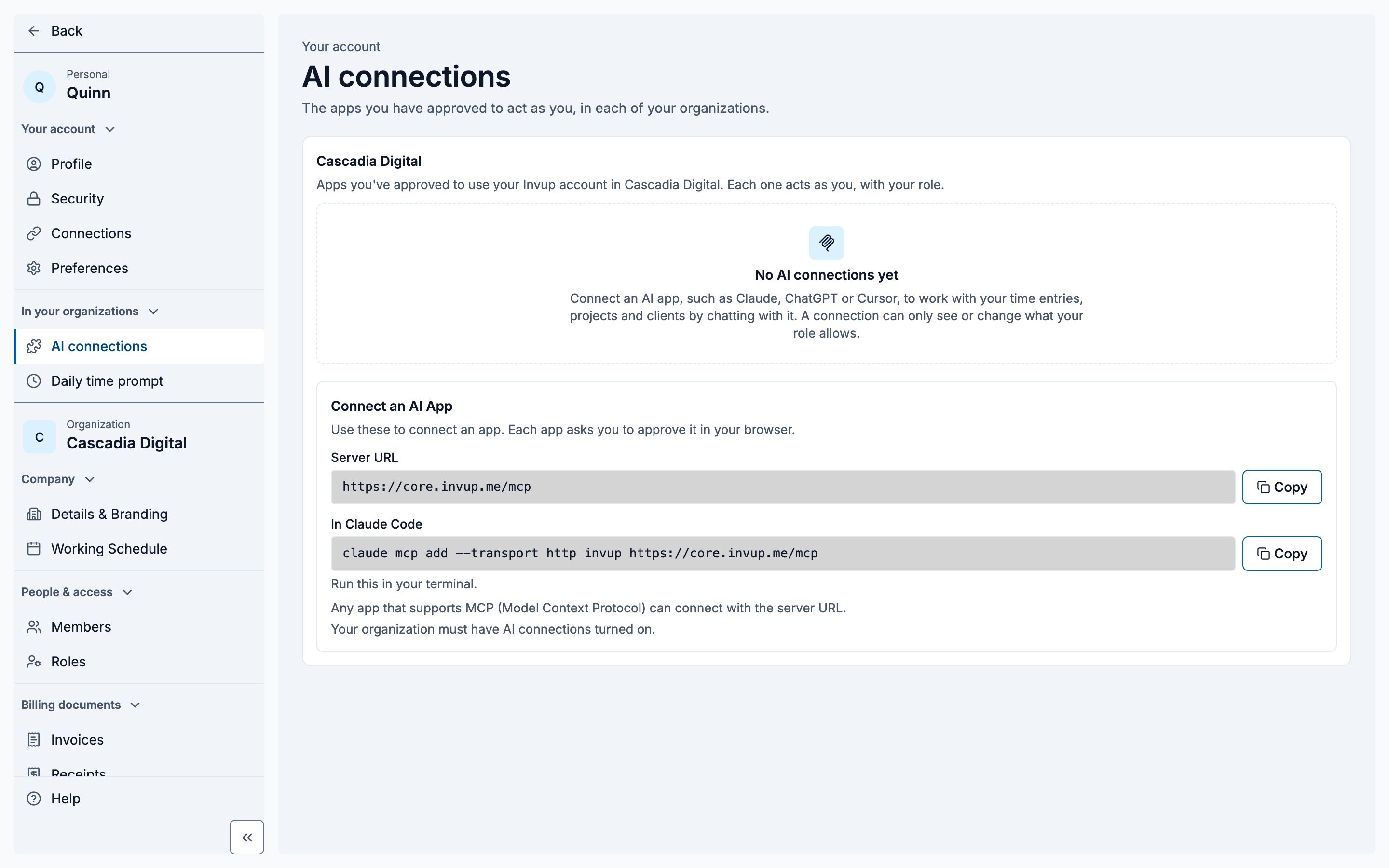
Connect an app
1
Copy what your app needs
In the Connect an AI App card, copy the Server URL:If you use Claude Code, copy the command instead and run it in your terminal:Use the Copy buttons on the page rather than retyping either value.
2
Add the server in your app
Every MCP app has somewhere to add a connector or an MCP server, and asks for a URL. Paste the server URL there.There is no API key to create and no password to give the app. Invup never asks you to paste a credential into an AI app.
3
Approve the connection in your browser
Your app sends you to Invup, which asks you to sign in if you are not already, and then shows Approve a Connection.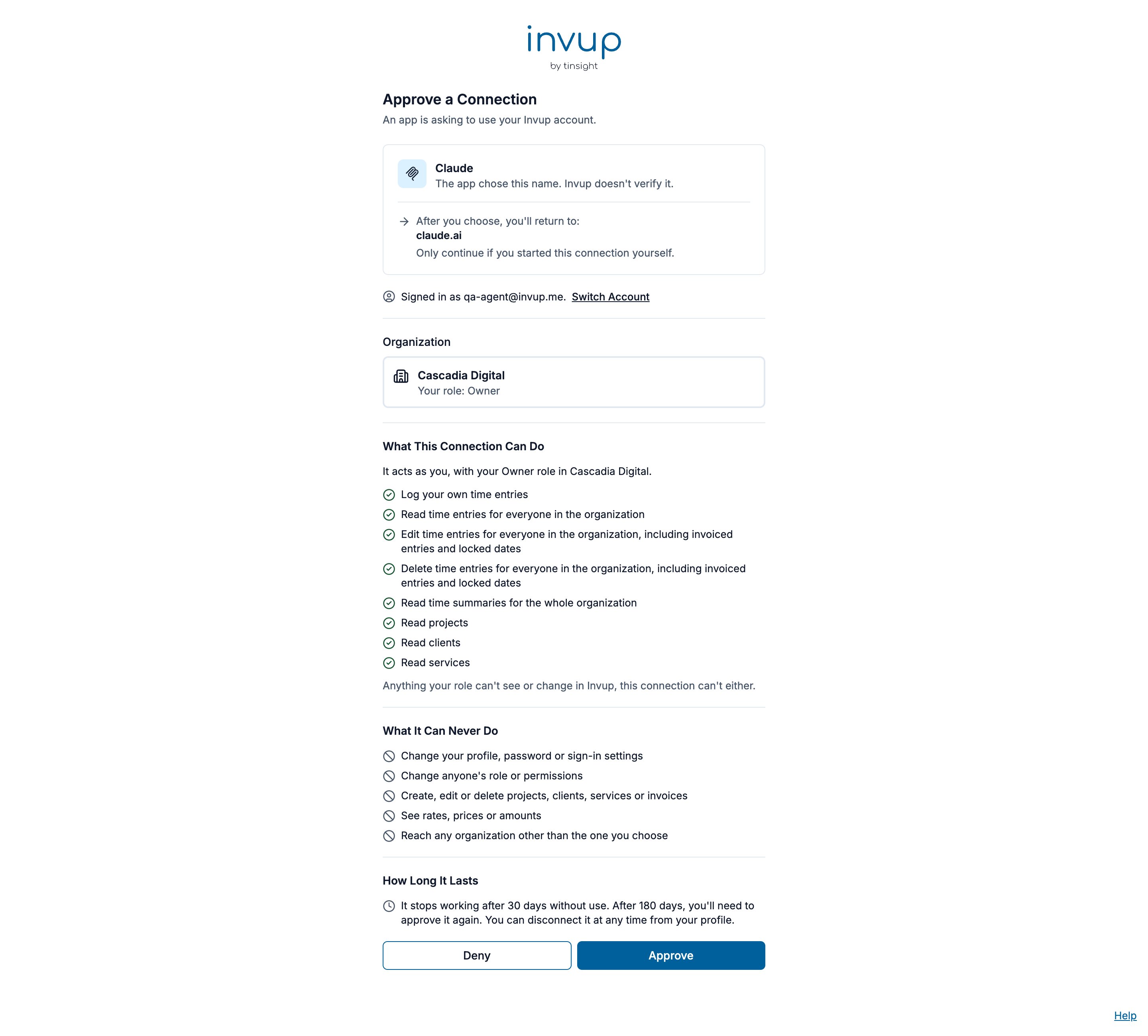
- The app’s name is chosen by the app. Invup does not verify it. Only continue if you started this connection yourself.
- Choose the organization. The connection works in that one organization only. An organization that cannot be connected is listed with the reason.
- Check what it can do. The list is built from your role in the organization you picked, so it is exactly what this connection will be able to do.
4
Go back to your app
Invup confirms the approval and offers a button back to the app you came from. Follow it to finish connecting, or Dismiss if you would rather return to the app yourself.
Manage your connections
Back on your AI connections page, each connection shows the app’s name, when you approved it, when it was last used, and its status.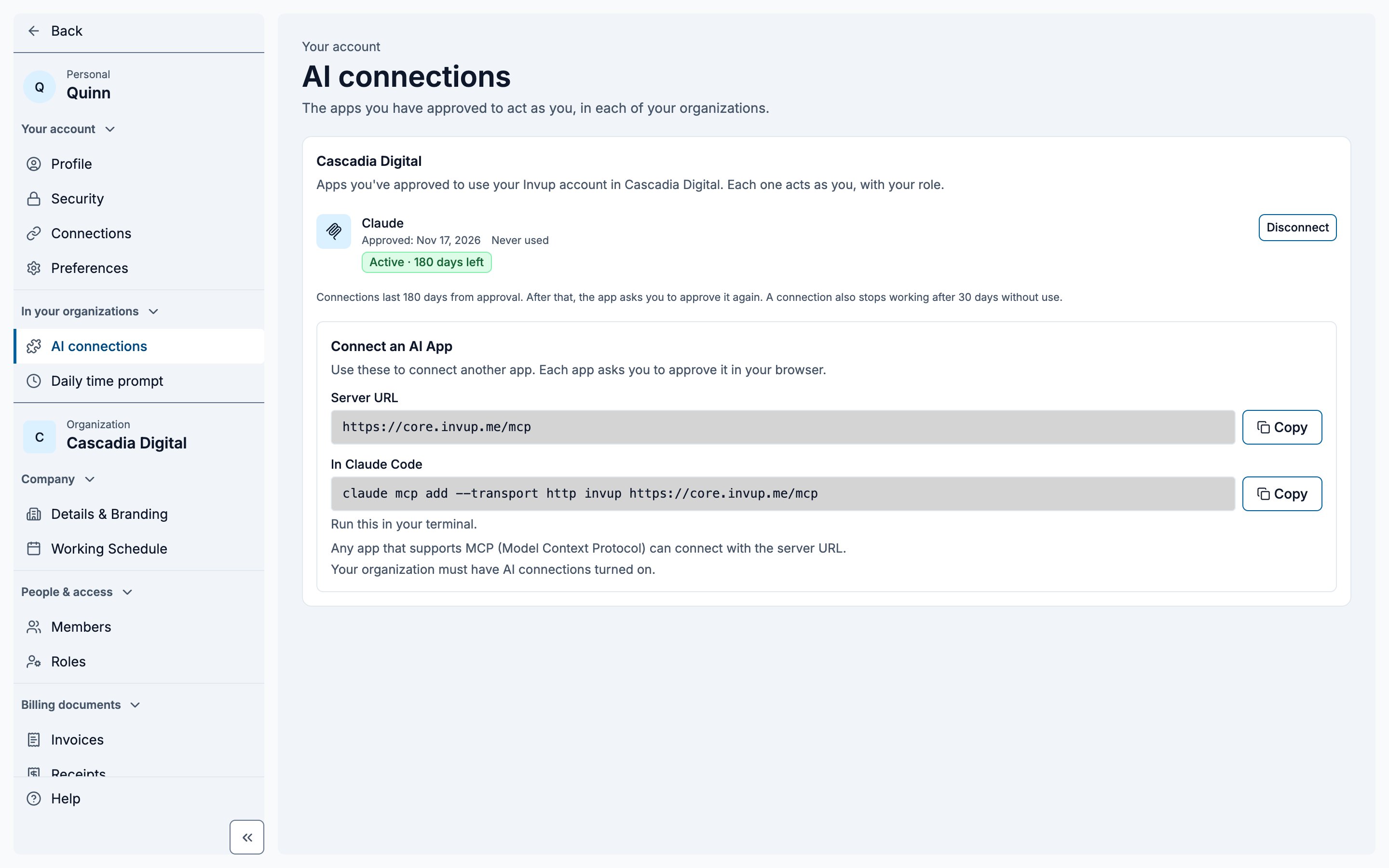
Select Disconnect to end a connection. Invup asks you to confirm, and the connection stops working right away. The app will ask you to connect again the next time you use it.
How long a connection lasts
Two clocks run at once, and whichever runs out first ends the connection:- 180 days from approval. After that you approve it again, which is the same screen as the first time.
- 30 days without use. A connection nobody has used in 30 days stops working and has to be connected again.
Things worth knowing
- A connection belongs to one organization. If you are in more than one, approve the app once per organization. Approving the same app for a different organization moves it there and ends the one it had.
- It acts as you. Anything you cannot see or change in Invup, your AI app cannot see or change either. If your role changes, the connection changes with it.
- Disconnecting is not the same as the organization pausing. Your own Disconnect is permanent and needs a fresh approval. An organization pause keeps the connection and restores it when the switch goes back on.
- Your organization can see what the app did. Every call is recorded in the organization’s activity log with your name, the app’s name and what it did.
- Signing out of Invup does not disconnect anything. Connections are separate from your browser session.
Next
What your AI app can do
Everything a connection can read and change, in detail.
Set up AI connections
For owners and admins: the organization switch.
Roles and permissions
What your role lets a connection reach.
Log your time in Slack
The other way to log time without opening Invup.